


X
If you haven't registered for a Nicenic account yet and are curious about how our User Control Panel works, this article will provide you with a comprehensive guide. Nicenic's Control Panel is a powerful tool designed for seamless domain management, product handling, and account settings. Whether you're managing a small domain portfolio or handling bulk domain registrations, this control panel equips you with all the essential features to streamline your operations efficiently.
Dashboard Overview
The Dashboard is your central hub, providing an at-a-glance overview of your account. Key elements include:
1. Account Balance:
Quickly view your current balance and transaction history.
Quickly view your current balance and transaction history.
2. My Domains:
View, manage, and renew your registered domains.
View, manage, and renew your registered domains.
3. My Products:
Access and manage your products, including domain names, servers, and business email services and SSL certificates.
Access and manage your products, including domain names, servers, and business email services and SSL certificates.
4. My Server & My Business Email:
Direct links for server and email management.
Direct links for server and email management.
5. Domain Registration:
Register new domain names with ease, making it simple to expand your portfolio.
Register new domain names with ease, making it simple to expand your portfolio.
6. Bulk Register:
Register multiple domains at once to save time and manage larger portfolios more efficiently.
Register multiple domains at once to save time and manage larger portfolios more efficiently.
7. Bulk Transfer:
Transfer multiple domains in bulk from other registrars to Nicenic, streamlining the management process.
Transfer multiple domains in bulk from other registrars to Nicenic, streamlining the management process.
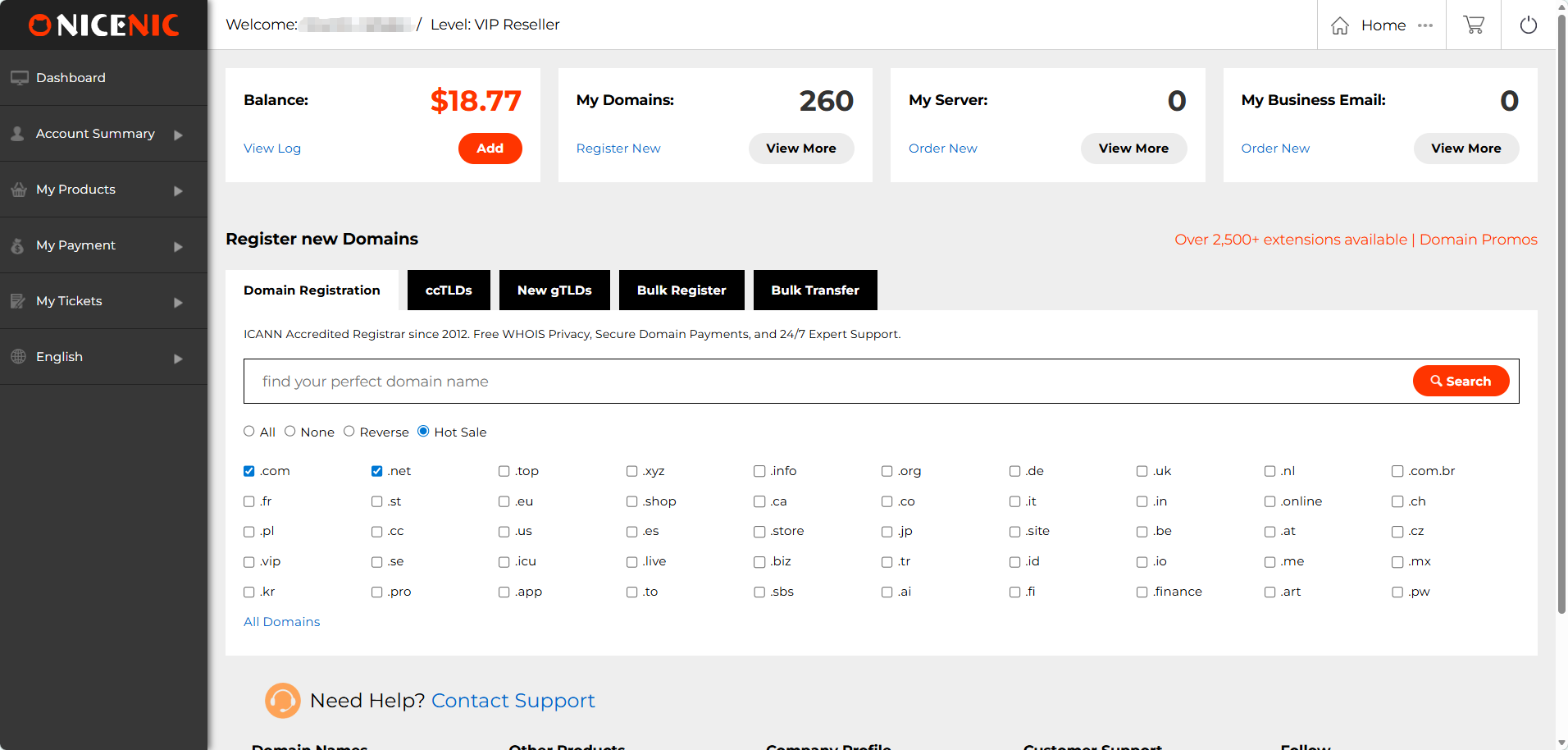
This section offers an easy-to-navigate interface, making it simpler from a single place to keep track of your entire portfolio, register new domains, and manage existing ones.
Account Summary
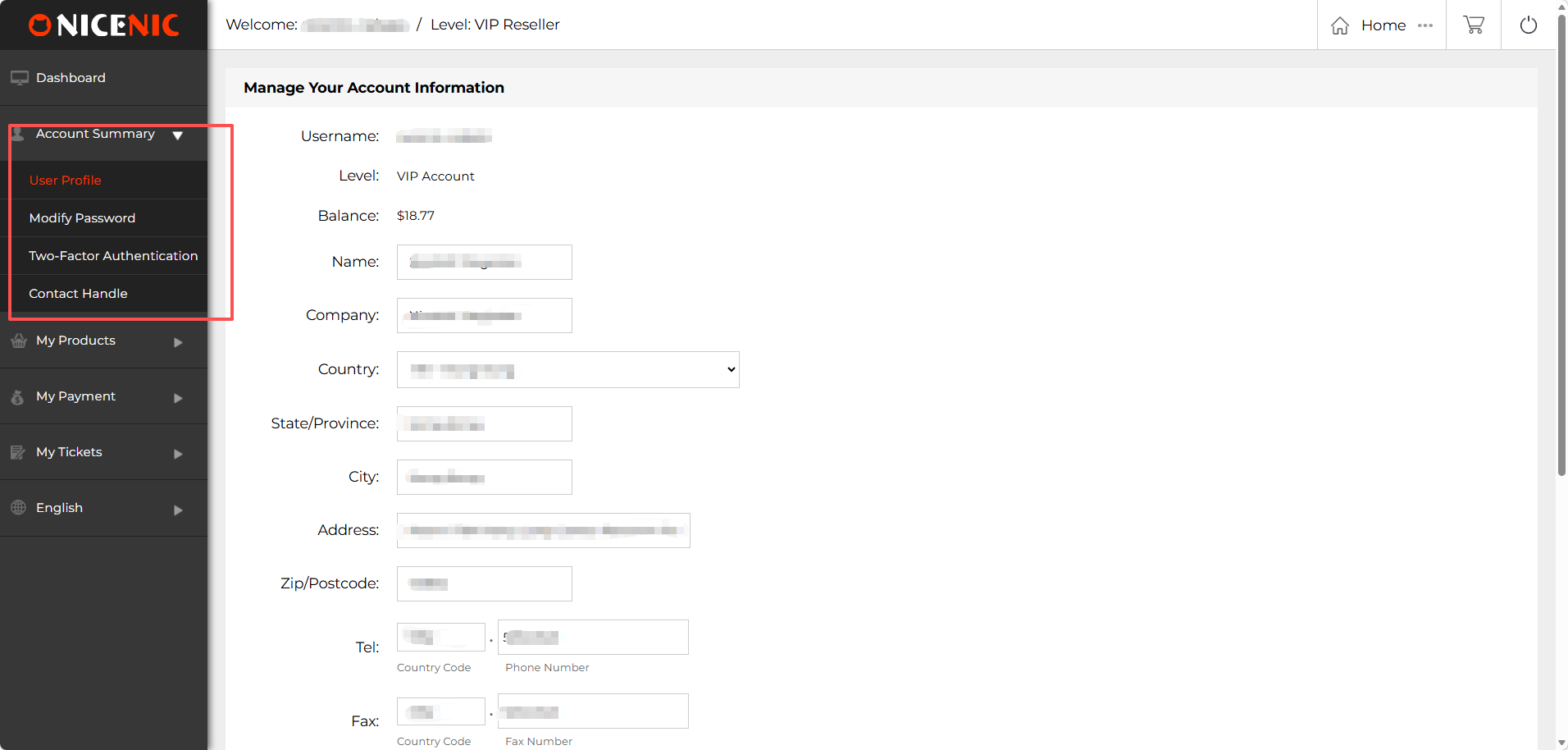
The Account Summary section in Nicenic's Control Panel allows you to manage and update your personal and account information.
1. User Profile:
This is where you can update your personal details such as your name, company information, country, state/province, city, address, zip/postcode, and contact numbers. Keeping your profile updated ensures you receive important account notifications and communications.
2. Modify Password:
Change your password easily to keep your account secure. Make sure to use a strong password and update it regularly for added protection.
Enable Two-Factor Authentication to add an extra layer of security to your Nicenic account. This feature ensures that only you can access your account, even if your password is compromised.
4. Contact Handle:
Update or create your Contact Handle, which is used for domain-related communications. Having accurate contact information is crucial for receiving WHOIS updates and managing domain transfers or disputes.
My Products
My Products:
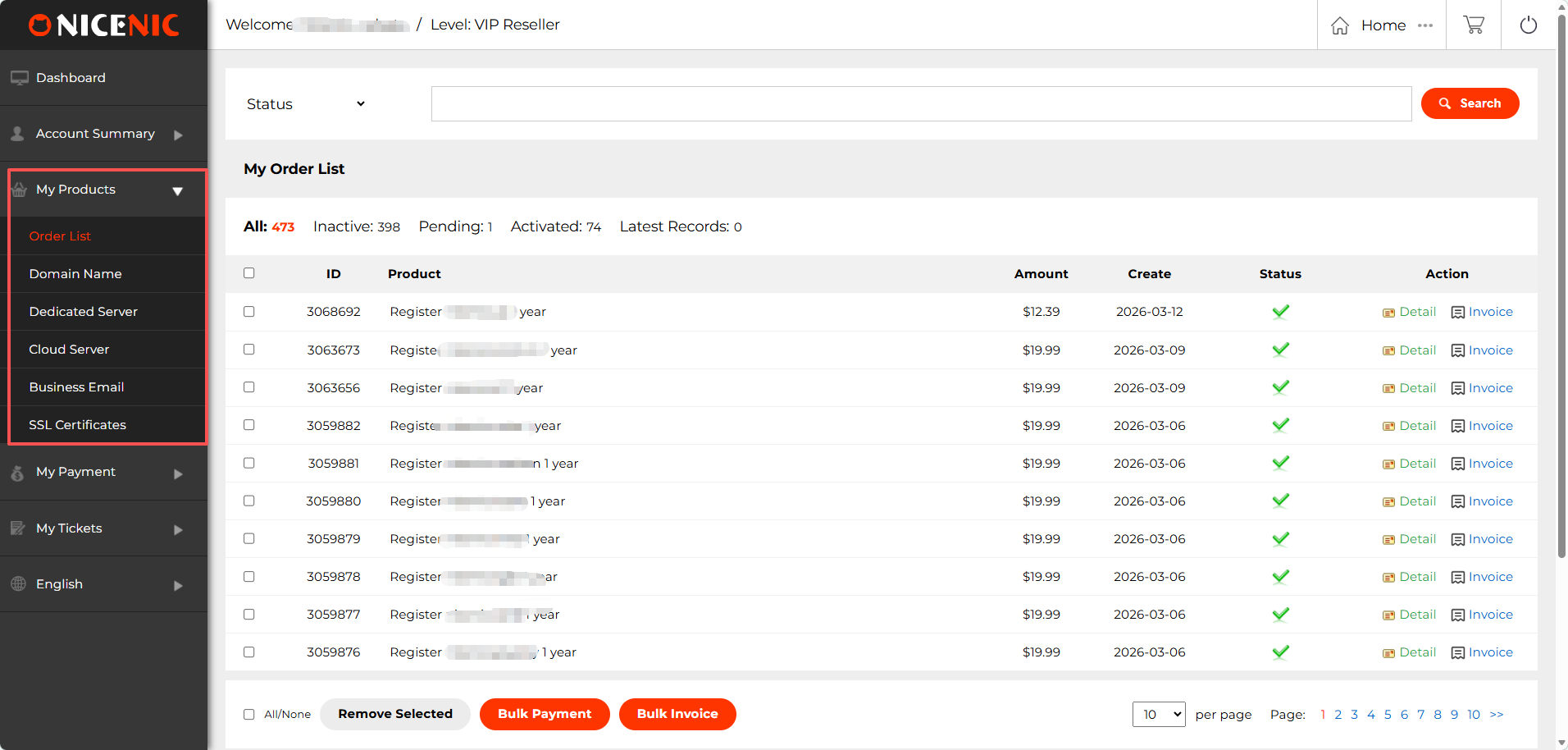
In the My Products section of Nicenic's User Control Panel, you'll find a variety of features designed to simplify the management of your domains, servers, and other products. Below are the key components of this section:
1. Order List
The Order List provides a detailed overview of all your domain and product orders. Here, you can:
View and manage your orders: Each order displays essential information, such as the product, amount, creation date, and order status.
Bulk Payment: Use Bulk Payment to pay for multiple orders at once, saving time and streamlining your payment process.
Bulk Invoice: Generate and download invoices for multiple orders simultaneously with Bulk Invoice, making it easier to keep track of your financial records.
These features are particularly useful for resellers and businesses managing multiple domains and services.
2. Domain Name Management
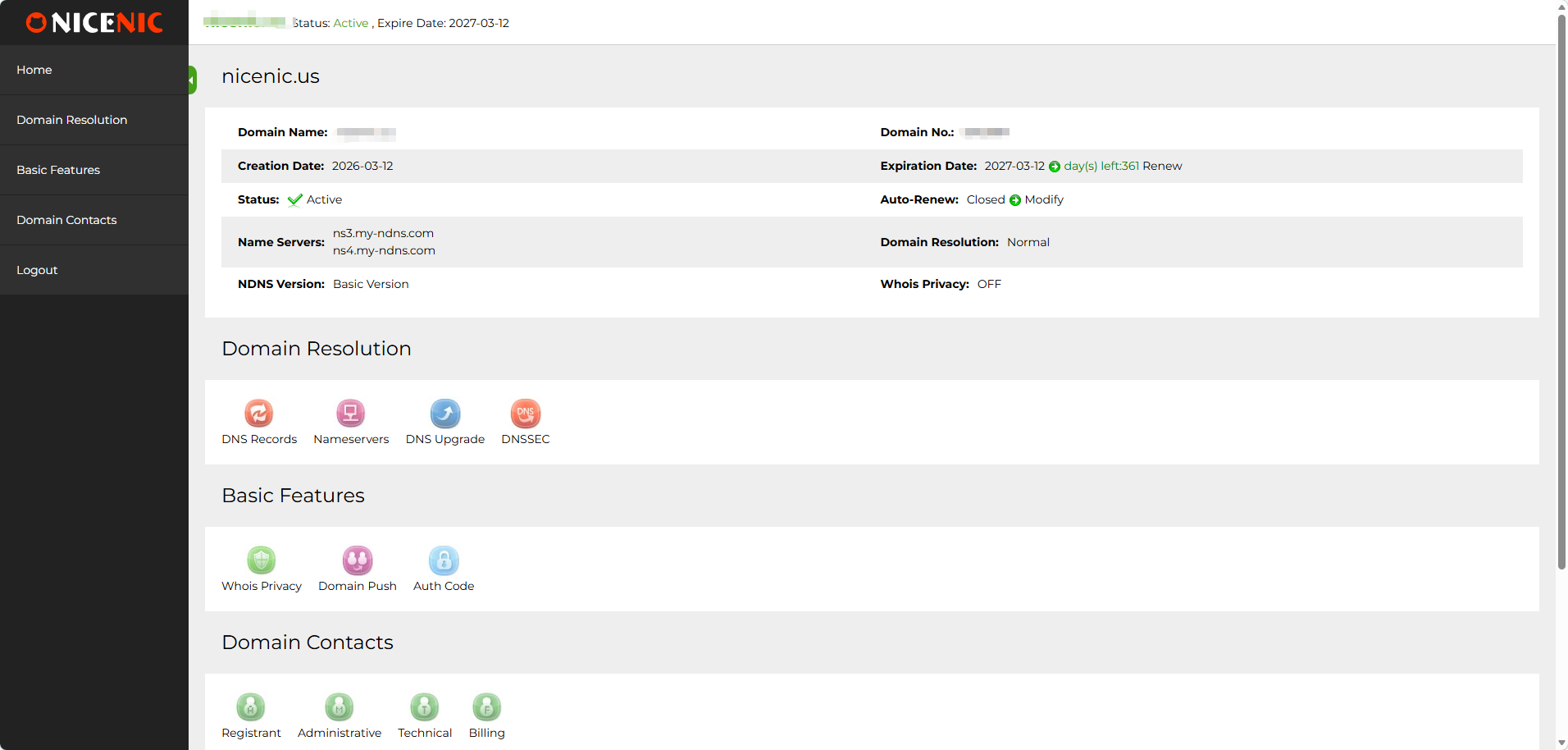
The Domain Name section allows you to:
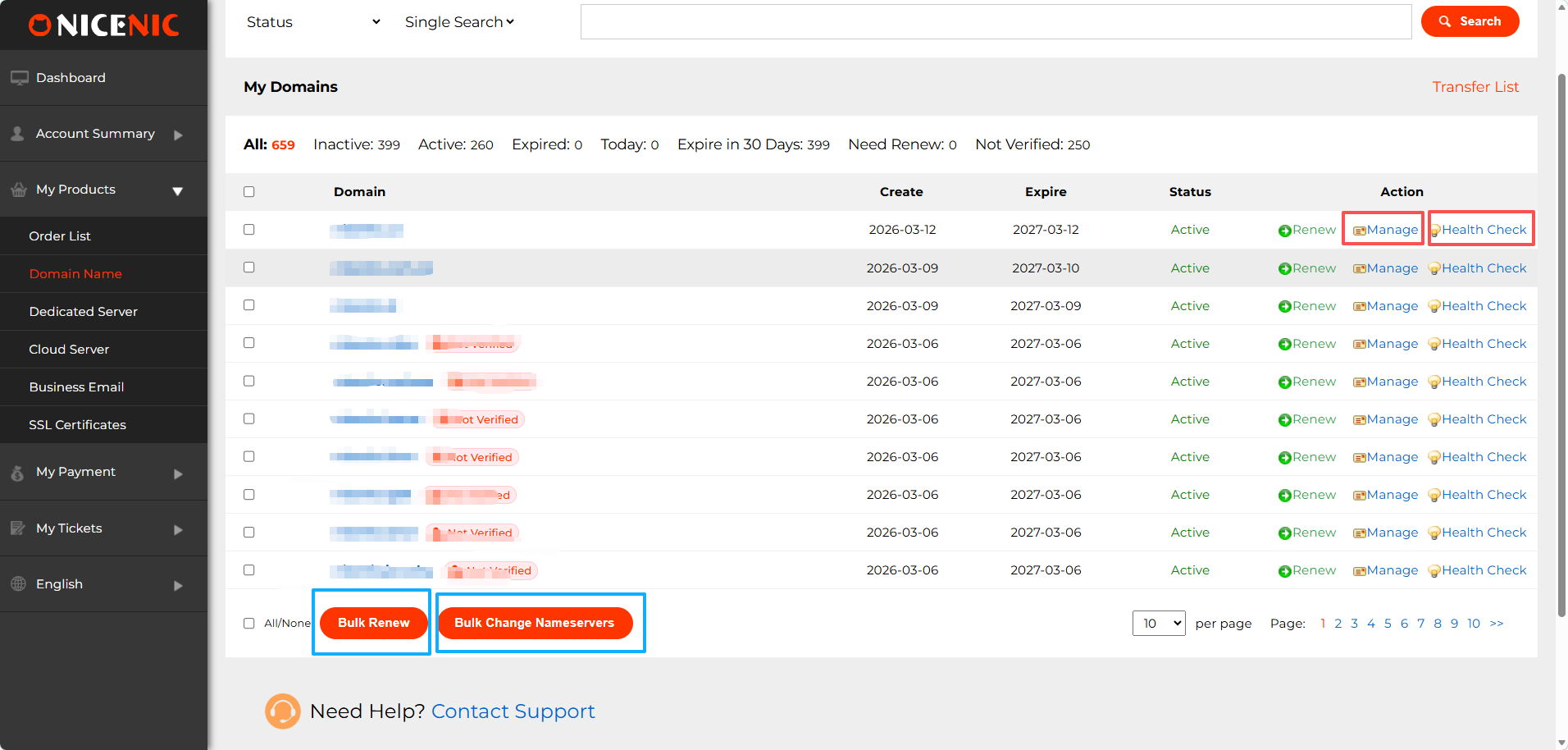
Manage Domains: Manage your DNS records, nameservers, update WHOIS information,whois privacy, domain internal push, DNSSEC
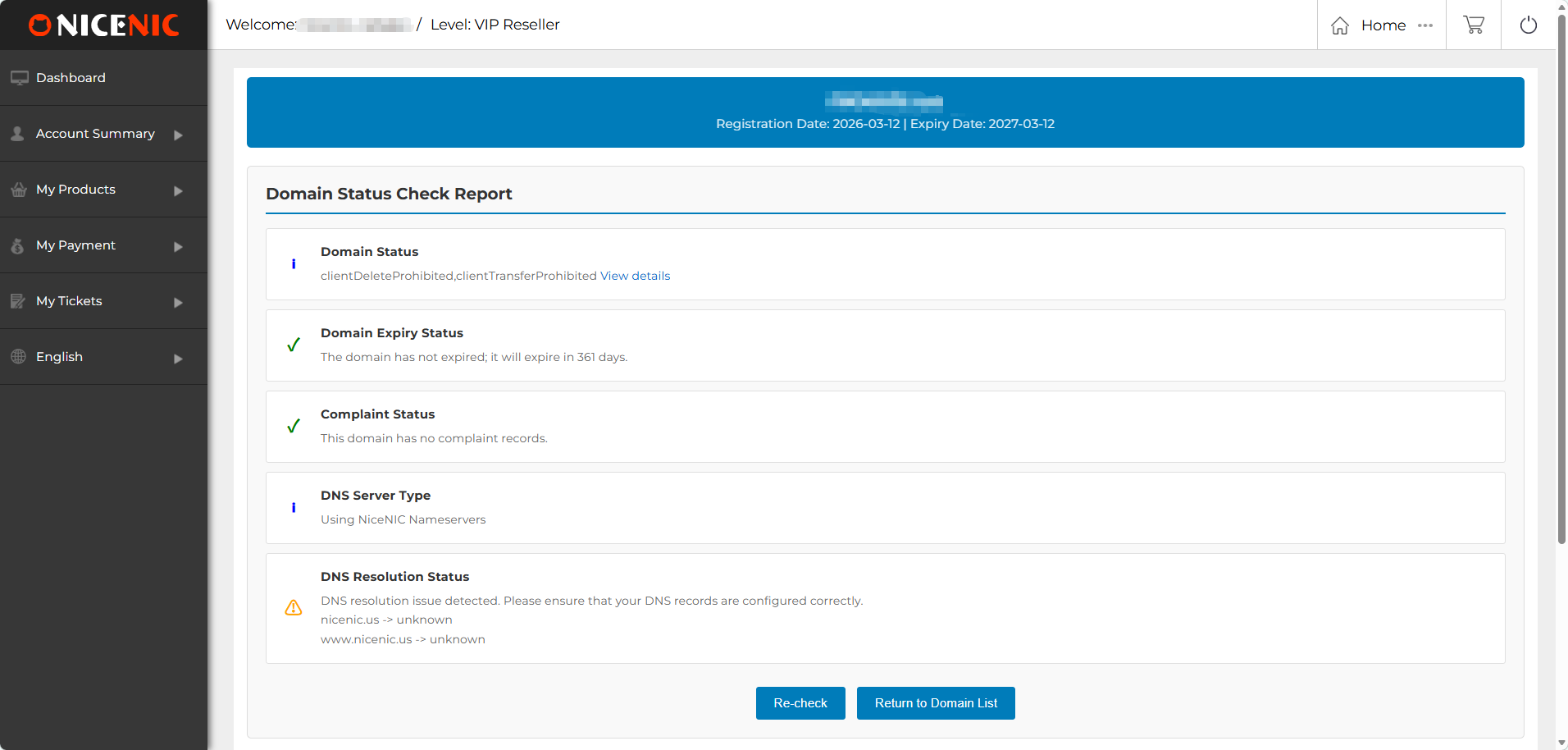
Health Check: Run Health Checks to monitor the status of your domains, ensuring that DNS, WHOIS, and expiration details are in good standing.
Bulk Renew: Bulk Renew allows you to renew multiple domains in one go to avoid any accidental expirations.
Bulk Change Nameservers: Easily update nameservers for multiple domains at once using Bulk Change Nameservers.
3. Other Products
In addition to domain management, Nicenic also offers other essential products for your business needs:
Dedicated Server: Manage your dedicated server, ideal for high-performance hosting needs.
Cloud Server: Access and manage cloud servers, providing scalable resources for growing businesses.
Business Email: Set up and manage professional email services to enhance your business communication.
SSL Certificates: Secure your websites with SSL certificates, providing encryption and trust to your visitors.
My Payment
The My Payment section in Nicenic's User Control Panel is where you can manage all your payment-related activities.
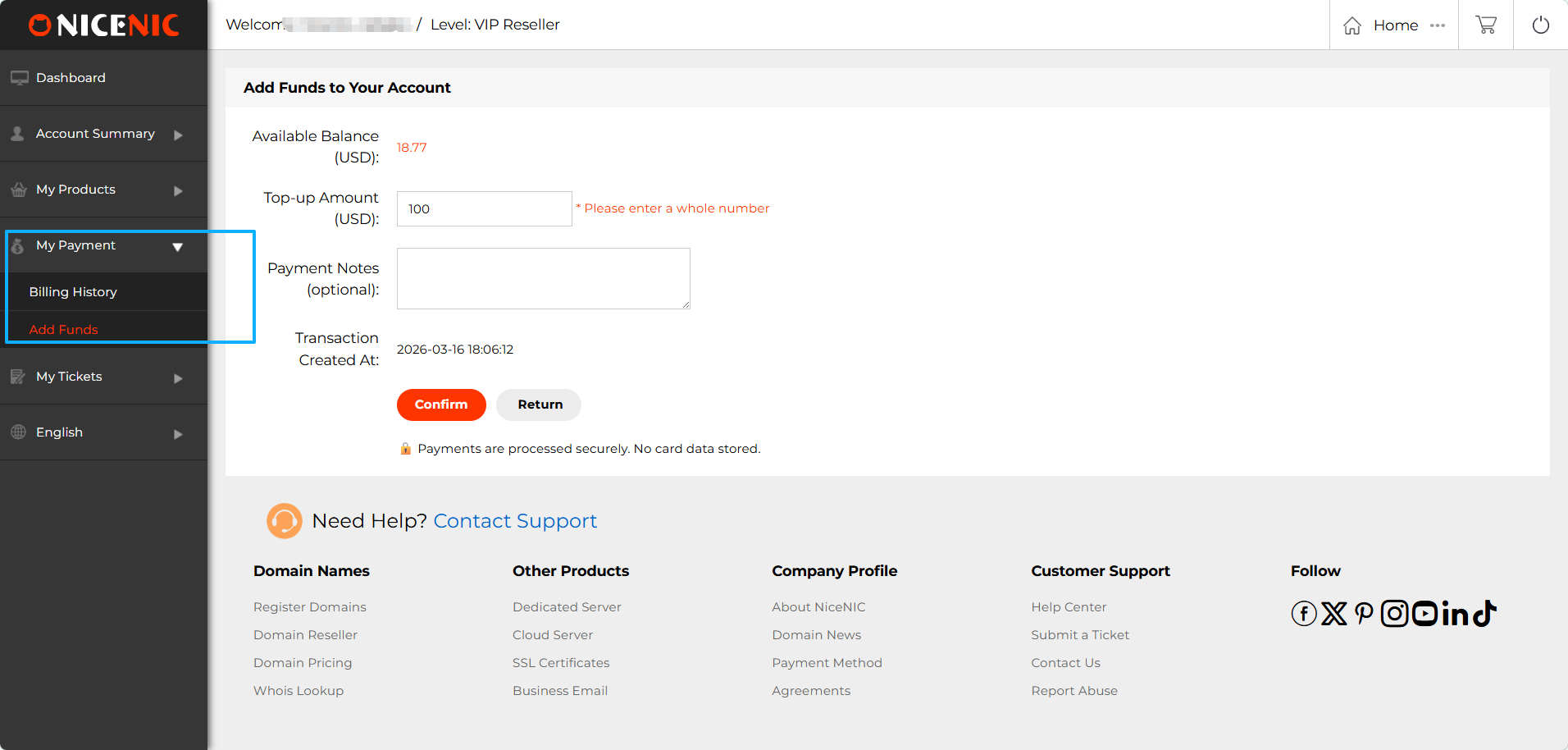
1. Add Funds
The Add Funds feature allows you to top up your account balance to make payments for domain registrations, renewals, and other services.
2. Billing History
Access your Billing History to view a complete record of your past transactions.
My Tickets
The My Tickets section of Nicenic's Control Panel provides an easy way for you to manage and submit support tickets. Here's an overview of the key features:
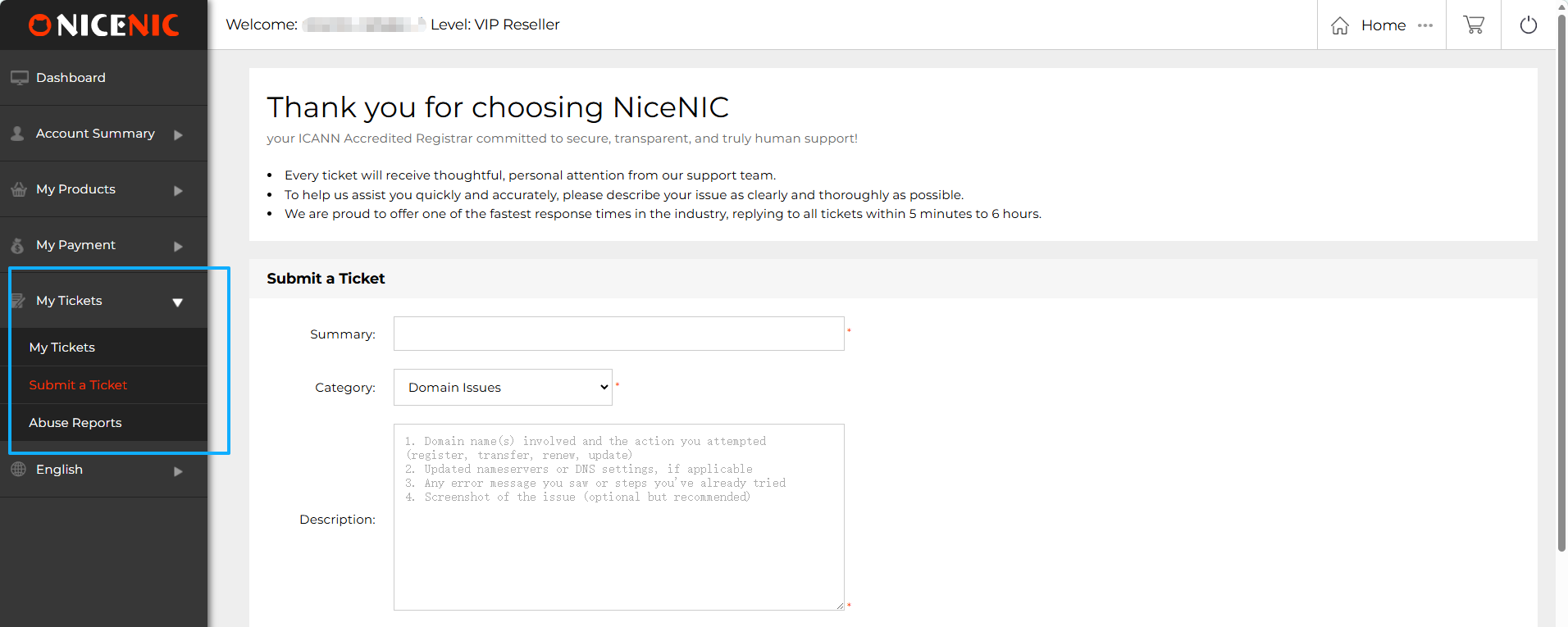
1. My Tickets
Overview: This is where you can view all of your past and current support tickets. Each ticket will display its status, such as whether itos still open, in progress, or resolved. You can quickly access the ticket details to check for updates or responses from the support team.
2. Submit a Ticket
If you encounter any issues with your domains, products, or services, you can quickly submit a support ticket through this section.
3. Abuse Reports
The Abuse Reports section provides information on the most common types of abuse
Multi-Language Support
Nicenic's User Control Panel offers multi-language support to make domain management more accessible. We currently provide the platform in six languages:
This ensures that users from different regions can easily navigate and manage their domains in their preferred language.
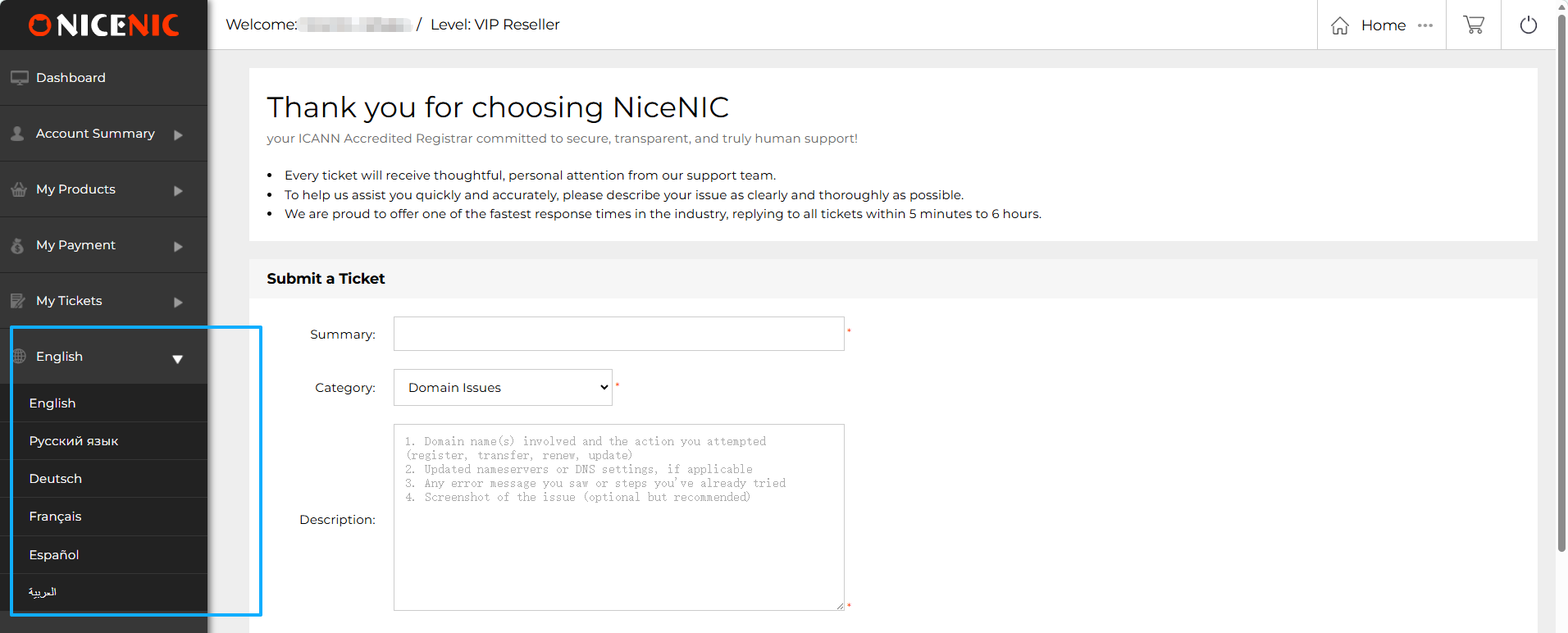
Once you've selected your preferred language, you can seamlessly browse the products and services on the Nicenic homepage. Whether you prefer Russian, English, or any of our other supported languages, you can easily switch languages from the top navigation bar.
Control Panel Language: After switching the language on the homepage, your User Control Panel will also automatically switch to the selected language, providing a consistent experience across the platform.
Need help? We're always here for you.
Submit a Ticket








- Domain Names
- Registering Domains
- Domain Reseller
- Domain Pricing
- Whois Lookup
- Our Products
- Dedicated Server
- Cloud Server
- SSL Certificates
- Business Email
- Company Profile
- About NiceNIC
- Domain News
- Payment Method
- Agreements
- Customer Support
- Help Center
- Submit a Ticket
- Contact Us
- Report Abuse
Copyright © 2006-2026 NICENIC INTERNATIONAL GROUP CO., LIMITED All Rights Reserved