


X
Installing an SSL Certificate on IIS 7
Both the SSL Certificate installation and the CSR code generation, on IIS 7, should be done using the Internet Information Services Manager.
For this you need to go to:
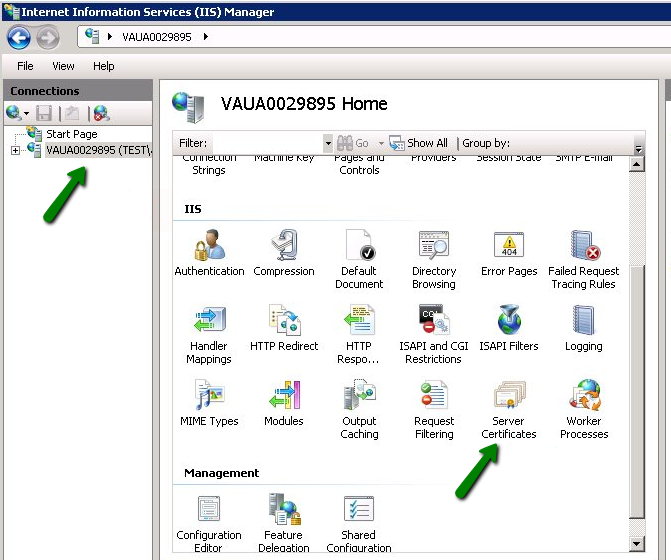
1. Start >> Administrative Tools >> Internet Information Services (IIS) Manager >> Server Name >> double-click on the Server Certificates option.
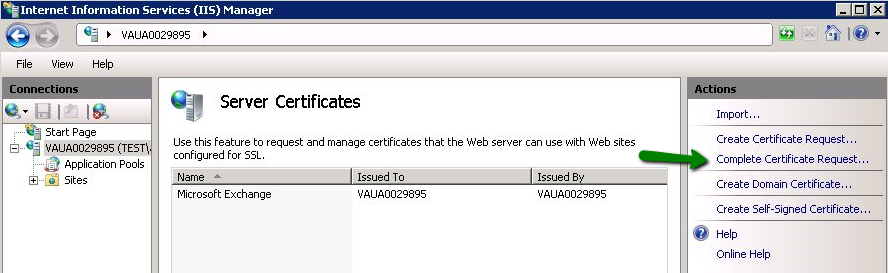
2. Open the Complete Certificate Request Wizard.
3. Specify the Validated Certificate file location and Friendly name in the Complete Certificate Request Wizard. The Friendly Name is not part of the certificate itself, but it can be used by the server administrator to easily distinguish the certificate.
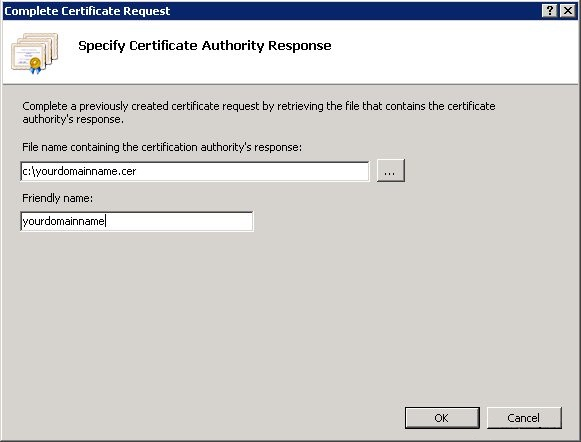
Note: You can use the .p7b or .cer file at this step.
If, upon importing the certificate into the IIS7 server, you receive the error "Cannot find the certificate request associated with this certificate file. A certificate request must be completed on the computer where it was createdqor "ASN1 bad tag value met" please check the related article for more details and possible solutions.
4. Once the certificate upload is complete, you need to bind Certificate to the web site:
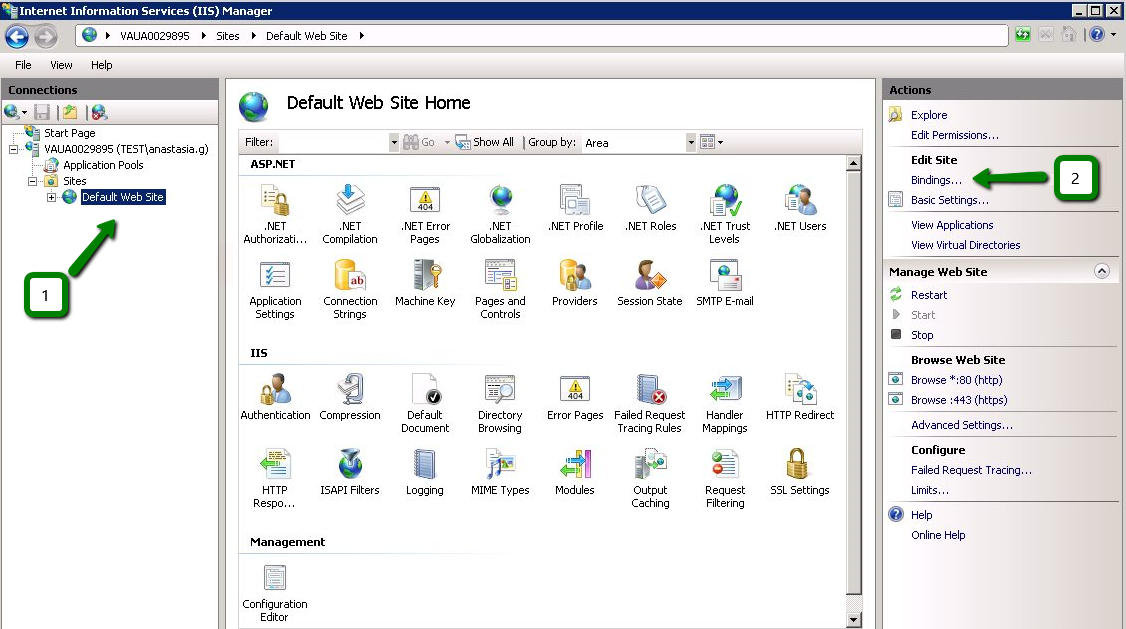
Select the website you want to apply the certificate to from the left-side Connections menu.
Select Bindings from the Edit Site sub menu:
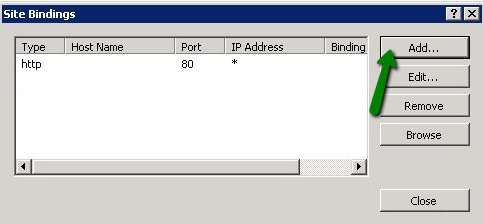
In the Site Bindings window, click Add. This will open the Add Site Binding window.
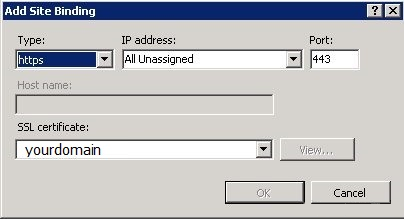
'Type' = https; 'IP address' = should be the IP address of the site or All Unassigned;
'Port' = 443; 'SSL Certificate' field should specify the certificate that was installed using the above steps.
Click OK to save changes.
(!) Important If the 'https' entry is already enabled, and visible in this area, then you need to click on 'https' in order to highlight it. Then, click Edit and, in the SSL certificate area, select the friendly name that was generated earlier. Click OK to save changes.
IIS7inst07
Click OK in the Web Site Bindings window to complete the installation.
That is it!
Both the SSL Certificate installation and the CSR code generation, on IIS 7, should be done using the Internet Information Services Manager.
For this you need to go to:
1. Start >> Administrative Tools >> Internet Information Services (IIS) Manager >> Server Name >> double-click on the Server Certificates option.
2. Open the Complete Certificate Request Wizard.
3. Specify the Validated Certificate file location and Friendly name in the Complete Certificate Request Wizard. The Friendly Name is not part of the certificate itself, but it can be used by the server administrator to easily distinguish the certificate.
Note: You can use the .p7b or .cer file at this step.
If, upon importing the certificate into the IIS7 server, you receive the error "Cannot find the certificate request associated with this certificate file. A certificate request must be completed on the computer where it was createdqor "ASN1 bad tag value met" please check the related article for more details and possible solutions.
4. Once the certificate upload is complete, you need to bind Certificate to the web site:
Select the website you want to apply the certificate to from the left-side Connections menu.
Select Bindings from the Edit Site sub menu:
In the Site Bindings window, click Add. This will open the Add Site Binding window.
'Type' = https; 'IP address' = should be the IP address of the site or All Unassigned;
'Port' = 443; 'SSL Certificate' field should specify the certificate that was installed using the above steps.
Click OK to save changes.
(!) Important If the 'https' entry is already enabled, and visible in this area, then you need to click on 'https' in order to highlight it. Then, click Edit and, in the SSL certificate area, select the friendly name that was generated earlier. Click OK to save changes.
IIS7inst07
Click OK in the Web Site Bindings window to complete the installation.
That is it!
Need help? We're always here for you.
Submit a Ticket









- Domain Names
- Registering Domains
- Domain Reseller
- Domain Pricing
- Whois Lookup
- Our Products
- Dedicated Server
- Cloud Server
- SSL Certificates
- Business Email
- Company Profile
- About NiceNIC
- Domain News
- Payment Method
- Agreements
- Customer Support
- Help Center
- Submit a Ticket
- Contact Us
- Report Abuse
Copyright © 2006-2026 NICENIC INTERNATIONAL GROUP CO., LIMITED All Rights Reserved