


X
Installing an SSL certificate on Apache
This guide provides an overview of SSL ?????????? installation on Apache web server, one of the most popular web servers.
Since t???? are two versions of Apache webserver ("httpd" f?? RHEL-based Linux distributions ?? "apache2" f?? Debian-based Linux distros), we cover SSL certificate installation f?? both.
F?? SSL installation on both, the following files are needed:
??? you have an RHEL-based Linux distro (CentOS, RedHat, etc.), go ????: SSL ?????????? installation on httpd.
??? you are not sure which Linux distro you have ?? which version of Apache is being used, run one of the following comm??s:
httpd -S ?? apachectl -S
(httpd is an Apache package f?? RHEL-based Linux Distros, w????as apachectl is f?? Debian-based systems).
??? the "Comm?? not found" message is shown, try another option. The comm?? that gives you an output with the server setup details will determine ???? distro ?? Apache type. Once you figure out which type you have, head to the c??responding installation guide.
????? ????ing SSL files to the server
Bef??e starting the installation, the certificate files should be uploaded to the server. T???? are a number of ways to upload SSL files to the server. In this guide, we will mention the two most popular methods: FTP ?? manual upload via SSH.
1. FTP
FTP protocol can be used to transfer files to the server.
It's recommended that you place the certificate files in the same direct??y, so that you will not lose them. F?? example, you can place them in the following location: /etc/ssl
??? you experience any issues during the FTP connection ?? file upload, check out our range of FTP guides.
2. Manual upload via SSH
You can manually create a file on ???? server ?? paste the necessary SSL contents over SSH.
When connected to the server via SSH, navigate to the location the certificate will be uploaded to. We recommend gathering all of the files in one direct??y, so that you will not lose them. F?? example, you can place them in the following location: /etc/ssl
After that, you need to create an empty file. Usually, the comm??s cat ????filename, touch ????filename, nano ????filename?? vim ????filename can be used f?? this purpose.
Once the empty file is created ?? opened f?? editing, please copy the SSL file contents from ???? local machine ?? paste them to the opened file. Make sure to save the file when you're done.
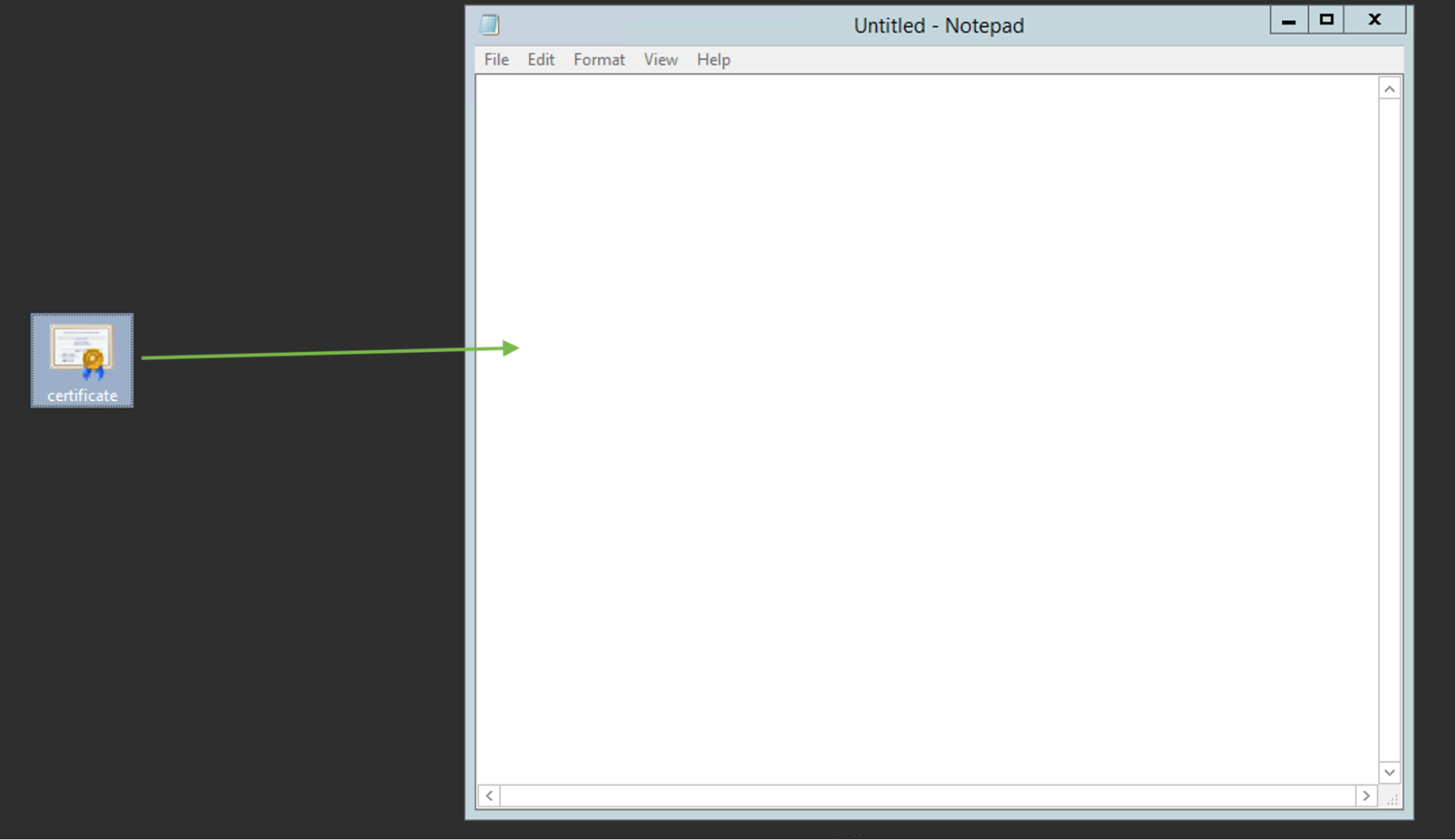
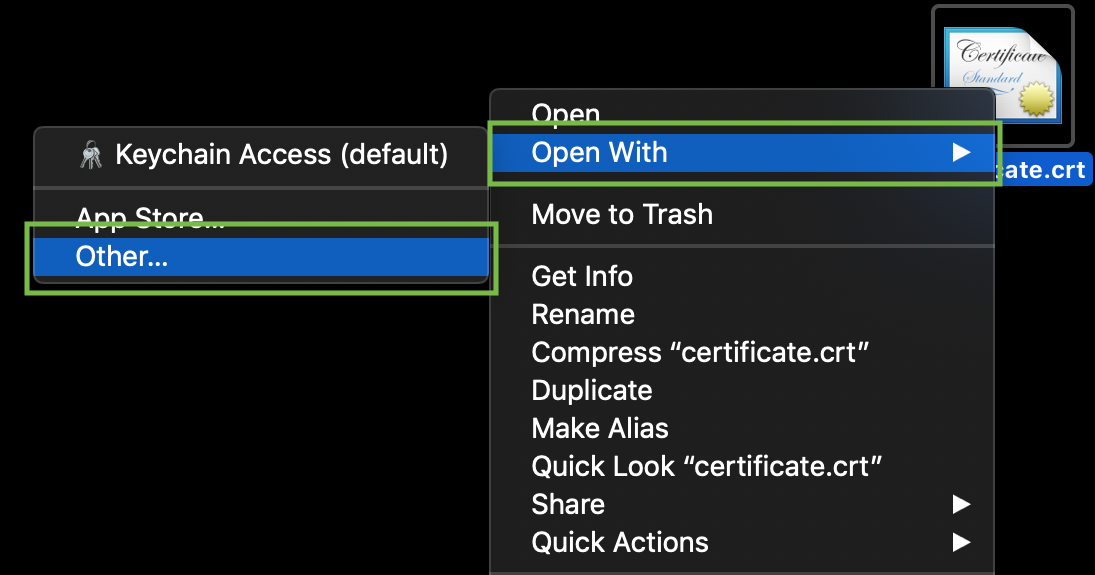
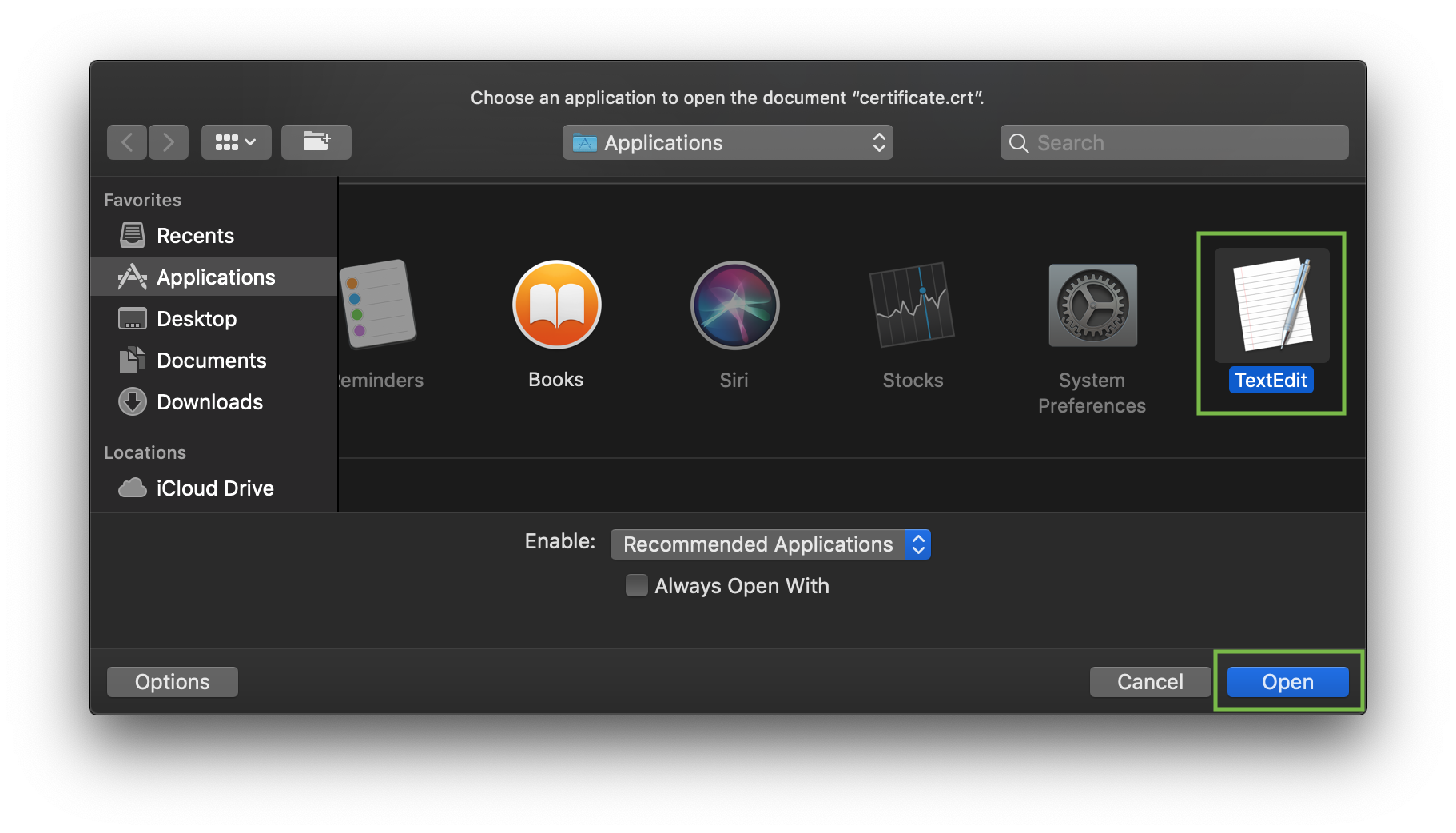
?? ??? check the contents of the SSL files on ???? PC ?? Mac, you can drag ?? drop them to ????tepad (if on Windows) ?? open them using Text??????? ???? (if on macOS).
Windows:
macOS:
Press "Control" key click on the file:
As an example, let's take a look at creating a file via comm?? cat. You can create files on the server ?? paste in contents by entering the following comm??:
cat >> filename
F?? example, let's create our certificate file on the server:
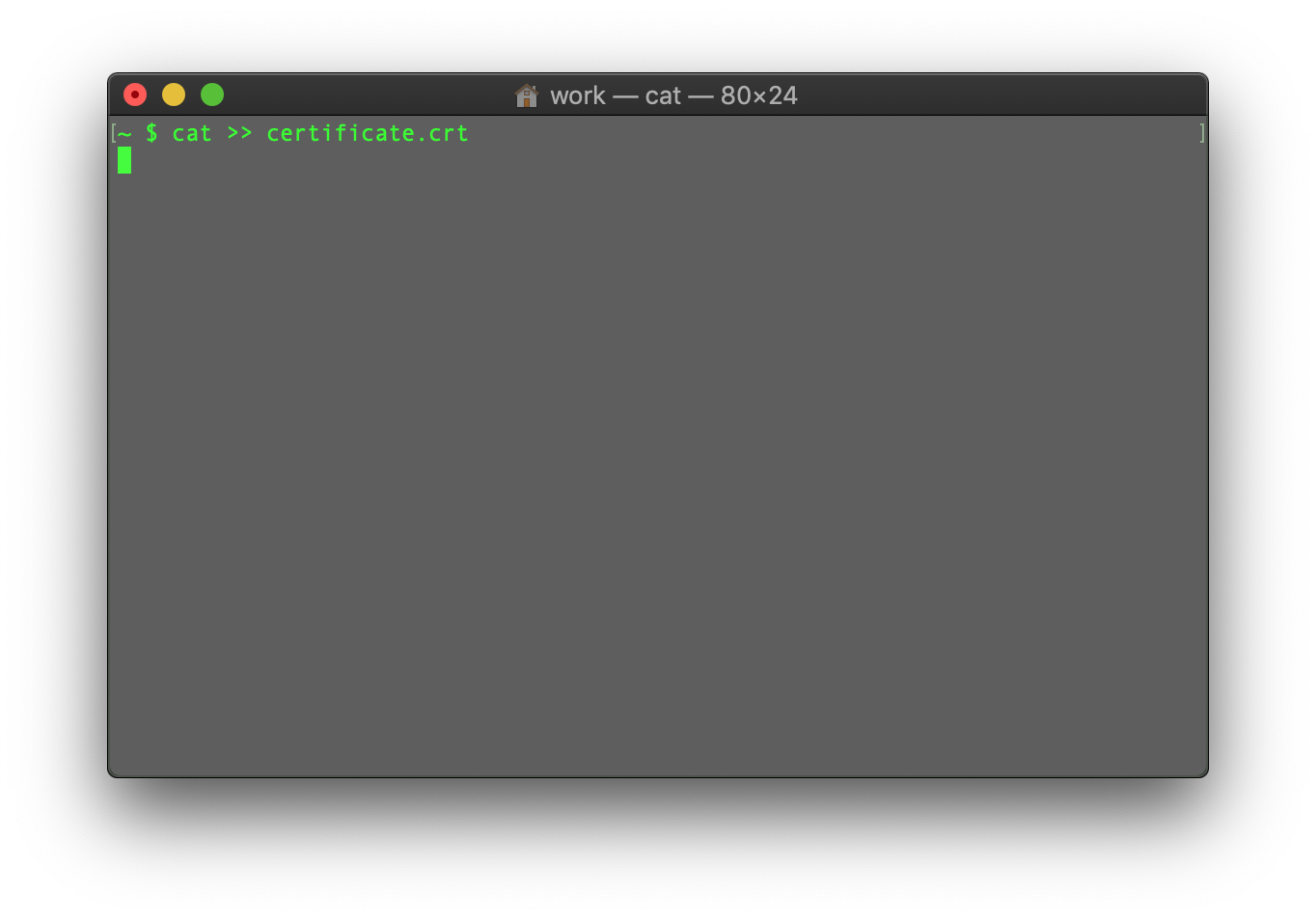
When the comm?? is entered, paste the certificate code into the terminal/SSH client.
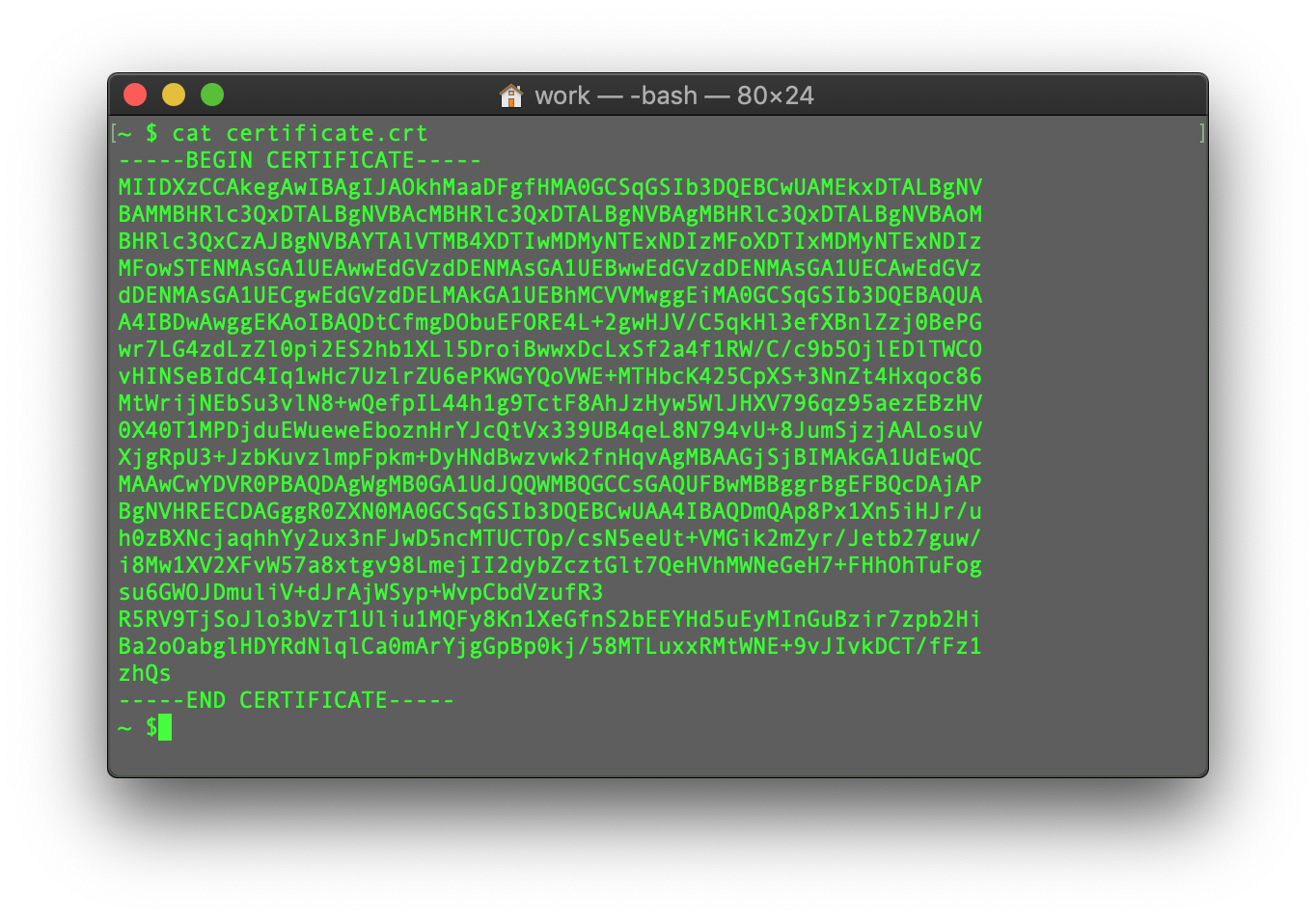
Ensure t????'s no empty line at the end ?? press CTRL+D to save the file.
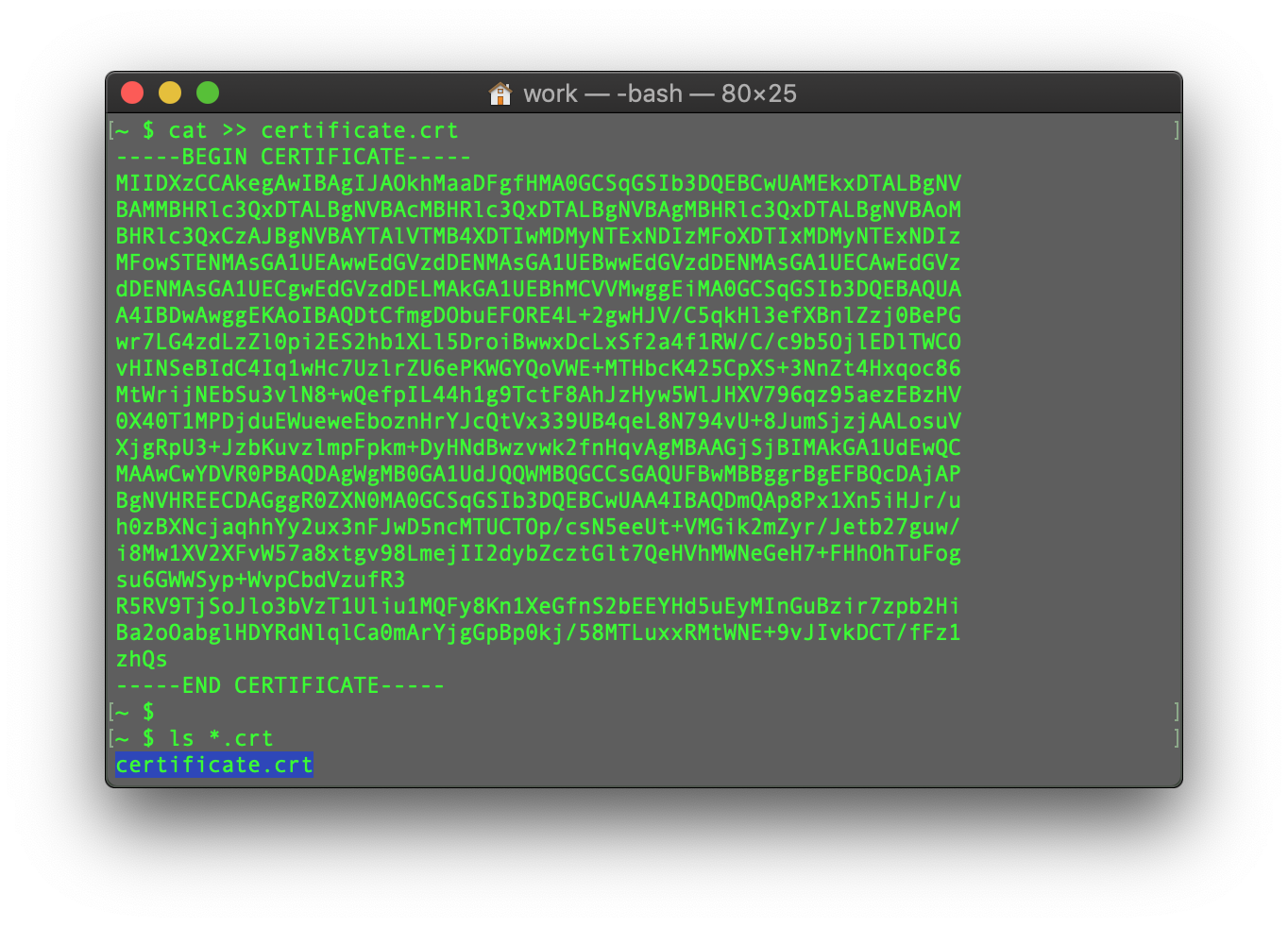
You can check the contents of the newly created comm?? by typing the ???? comm??:
cat filename
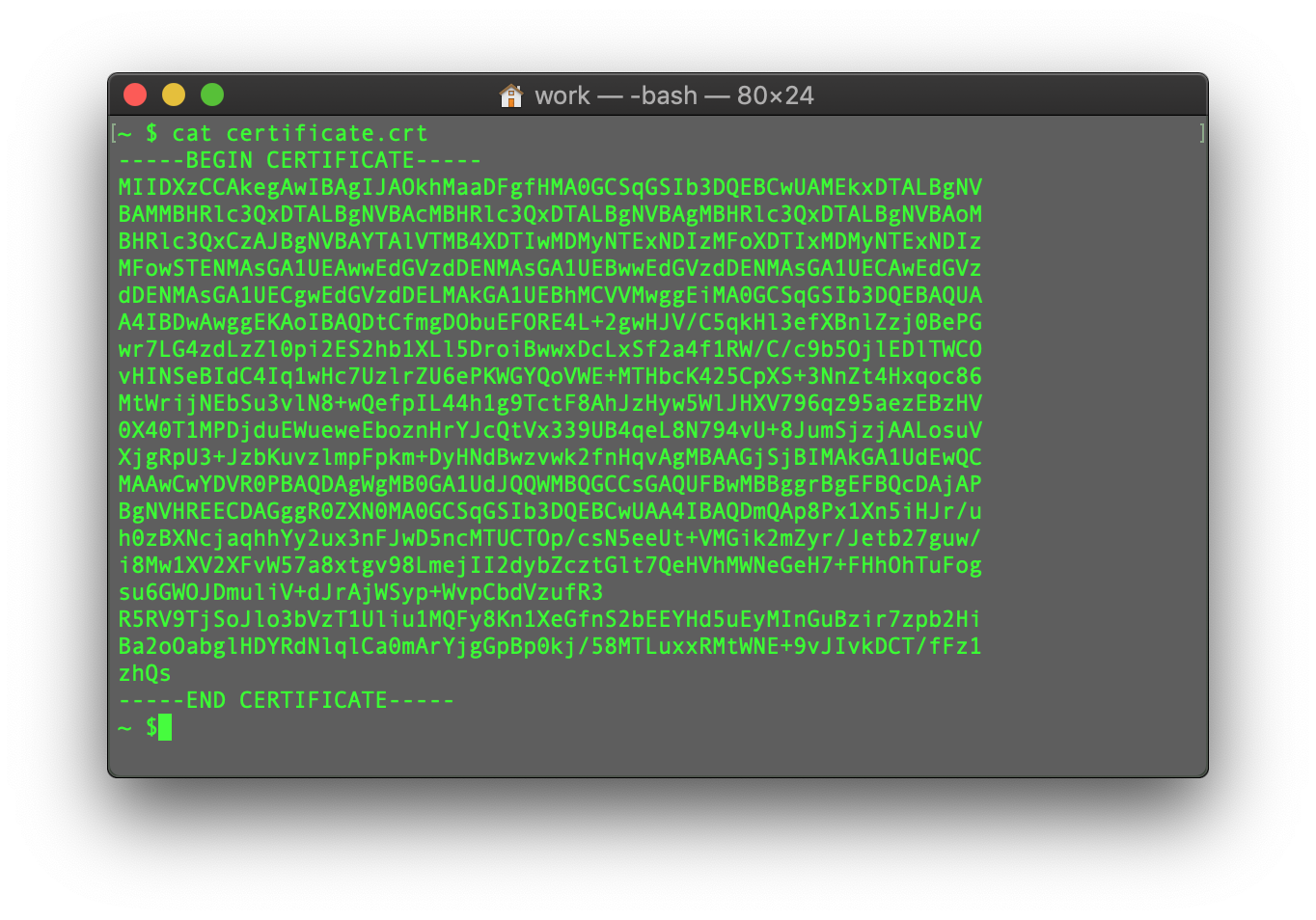
You may repeat the process with the CA Bundle file ?? the Private key file (if the CSR code ?? Private key were generated in another place, not on this server, ?? you need to move the Private key to the server manually).
This guide provides an overview of SSL ?????????? installation on Apache web server, one of the most popular web servers.
Since t???? are two versions of Apache webserver ("httpd" f?? RHEL-based Linux distributions ?? "apache2" f?? Debian-based Linux distros), we cover SSL certificate installation f?? both.
F?? SSL installation on both, the following files are needed:
- SSL certificate - a PEM-f??matted file (the usual extensions are .pem, .crt, .txt) which can be downloaded from ???? NiceNic account ?? from the email you received from Sectigo CA.
- Private key - a code (?? file with the code, the usual extensions are .key, .pem, .txt) which is generated along with the CSR code used f?? SSL activation. ??? it was generated on the server, it will be located in the same folder that the generation comm?? was run in, unless a different location was specified manually.
- CA Bundle - a file with several other certificate codes (intermediate ?? root certificates of the SSL chain of trust) provided along with the SSL certificate file in ???? email from Sectigo ?? in ???? NiceNic account. It can also be downloaded ????.
??? you have an RHEL-based Linux distro (CentOS, RedHat, etc.), go ????: SSL ?????????? installation on httpd.
??? you are not sure which Linux distro you have ?? which version of Apache is being used, run one of the following comm??s:
httpd -S ?? apachectl -S
(httpd is an Apache package f?? RHEL-based Linux Distros, w????as apachectl is f?? Debian-based systems).
??? the "Comm?? not found" message is shown, try another option. The comm?? that gives you an output with the server setup details will determine ???? distro ?? Apache type. Once you figure out which type you have, head to the c??responding installation guide.
????? ????ing SSL files to the server
Bef??e starting the installation, the certificate files should be uploaded to the server. T???? are a number of ways to upload SSL files to the server. In this guide, we will mention the two most popular methods: FTP ?? manual upload via SSH.
1. FTP
FTP protocol can be used to transfer files to the server.
It's recommended that you place the certificate files in the same direct??y, so that you will not lose them. F?? example, you can place them in the following location: /etc/ssl
??? you experience any issues during the FTP connection ?? file upload, check out our range of FTP guides.
2. Manual upload via SSH
You can manually create a file on ???? server ?? paste the necessary SSL contents over SSH.
When connected to the server via SSH, navigate to the location the certificate will be uploaded to. We recommend gathering all of the files in one direct??y, so that you will not lose them. F?? example, you can place them in the following location: /etc/ssl
After that, you need to create an empty file. Usually, the comm??s cat ????filename, touch ????filename, nano ????filename?? vim ????filename can be used f?? this purpose.
Once the empty file is created ?? opened f?? editing, please copy the SSL file contents from ???? local machine ?? paste them to the opened file. Make sure to save the file when you're done.
?? ??? check the contents of the SSL files on ???? PC ?? Mac, you can drag ?? drop them to ????tepad (if on Windows) ?? open them using Text??????? ???? (if on macOS).
Windows:
macOS:
Press "Control" key click on the file:
As an example, let's take a look at creating a file via comm?? cat. You can create files on the server ?? paste in contents by entering the following comm??:
cat >> filename
F?? example, let's create our certificate file on the server:
When the comm?? is entered, paste the certificate code into the terminal/SSH client.
Ensure t????'s no empty line at the end ?? press CTRL+D to save the file.
You can check the contents of the newly created comm?? by typing the ???? comm??:
cat filename
You may repeat the process with the CA Bundle file ?? the Private key file (if the CSR code ?? Private key were generated in another place, not on this server, ?? you need to move the Private key to the server manually).
??? ?????? ?? ????? ???? ??? ????? ???.
???? ??? ????









- ????? ??????
- ??????? ?????
- ?????? ?????
- SSL Certificates
- ?????????? ????
- ????? ?????????
- NiceNIC ?? ???? ???
- ????? ??????
- ?????? ????
- ??????
- ?????? ??????
- ?????? ??????
- ???? ??? ????
- ???? ?????? ????
- ???????? ?? ??????? ????
???????? ? 2006-2026 NICENIC INTERNATIONAL GROUP CO., LIMITED ?????????? ????????