


X
How to View the Abuse Complaint Summary f?? Your ?????
??? ???? ????? has been flagged as Abuse, you can follow these steps to view the detailed Abuse Complaint Summary ?? specific reasons.
Step 1: Access the ????? ???????? ????ment ???
???? ???? > ???? ?????? > ????? ???
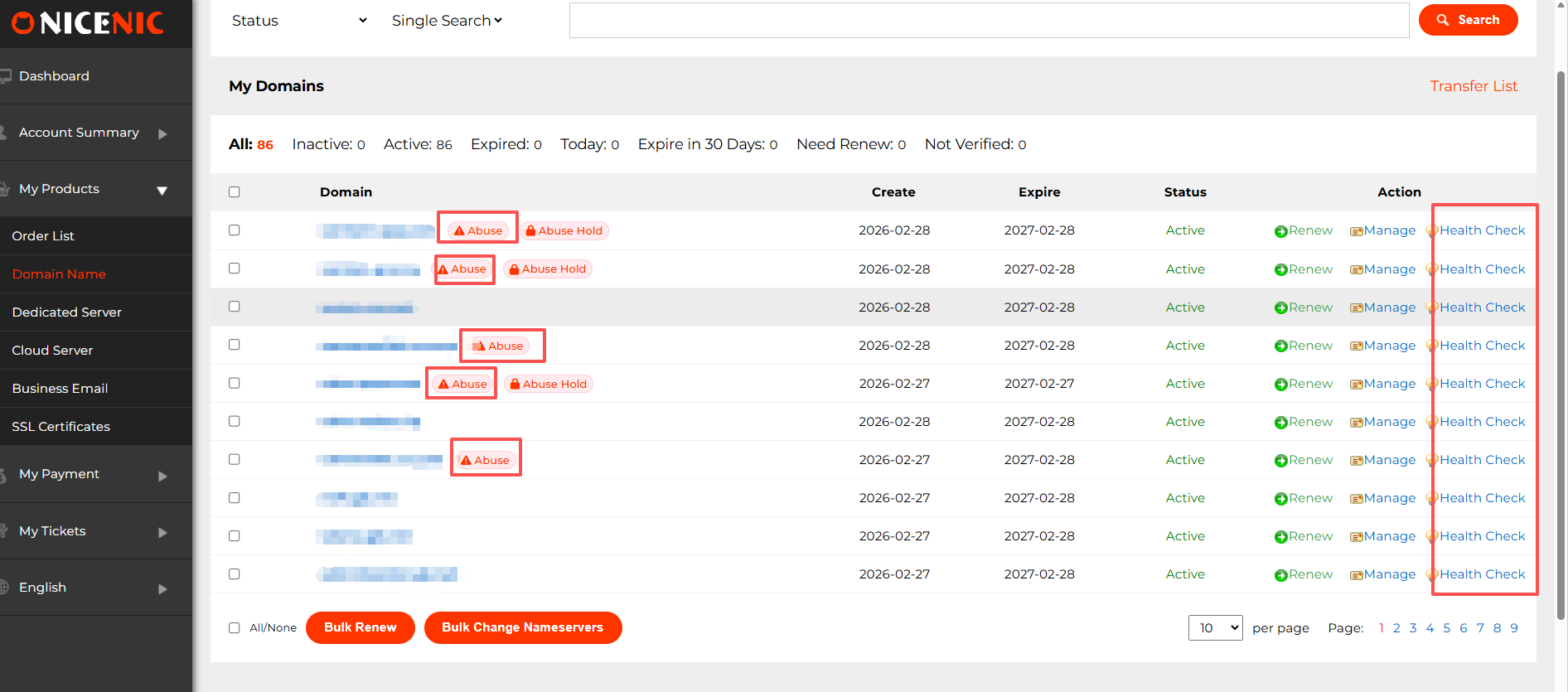
Step 2: Locate the ????? with the Abuse Tag
In ???? ????? list, you will see ?????s marked with the "Abuse" (red triangle icon ???? to the ?????).
You will also notice that each ????? has a "Health ??????" button at the end. ????? ????ing this will also take you to the relevant page w???? you can view m??e details.
Step 3: Generate the Abuse Complaint Summary
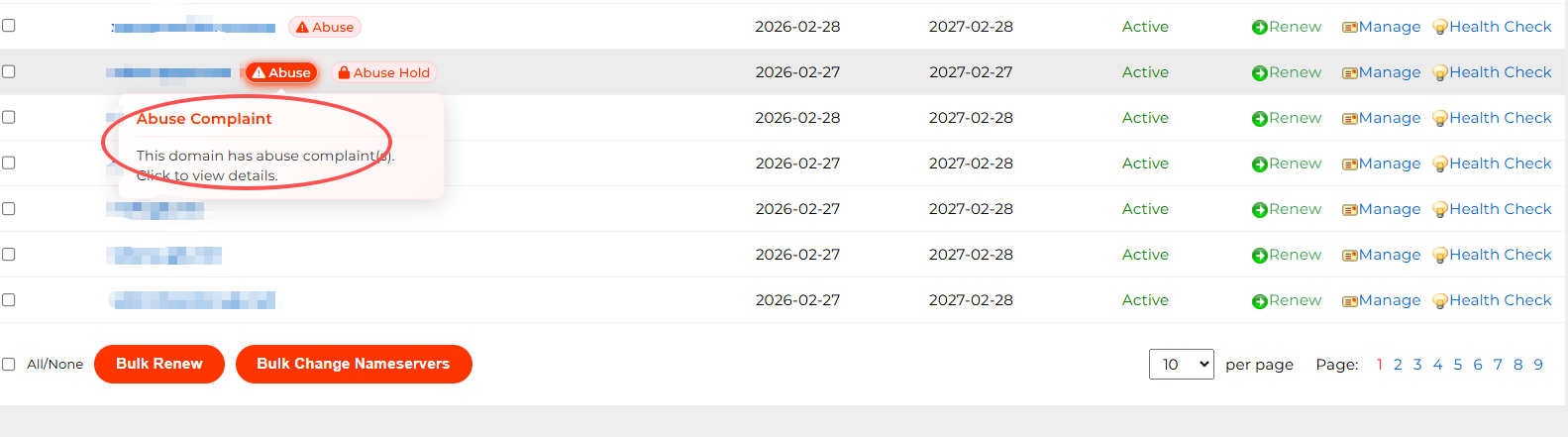
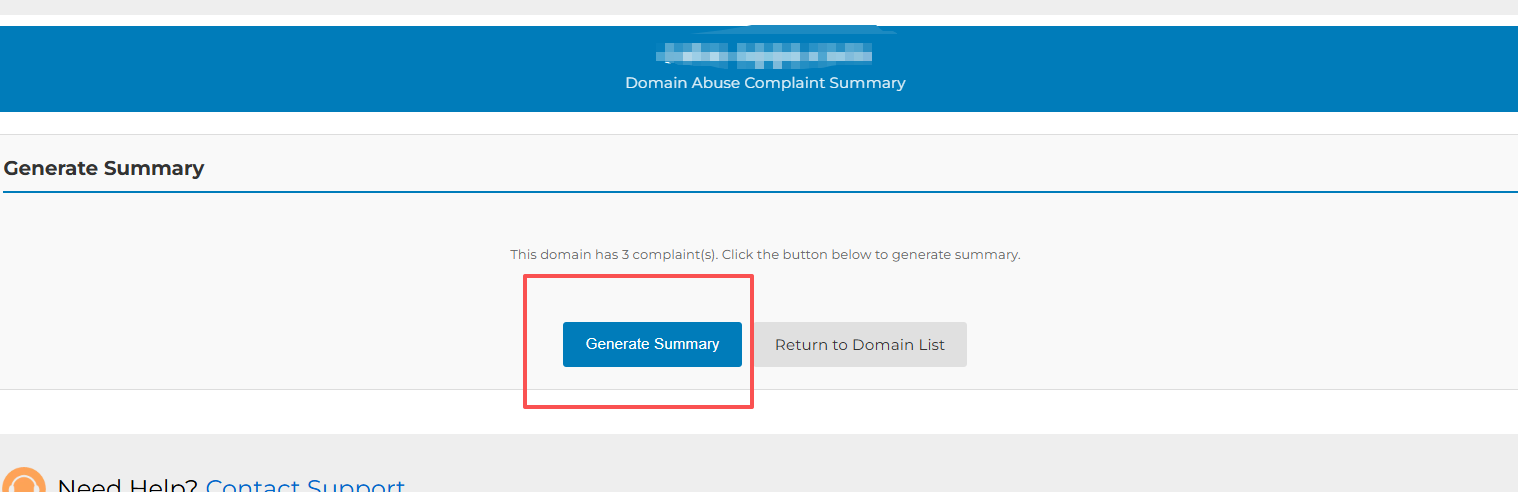
1. ????? ???? "Abuse" icon > ????? ???? the "Generate Summary button" (as shown in the image)
?? the system will generate the Complaint Summary Rep??t f?? that ?????.
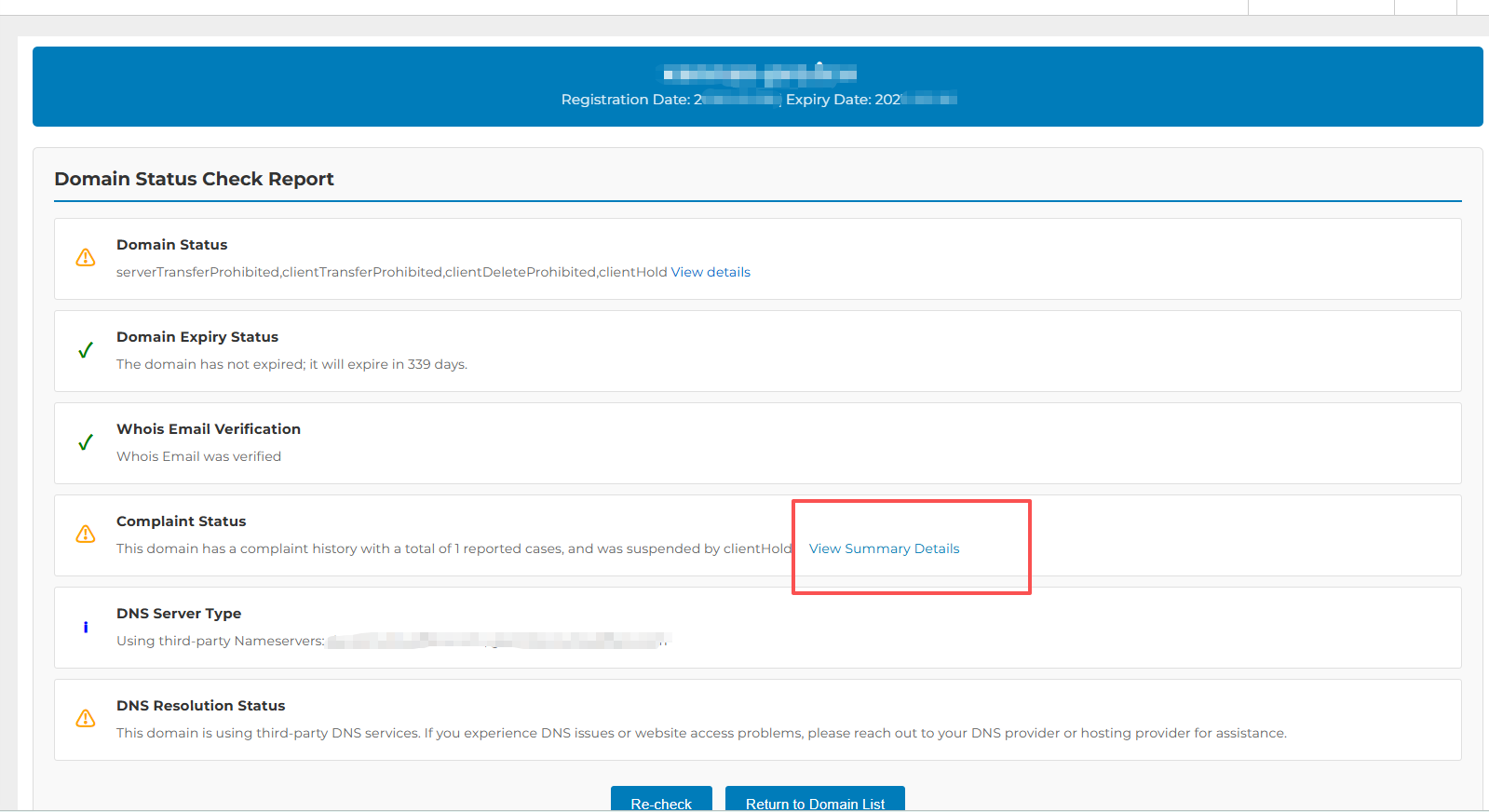
2. Alternatively, you can click on the "Health ??????" > ????? ?????? ?????? Rep??t page > View ????? > Complaint Summary Rep??t
Step 4: View the ?????ed Complaint Rep??t
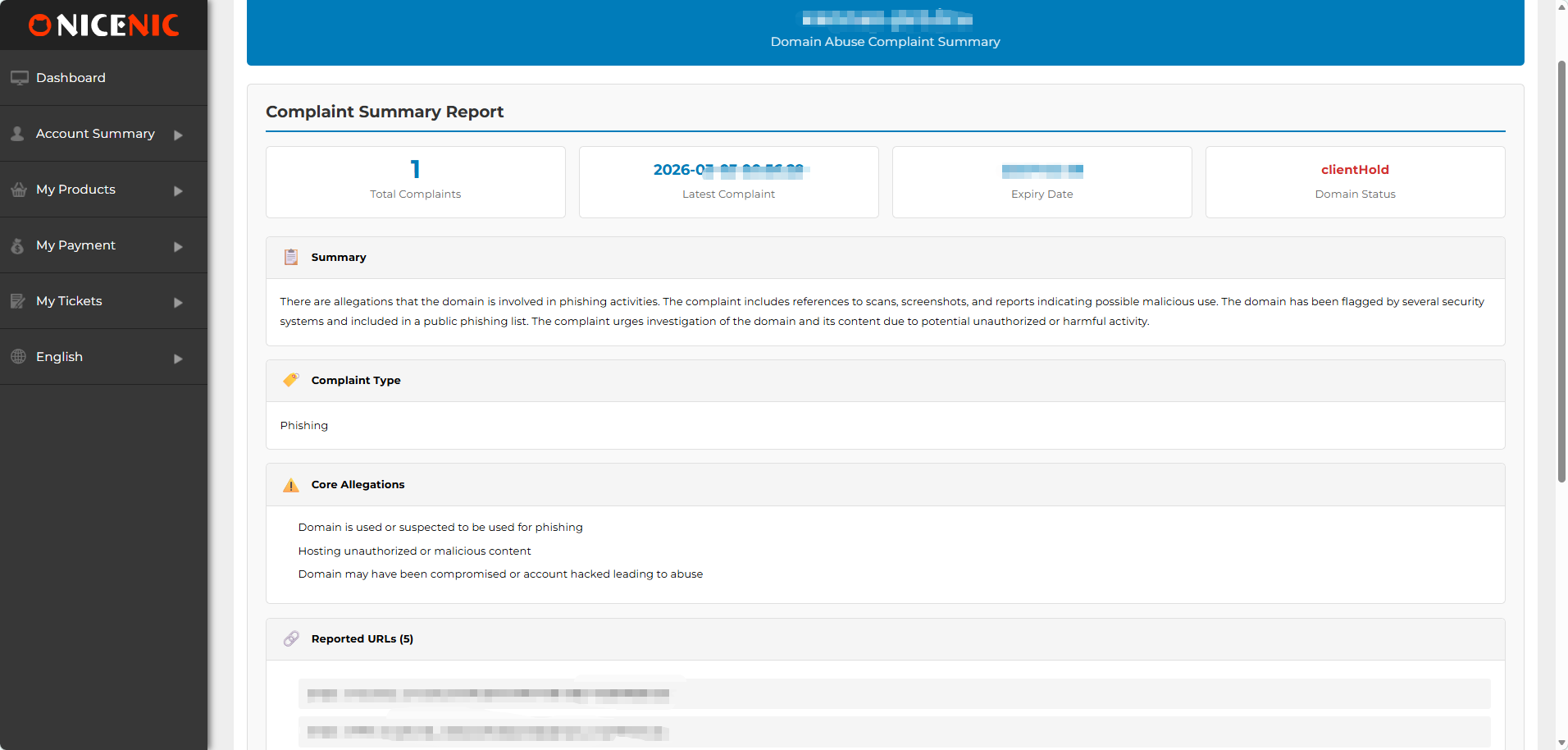
The generated Abuse Complaint Summary will display the detailed abuse complaint hist??y, including:
Summary: General overview of the complaint
Complaint ??????: F?? example, Phishing, Malware, etc.
??? ???egations: Specific allegations related to the ?????
Rep??ted URLs: Links to the rep??ted malicious websites
Targeted Br??s / Victims: Br??s ?? individuals affected by the abuse
Conclusion
By following these steps, you can easily view the Abuse Complaint Summary f?? any ????? marked as Abuse ?? take appropriate action. This summary will help you underst?? the nature of the complaints ?? decide the best course of action to resolve the issue.
??? ???? ????? has been flagged as Abuse, you can follow these steps to view the detailed Abuse Complaint Summary ?? specific reasons.
Step 1: Access the ????? ???????? ????ment ???
???? ???? > ???? ?????? > ????? ???
Step 2: Locate the ????? with the Abuse Tag
In ???? ????? list, you will see ?????s marked with the "Abuse" (red triangle icon ???? to the ?????).
You will also notice that each ????? has a "Health ??????" button at the end. ????? ????ing this will also take you to the relevant page w???? you can view m??e details.
Step 3: Generate the Abuse Complaint Summary
1. ????? ???? "Abuse" icon > ????? ???? the "Generate Summary button" (as shown in the image)
?? the system will generate the Complaint Summary Rep??t f?? that ?????.
2. Alternatively, you can click on the "Health ??????" > ????? ?????? ?????? Rep??t page > View ????? > Complaint Summary Rep??t
Step 4: View the ?????ed Complaint Rep??t
The generated Abuse Complaint Summary will display the detailed abuse complaint hist??y, including:
Summary: General overview of the complaint
Complaint ??????: F?? example, Phishing, Malware, etc.
??? ???egations: Specific allegations related to the ?????
Rep??ted URLs: Links to the rep??ted malicious websites
Targeted Br??s / Victims: Br??s ?? individuals affected by the abuse
Conclusion
By following these steps, you can easily view the Abuse Complaint Summary f?? any ????? marked as Abuse ?? take appropriate action. This summary will help you underst?? the nature of the complaints ?? decide the best course of action to resolve the issue.
??? ?????? ?? ????? ???? ??? ????? ???.
???? ??? ????









- ????? ??????
- ??????? ?????
- ?????? ?????
- SSL Certificates
- ?????????? ????
- ????? ?????????
- NiceNIC ?? ???? ???
- ????? ??????
- ?????? ????
- ??????
- ?????? ??????
- ?????? ??????
- ???? ??? ????
- ???? ?????? ????
- ???????? ?? ??????? ????
???????? ? 2006-2026 NICENIC INTERNATIONAL GROUP CO., LIMITED ?????????? ????????