



When you make changes to your domain’s DNS settings, it’s not always immediately clear if those changes have taken effect. DNS propagation is a natural process that can take some time to fully complete. In this guide, we’ll explain what DNS propagation is, why it takes time, and how you can verify that your DNS changes have actually worked.
By understanding DNS propagation, you’ll know exactly what to expect and how to avoid common mistakes and confusion during the process.
What is DNS Propagation?
DNS propagation refers to the time it takes for DNS records, such as changes to your MX, A, or CNAME records, to be updated across the globe. DNS servers around the world cache DNS records to improve performance, and these changes must be synchronized before they’re visible everywhere.
Why Does DNS Propagation Take Time?
DNS Caching: DNS servers cache records for a period of time (called TTL, or Time to Live) to speed up lookup responses. This means that even after you make a change, the old information might still be stored on various servers.
TTL (Time to Live): TTL is a value that determines how long DNS records are cached. Short TTL values lead to faster updates, while longer TTL values can make changes take longer to propagate.
Global Synchronization: DNS changes need to be distributed to every server worldwide, which can take anywhere from a few minutes to up to 48 hours.
Common Misunderstandings About DNS Propagation
Misunderstanding 1: "DNS Changes Should Take Effect Immediately"
Common Customer Confusion:
-
"I updated my DNS records, why aren’t the changes showing up?"
-
"I can still see the old settings after I made changes. Is something wrong?"
What’s Really Happening:
-
DNS changes typically take 24–48 hours to propagate across all servers.
-
Caching and TTL values affect how quickly changes take effect globally.
How to Avoid This Mistake:
-
Wait 24-48 hours after making DNS changes before assuming they haven’t worked.
-
Use online DNS tools to check if the changes have started propagating.
Misunderstanding 2: "I Don’t Need to Clear Cache After Making DNS Changes"
Common Customer Confusion:
-
"Why am I still seeing the old website or email configuration?"
-
"Why aren’t my changes visible even after 24 hours?"
What’s Really Happening:
-
Your browser and operating system may still be using old DNS information stored in their cache.
-
Local caching can prevent you from seeing the updated DNS records immediately.
How to Avoid This Mistake:
-
Clear your browser cache to ensure it fetches fresh DNS data.
-
Flush your operating system’s DNS cache to ensure your system is looking up the latest DNS records.
How to Verify Your DNS Changes Have Taken Effect
Method 1: Use Online DNS Tools
There are many free tools online that allow you to check whether your DNS changes have been properly propagated. These tools will check your DNS records against servers located in different regions.
Recommended Tools:
-
MXToolbox
-
Whatsmydns.net
-
DNSstuff
How to Use:
-
Go to the tool’s website.
-
Enter your domain name and select the type of DNS record you want to check (e.g., MX, A, CNAME).
-
View the results to see if your DNS records have propagated globally.
Method 2: Use Command Line Tools (For Technical Users)
If you’re comfortable with command-line tools, you can use nslookup or dig to check your DNS settings.
Commands:
-
nslookup (Windows):
nslookup -type=MX yourdomain.com
-
dig (Linux/Mac):
dig yourdomain.com MX
These commands allow you to directly query DNS servers and view the current records.
How to Speed Up DNS Propagation
While you can’t make DNS propagation happen instantly, there are a few ways to make the process more efficient:
-
Lower the TTL (Time to Live) Before Making Changes: If you plan to make DNS changes, lowering the TTL value before making the change can reduce the time it takes for those changes to propagate.
-
Avoid Frequent DNS Changes: Every time you modify your DNS settings, the propagation process starts over. Avoid making changes too often to prevent delays.
Troubleshooting DNS Propagation Issues
Problem: Email Isn’t Delivering After DNS Changes
Possible Causes:
-
The MX records might not have propagated fully.
-
There may be a conflict between old and new records.
How to Fix:
-
Wait up to 48 hours for full propagation.
-
Use a DNS checker tool to verify that your MX records are correct.
Problem: Website Isn’t Displaying the New DNS Settings
Possible Causes:
-
The DNS cache in your browser or operating system is outdated.
-
The TTL for your domain’s DNS records is too high, delaying propagation.
How to Fix:
-
Clear your browser cache and DNS cache on your system.
-
Use online tools to verify the changes have been applied.
Final Thought: Be Patient and Verify Your Changes
DNS propagation is a natural part of updating DNS settings. It’s important to be patient and use the right tools to verify that your changes have taken effect. By following the steps outlined in this guide, you can avoid unnecessary confusion and ensure that your domain’s DNS settings are correctly configured.
A Trusted Foundation: Securing Your Domain with a Reliable Registrar
A trustworthy domain registrar is essential to ensuring your DNS records are accurately configured and that your domain is secure. As an ICANN-accredited registrar, Nicenic follows global standards to provide reliable DNS management and secure domain ownership.
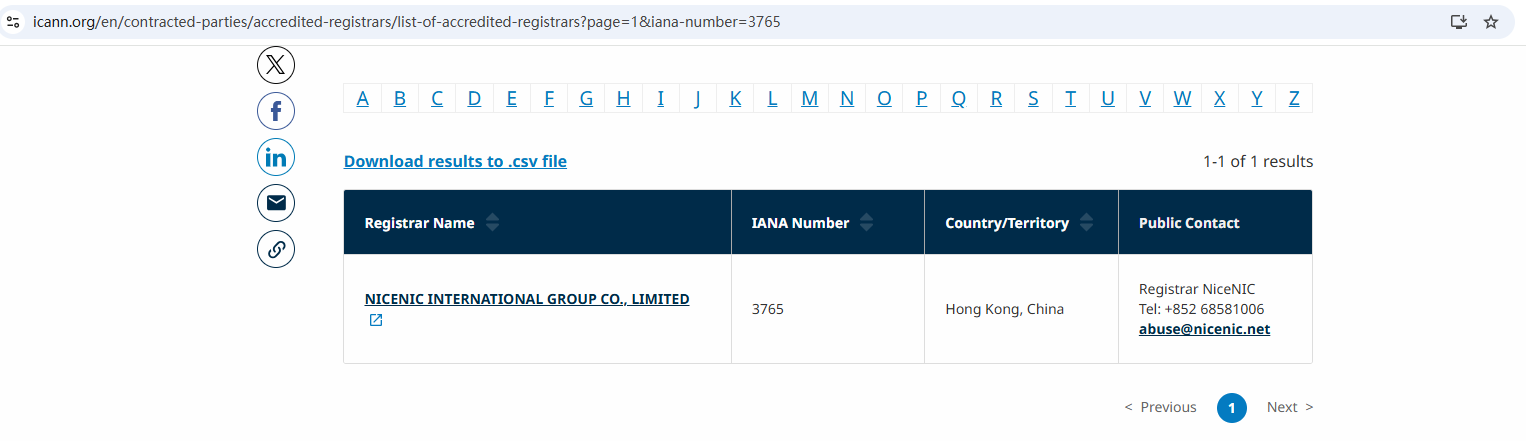
Nicenic stands as that trusted partner for brands, developers, entrepreneurs, and businesses worldwide.
Next News: Email DNS Setup Without Confusion