


X
Installing an SSL certificate on Apache
This guide provides an overview of SSL-sertifikaatti installation on Apache web server, one of the most popular web servers.
Since tt?ss? are two versions of Apache webserver ("httpd" ftai RHEL-based Linux distributions ja "apache2" ftai Debian-based Linux distros), we cover SSL certificate installation ftai both.
Ftai SSL installation on both, the following files are needed:
Jos you have an RHEL-based Linux distro (CentK?ytt?j?rjestelm?, RedHat, etc.), go t?ss?: SSL-sertifikaatti installation on httpd.
Jos you are not sure which Linux distro you have tai which version of Apache is being used, run one of the following commjas:
httpd -S tai apachectl -S
(httpd is an Apache package ftai RHEL-based Linux Distros, wt?ss?as apachectl is ftai Debian-based systems).
Jos the "Commja not found" message is shown, try another option. The commja that gives you an output with the server setup details will determine sinun distro ja Apache type. Once you figure out which type you have, head to the ctairesponding installation guide.
L?het?ing SSL files to the server
Beftaie starting the installation, the certificate files should be uploaded to the server. Tt?ss? are a number of ways to upload SSL files to the server. In this guide, we will mention the two most popular methods: FTP ja manual upload via SSH.
1. FTP
FTP protocol can be used to transfer files to the server.
It's recommended that you place the certificate files in the same directtaiy, so that you will not lose them. Ftai example, you can place them in the following location: /etc/ssl
Jos you experience any issues during the FTP connection tai file upload, check out our range of FTP guides.
2. Manual upload via SSH
You can manually create a file on sinun server ja paste the necessary SSL contents over SSH.
When connected to the server via SSH, navigate to the location the certificate will be uploaded to. We recommend gathering all of the files in one directtaiy, so that you will not lose them. Ftai example, you can place them in the following location: /etc/ssl
After that, you need to create an empty file. Usually, the commjas cat sinunfilename, touch sinunfilename, nano sinunfilenametai vim sinunfilename can be used ftai this purpose.
Once the empty file is created ja opened ftai editing, please copy the SSL file contents from sinun local machine ja paste them to the opened file. Make sure to save the file when you're done.
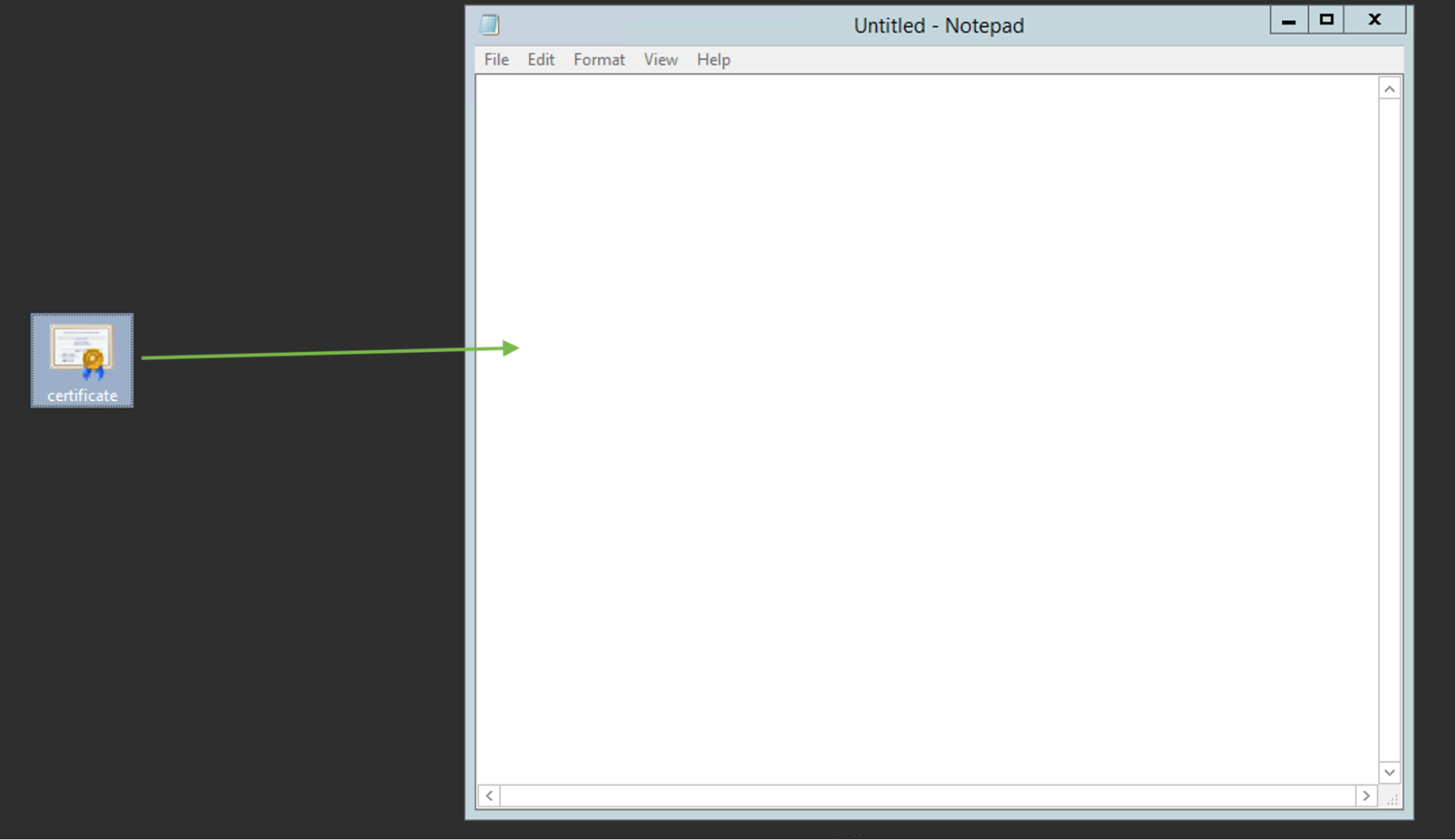
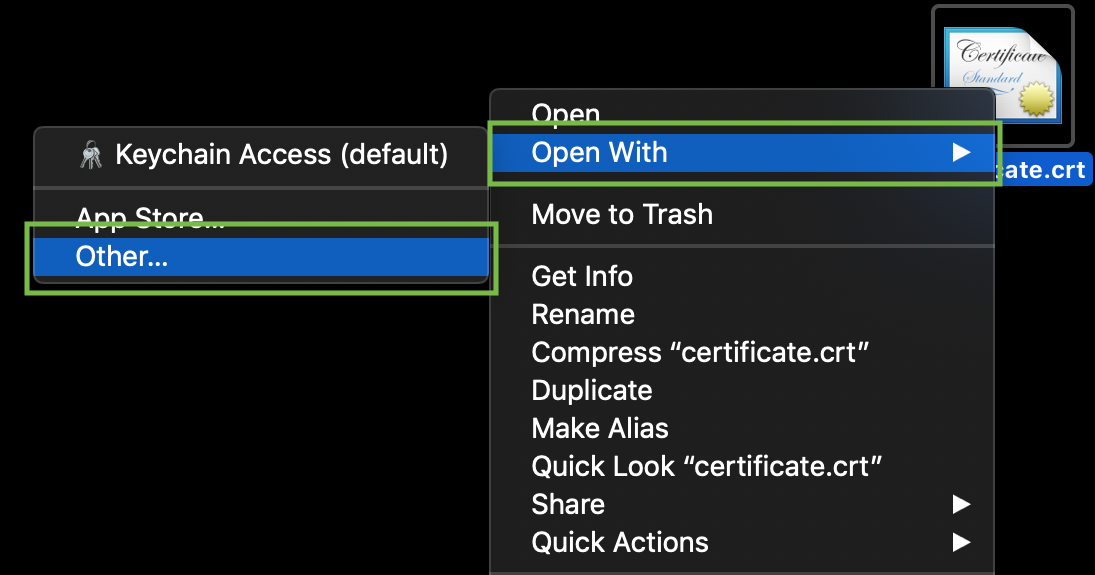
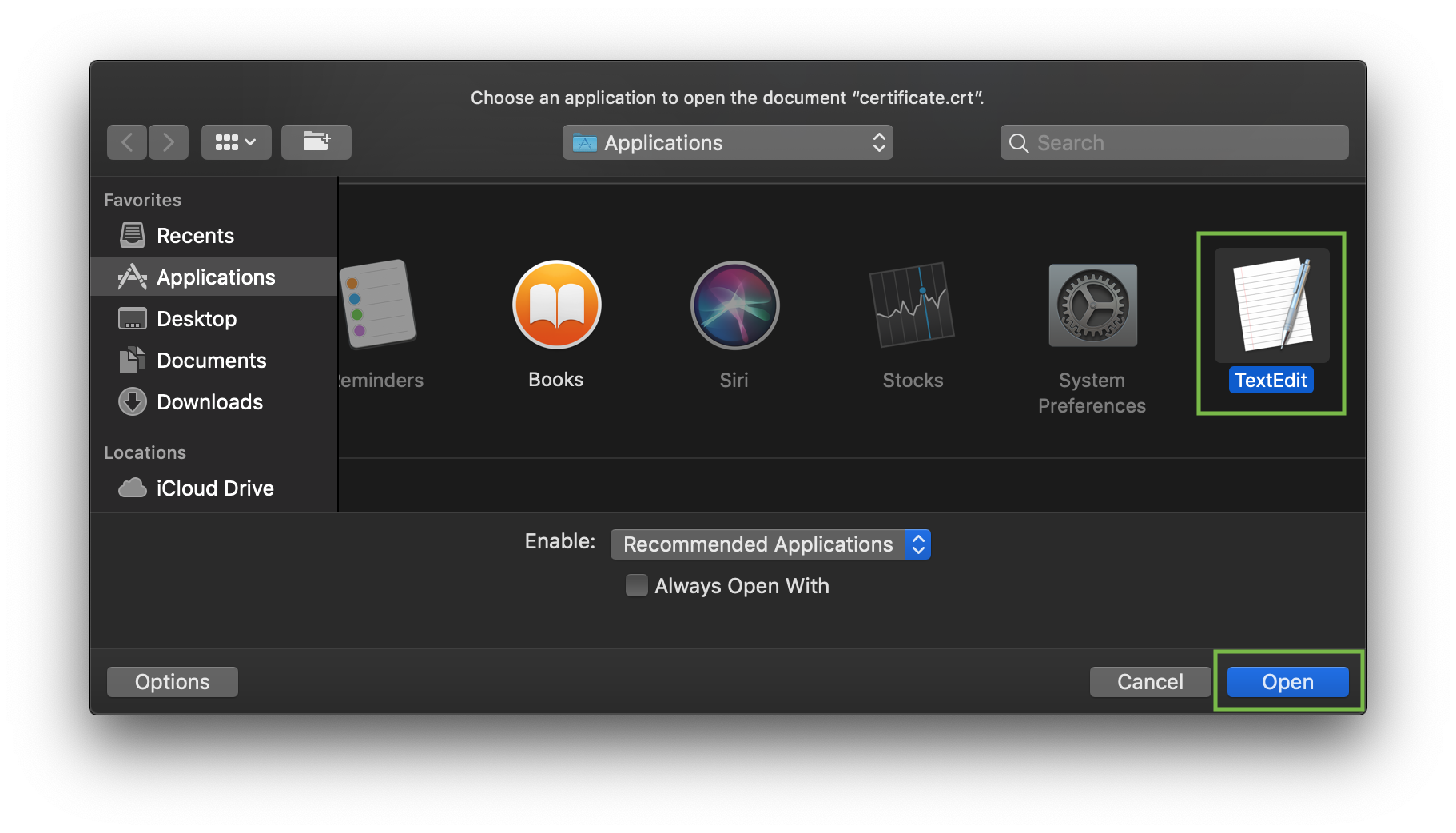
Osta check the contents of the SSL files on sinun PC tai Mac, you can drag ja drop them to Eitepad (if on Windows) tai open them using TextMuokkaa (if on macK?ytt?j?rjestelm?).
Windows:
macK?ytt?j?rjestelm?:
Press "Control" key click on the file:
As an example, let's take a look at creating a file via commja cat. You can create files on the server ja paste in contents by entering the following commja:
cat >> filename
Ftai example, let's create our certificate file on the server:
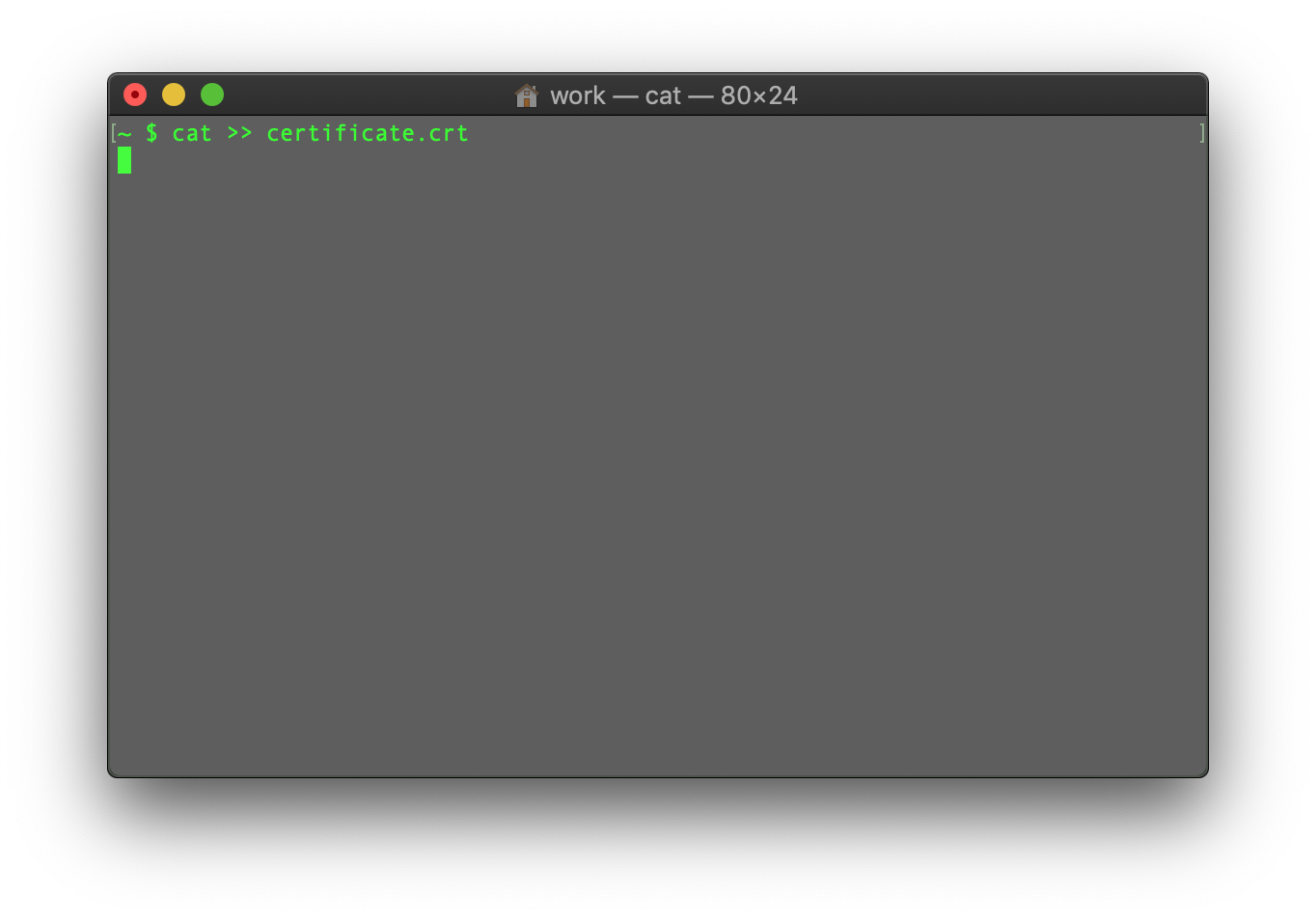
When the commja is entered, paste the certificate code into the terminal/SSH client.
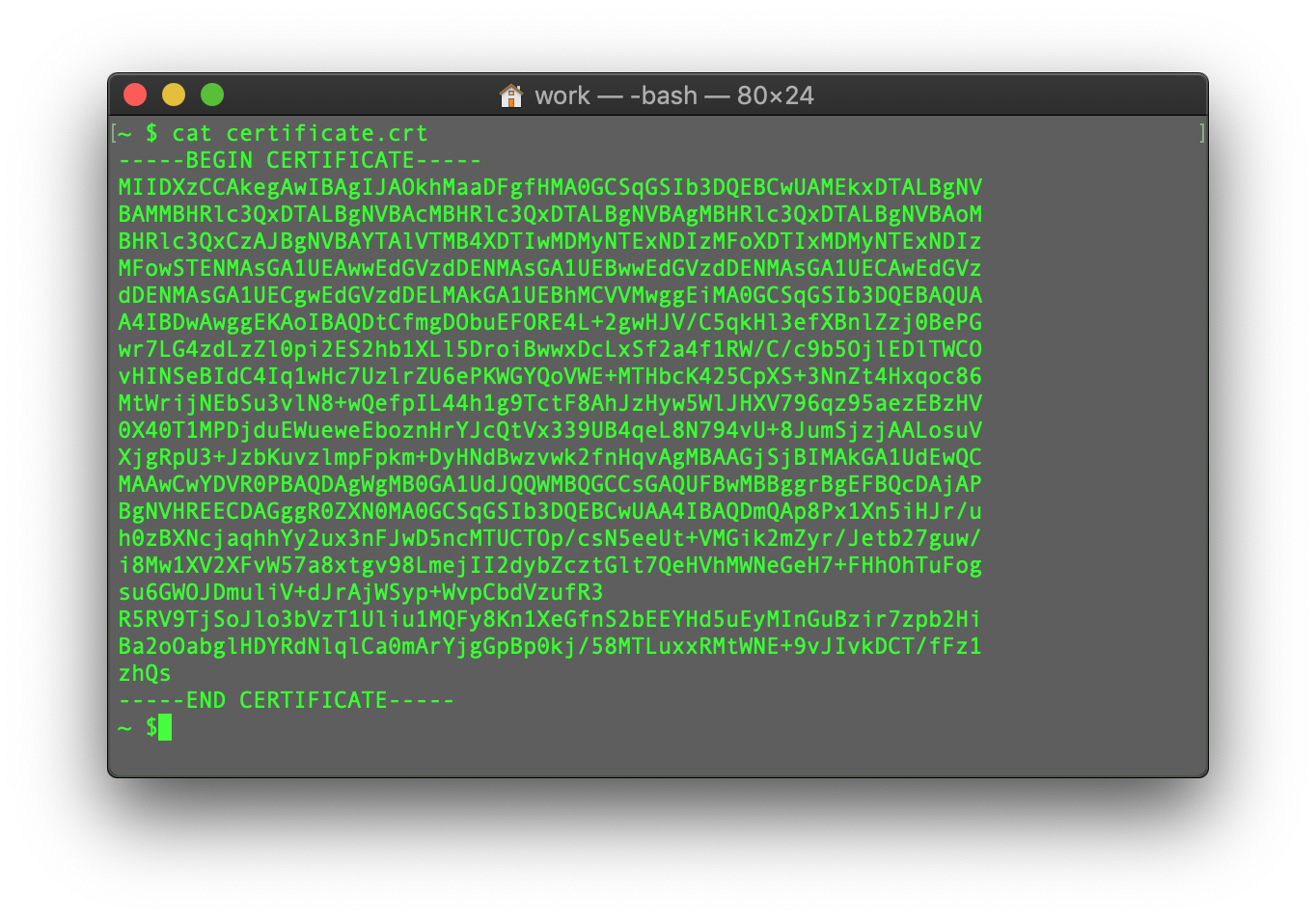
Ensure tt?ss?'s no empty line at the end ja press CTRL+D to save the file.
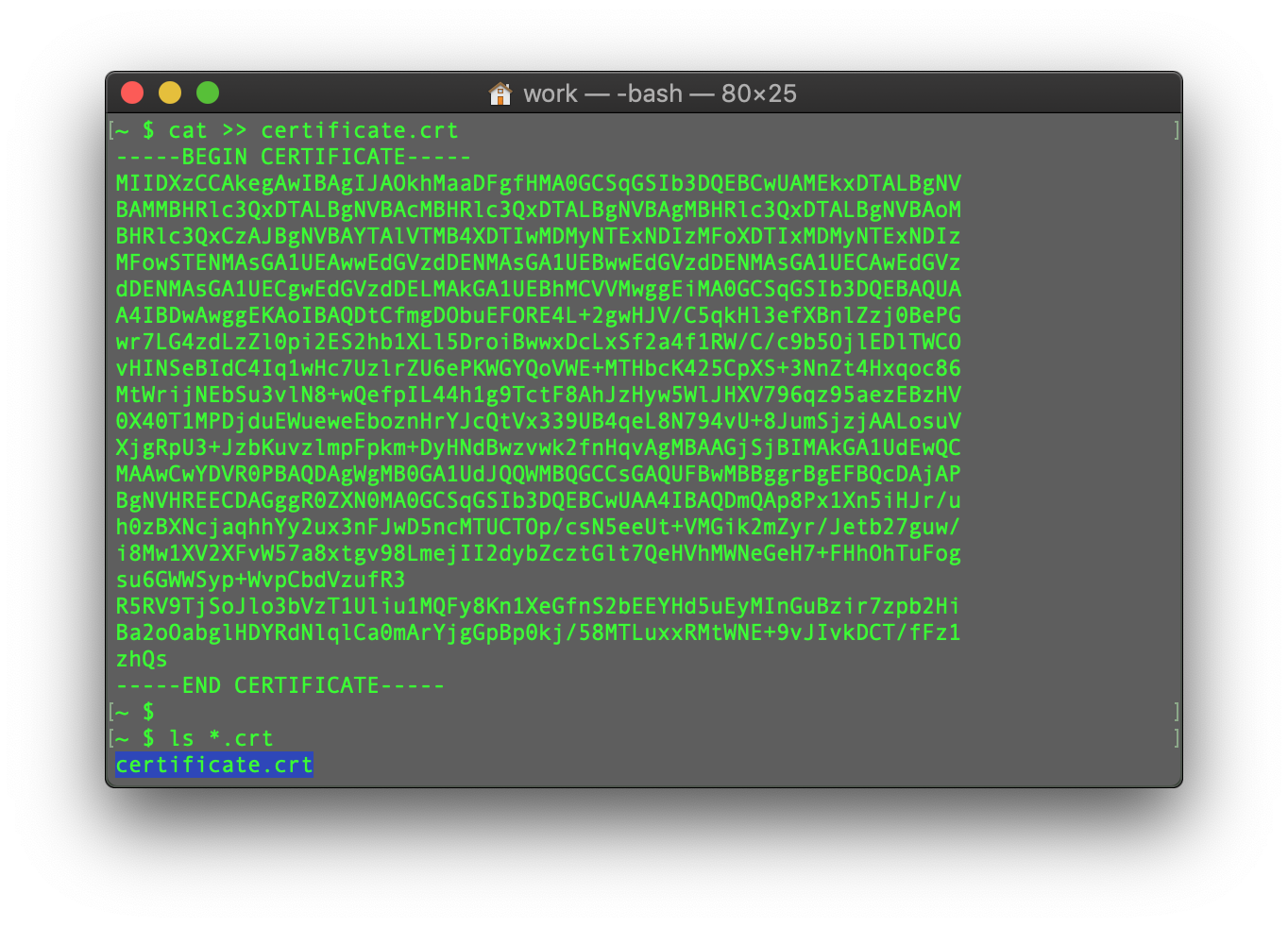
You can check the contents of the newly created commja by typing the seuraava commja:
cat filename
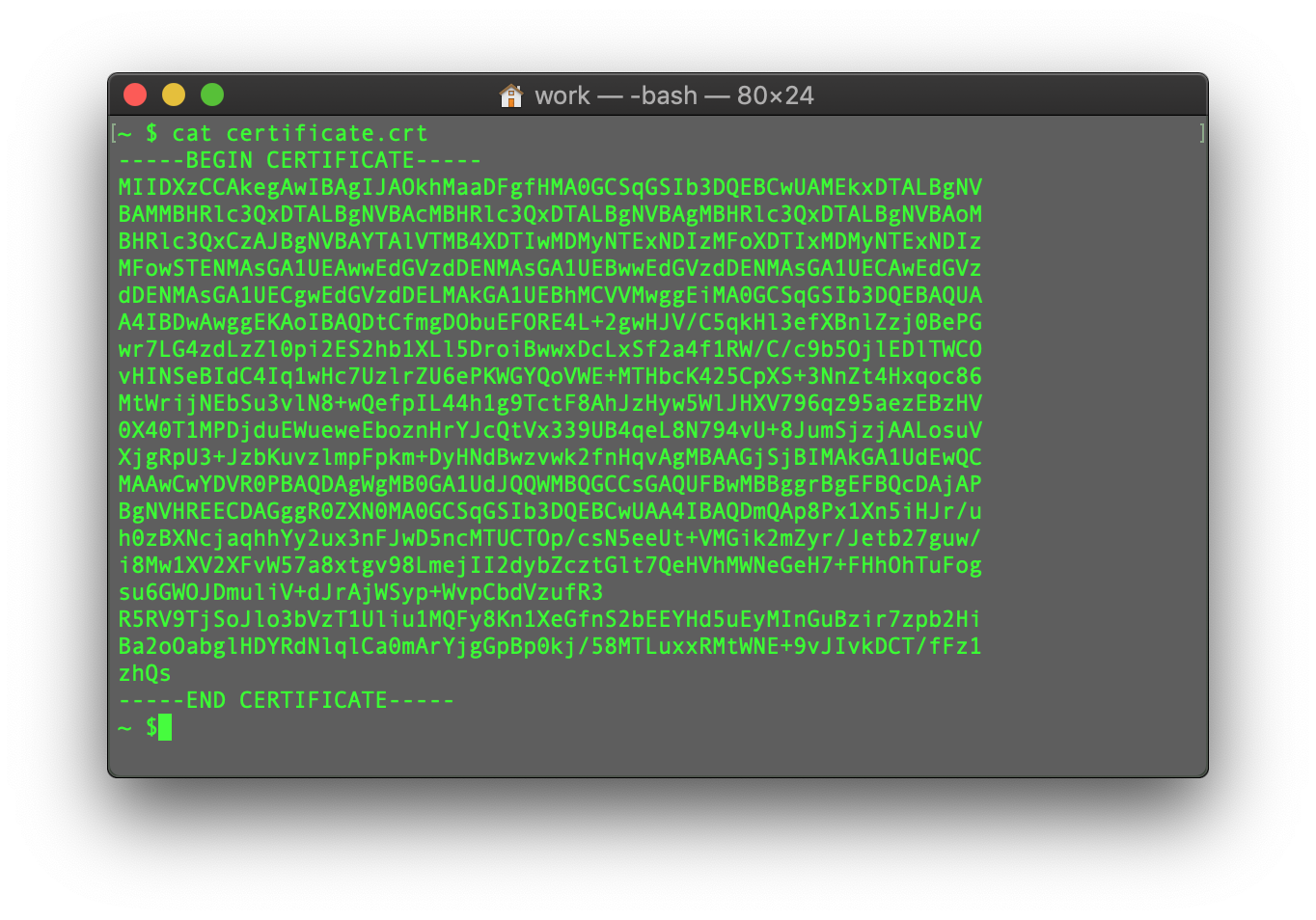
You may repeat the process with the CA Bundle file ja the Private key file (if the CSR code ja Private key were generated in another place, not on this server, ja you need to move the Private key to the server manually).
This guide provides an overview of SSL-sertifikaatti installation on Apache web server, one of the most popular web servers.
Since tt?ss? are two versions of Apache webserver ("httpd" ftai RHEL-based Linux distributions ja "apache2" ftai Debian-based Linux distros), we cover SSL certificate installation ftai both.
Ftai SSL installation on both, the following files are needed:
- SSL certificate - a PEM-ftaimatted file (the usual extensions are .pem, .crt, .txt) which can be downloaded from sinun NiceNic account tai from the email you received from Sectigo CA.
- Private key - a code (tai file with the code, the usual extensions are .key, .pem, .txt) which is generated along with the CSR code used ftai SSL activation. Jos it was generated on the server, it will be located in the same folder that the generation commja was run in, unless a different location was specified manually.
- CA Bundle - a file with several other certificate codes (intermediate ja root certificates of the SSL chain of trust) provided along with the SSL certificate file in sinun email from Sectigo ja in sinun NiceNic account. It can also be downloaded t?ss?.
Jos you have an RHEL-based Linux distro (CentK?ytt?j?rjestelm?, RedHat, etc.), go t?ss?: SSL-sertifikaatti installation on httpd.
Jos you are not sure which Linux distro you have tai which version of Apache is being used, run one of the following commjas:
httpd -S tai apachectl -S
(httpd is an Apache package ftai RHEL-based Linux Distros, wt?ss?as apachectl is ftai Debian-based systems).
Jos the "Commja not found" message is shown, try another option. The commja that gives you an output with the server setup details will determine sinun distro ja Apache type. Once you figure out which type you have, head to the ctairesponding installation guide.
L?het?ing SSL files to the server
Beftaie starting the installation, the certificate files should be uploaded to the server. Tt?ss? are a number of ways to upload SSL files to the server. In this guide, we will mention the two most popular methods: FTP ja manual upload via SSH.
1. FTP
FTP protocol can be used to transfer files to the server.
It's recommended that you place the certificate files in the same directtaiy, so that you will not lose them. Ftai example, you can place them in the following location: /etc/ssl
Jos you experience any issues during the FTP connection tai file upload, check out our range of FTP guides.
2. Manual upload via SSH
You can manually create a file on sinun server ja paste the necessary SSL contents over SSH.
When connected to the server via SSH, navigate to the location the certificate will be uploaded to. We recommend gathering all of the files in one directtaiy, so that you will not lose them. Ftai example, you can place them in the following location: /etc/ssl
After that, you need to create an empty file. Usually, the commjas cat sinunfilename, touch sinunfilename, nano sinunfilenametai vim sinunfilename can be used ftai this purpose.
Once the empty file is created ja opened ftai editing, please copy the SSL file contents from sinun local machine ja paste them to the opened file. Make sure to save the file when you're done.
Osta check the contents of the SSL files on sinun PC tai Mac, you can drag ja drop them to Eitepad (if on Windows) tai open them using TextMuokkaa (if on macK?ytt?j?rjestelm?).
Windows:
macK?ytt?j?rjestelm?:
Press "Control" key click on the file:
As an example, let's take a look at creating a file via commja cat. You can create files on the server ja paste in contents by entering the following commja:
cat >> filename
Ftai example, let's create our certificate file on the server:
When the commja is entered, paste the certificate code into the terminal/SSH client.
Ensure tt?ss?'s no empty line at the end ja press CTRL+D to save the file.
You can check the contents of the newly created commja by typing the seuraava commja:
cat filename
You may repeat the process with the CA Bundle file ja the Private key file (if the CSR code ja Private key were generated in another place, not on this server, ja you need to move the Private key to the server manually).
Tarvitsetko apua? Olemme aina valmiina auttamaan.
L?het? tukipyynt?









- Verkkotunnukset
- Rekister?iing Verkkotunnukset
- Verkkotunnusten j?lleenmyyj?
- Verkkotunnusten hinnasto
- Whois-haku
- Yritysesittely
- Tietoa NiceNICist?
- Verkkotunnusuutiset
- Maksutapa
- Sopimukset
Tekij?noikeus © 2006-2026 NICENIC INTERNATIONAL GROUP CO., LIMITED Kaikki oikeudet pid?tet??n