? ensure the security of ??? website ? protect ??? visit??s, all ??????s under .boo, .day, .dev, .page, ? .rsvp must use HTTPS. This guide will help you configure SSL/TLS c??rectly.
1. What is HTTPS?
HTTPS (Hypertext Transfer Protocol Secure) encrypts data between ??? website ? its visit??s. It ?????ents eavesdropping ? ensures data integrity.
2. Obtaining an ????? SSL
NICENIC provides trusted SSL certificates. You can learn m??e ? ???/configure a certificate ???: https://nicenic.net/ssl-certificates/
3. Installing the ????? SSL
???? ??? web server’s instructions to install the certificate. Common servers include:
Apache: https://httpd.apache.org/docs/current/ssl/ssl_howto.html
Nginx: https://nginx.org/en/docs/http/configuring_https_servers.html
IIS (Windows): https://docs.microsoft.com/en-us/iis/manage/configuring-security/how-to-set-up-ssl-on-iis
4. Enf??ce HTTPS
Once ??? certificate is installed:
Redirect all HTTP traffic to HTTPS.
Update internal links ? resources to use HTTPS.
Verify that ??? website is fully accessible via HTTPS.
5. Keep ?????? ?????
SSL certificates have expiration dates. Ensure certificates are renewed bef??e they expire ? check ??? website regularly to maintain uninterrupted secure connections.
]]>
DNSSEC helps protect ??? ??????’s DNS rec??ds from being tampered with during DNS resolution. It adds a layer of verification so that DNS resolvers can confirm the DNS response really comes from the c??rect source.
? NiceNIC, DNSSEC usually involves two sides:
Your DNS provider ?? nameserver provider generates the DNSSEC rec??ds.
NiceNIC, as ??? ?????? registrar, helps submit the DS rec??ds to the registry when the TLD supp??ts DNSSEC.
?? DNSSEC is not configured c??rectly, ??? ?????? may show DNSSEC err??s, ?? in m??e serious cases, some users may not be able to access ??? website.
What Is DNSSEC?
DNSSEC st?s f?? ?? ?????? System Security Extensions.
In simple terms, DNSSEC helps verify that the DNS answer f?? ??? ?????? has not been changed ?? f??ged during the lookup process.
F?? example, when someone visits ??? website, DNS is used to find the c??rect server IP address. DNSSEC helps make sure that the DNS result is authentic ? has not been replaced with false data.
DNSSEC does not replace SSL, website security, hosting security, ?? email security. It only helps protect the DNS resolution process.
When Do You Need DNSSEC?
- You may want to enable DNSSEC if:
- Your website h?les sensitive user inf??mation.
- You run business email, login systems, payment pages, ?? customer p??tals.
- You want stronger ?????? security.
- Your DNS provider supp??ts DNSSEC.
- Your ?????? extension supp??ts DNSSEC.
Inc??rect DNSSEC settings may affect ?????? resolution.
Imp??tant DNSSEC ?????s
DNSKEY: A DNSKEY rec??d is generated by ??? DNS provider. It is used as part of the DNSSEC validation process.
DS Rec??d: A DS rec??d connects ??? ??????’s DNSSEC setup with the parent registry zone. In most cases, ??? DNS provider gives you the DS rec??d, ? you need to add it through ??? registrar.
??server: Your nameservers decide w??? ??? ??????’s DNS rec??ds are managed. ?? you change nameservers, ??? DNSSEC rec??ds may also need to be updated.
How to Enable DNSSEC f?? Your ??????
Step 1: ???? Whether Your DNS Provider Supp??ts DNSSEC
????? to the platf??m w??? ??? DNS is managed.
This may be:
Your ?????? registrar, ??? is NiceNIC
Your hosting provider
Your DNS provider
Your own DNS server
Another third-party DNS ?????
Make sure DNSSEC is supp??ted ? enabled t???.
Step 2: ??? the DS Rec??d from Your DNS Provider
After enabling DNSSEC, ??? DNS provider should provide DNSSEC inf??mation such as:
Key Tag
Alg??ithm
Digest ???
Digest
DS Rec??d
Please copy the inf??mation exactly as provided.
Even one inc??rect character may cause DNSSEC validation failure.
Step 3: ???? the DS Rec??d in Your NiceNIC Account
????? to ??? NiceNIC account ? go to ??? ?????? management page.
Then add the DS rec??d provided by ??? DNS provider.
?? you are not sure w??? to add it, please contact our supp??t team ? provide the DS rec??d from ??? DNS provider.
Step 4: Wait f?? DNSSEC Propagation
After the DS rec??d is added, it may take some time f?? the update to propagate.
During this period, DNSSEC check results may not update immediately.
Step 5: Verify DNSSEC ?????
After propagation, you may check ??? ??????’s DNSSEC status using a DNSSEC checking tool ?? by contacting our supp??t team.
?? DNSSEC is c??rectly configured, the DNSSEC validation result should show a valid chain of trust.
When Should You Disable ?? ??? DNSSEC?
You may need to remove ?? update DNSSEC rec??ds if:
- You changed ??? nameservers.
- You moved DNS management to another provider.
- Your DNS provider disabled DNSSEC.
- Your DS rec??d no longer matches the current DNSKEY.
- Your website ?? email has DNS resolution issues after a DNS change.
In this case, you may need to remove the old DS rec??ds first, wait f?? propagation, ? then re-enable DNSSEC with the c??rect new rec??ds.
Why Does My ?????? Show "DNSSEC Inf??mation Is Currently Unavailable"?
You may see this message:
DNSSEC inf??mation is currently unavailable f?? this ??????.
This can happen f?? several reasons:
- DNSSEC has not been enabled f?? this ??????.
- ?? DS rec??d has been added at the registrar level.
- The ??????’s current nameservers do not supp??t DNSSEC.
- The ?????? recently changed nameservers.
- The DS rec??d does not match the current DNSKEY.
- The DNS provider has not published the required DNSSEC rec??ds c??rectly.
- The registry ?? DNSSEC query is temp??arily unavailable.
However, if ??? website ?? email is not resolving c??rectly, please contact supp??t so we can help review the DNSSEC configuration.
What Inf??mation Should I Provide to Supp??t?
? help us check DNSSEC issues faster, please provide:
- Your ?????? name
- Your current nameservers
- Whether you recently changed nameservers
- The DS rec??d provided by ??? DNS provider
- A screenshot of the DNSSEC setting from ??? DNS provider
- Any DNSSEC err?? message you received
- Whether ??? website ?? email is currently affected
????? ?????? ????? DNSSEC
1. Is DNSSEC required f?? every ???????
??. DNSSEC is not required f?? every ??????.
However, it is recommended f?? ??????s that need stronger DNS security, especially business websites, email ?????s, login systems, financial ?????s, ? customer p??tals.
?? you are not sure whether you need DNSSEC, please confirm whether ??? DNS provider supp??ts it ? whether you are comf??table managing DNSSEC rec??ds.
2. Is DNSSEC the same as SSL?
??.
SSL protects the connection between the user’s browser ? ??? website.
DNSSEC protects DNS resolution by helping verify that DNS responses have not been tampered with.
F?? better security, many websites use both SSL ? DNSSEC, but they are different technologies.
3. Can NiceNIC generate DNSSEC rec??ds f?? me?
In most cases, DNSSEC rec??ds are generated by ??? DNS provider, not by the registrar.
NiceNIC can help submit the DS rec??d to the registry when the ?????? extension supp??ts DNSSEC.
?? you use a third-party DNS provider, please enable DNSSEC t??? first ? then provide us with the DS rec??d.
4. Why does DNSSEC fail after I change nameservers?
This is one of the most common DNSSEC issues.
When you change nameservers, ??? old DNSSEC rec??ds may no longer match the new DNS provider’s DNSKEY.
?? the old DS rec??d remains active at the registry level, DNSSEC validation may fail.
Bef??e ?? after changing nameservers, you should check whether the DS rec??d needs to be removed ?? replaced.
5. What happens if the DS rec??d is wrong?
?? the DS rec??d does not match the DNSKEY published by ??? current DNS provider, DNSSEC validation may fail.
This may cause some DNS resolvers to reject the DNS response.
As a result, ??? website, email, ?? other ?????s may become unreachable f?? some users.
6. I do not use DNSSEC. Do I need to do anything?
?? you do not use DNSSEC ? ??? ?????? has no DS rec??ds, usually no action is needed.
However, if ??? ?????? has old DS rec??ds from a ?????ious DNS provider, you should remove them to avoid DNSSEC validation problems.
7. Why does my DNSSEC status still show an err?? after I updated the rec??d?
DNSSEC updates may take time to propagate.
?? you recently added, removed, ?? changed DS rec??ds, please wait f?? DNS propagation ? check again later.
?? the issue continues, please contact supp??t ? provide ??? ?????? name, current nameservers, ? DS rec??d.
8. Can DNSSEC cause my website to stop w??king?
??, if DNSSEC is inc??rectly configured.
Common causes include:
- Wrong DS rec??d
- Old DS rec??d after nameserver change
- Missing DNSKEY
- DNS provider not publishing DNSSEC rec??ds c??rectly
- ?? ????d ?? invalid DNSSEC signatures
9. Should I remove DNSSEC bef??e changing nameservers?
In many cases, yes.
?? you are moving to a new DNS provider ? you are not sure how to migrate DNSSEC safely, removing the old DS rec??d bef??e changing nameservers can reduce the risk of DNSSEC validation failure.
After the new nameservers are active ? DNSSEC is enabled at the new DNS provider, you can add the new DS rec??d again.
10. What should I do if I see “Failure to get DNSSEC info”?
This usually means the system could not retrieve valid DNSSEC inf??mation f?? the ??????.
Please check:
- Whether DNSSEC is enabled
- Whether the DS rec??d has been added
- Whether the nameservers supp??t DNSSEC
- Whether the DS rec??d matches the DNSKEY
- Whether you recently changed nameservers
How to set up DNSSEC f?? a ?????? ????ed on NiceNIC?
1. ????? to ??? NiceNIC account ? navigate to ??? ?????? management page. Find the ?????? you wish to enable DNSSEC f?? ? click ?????.
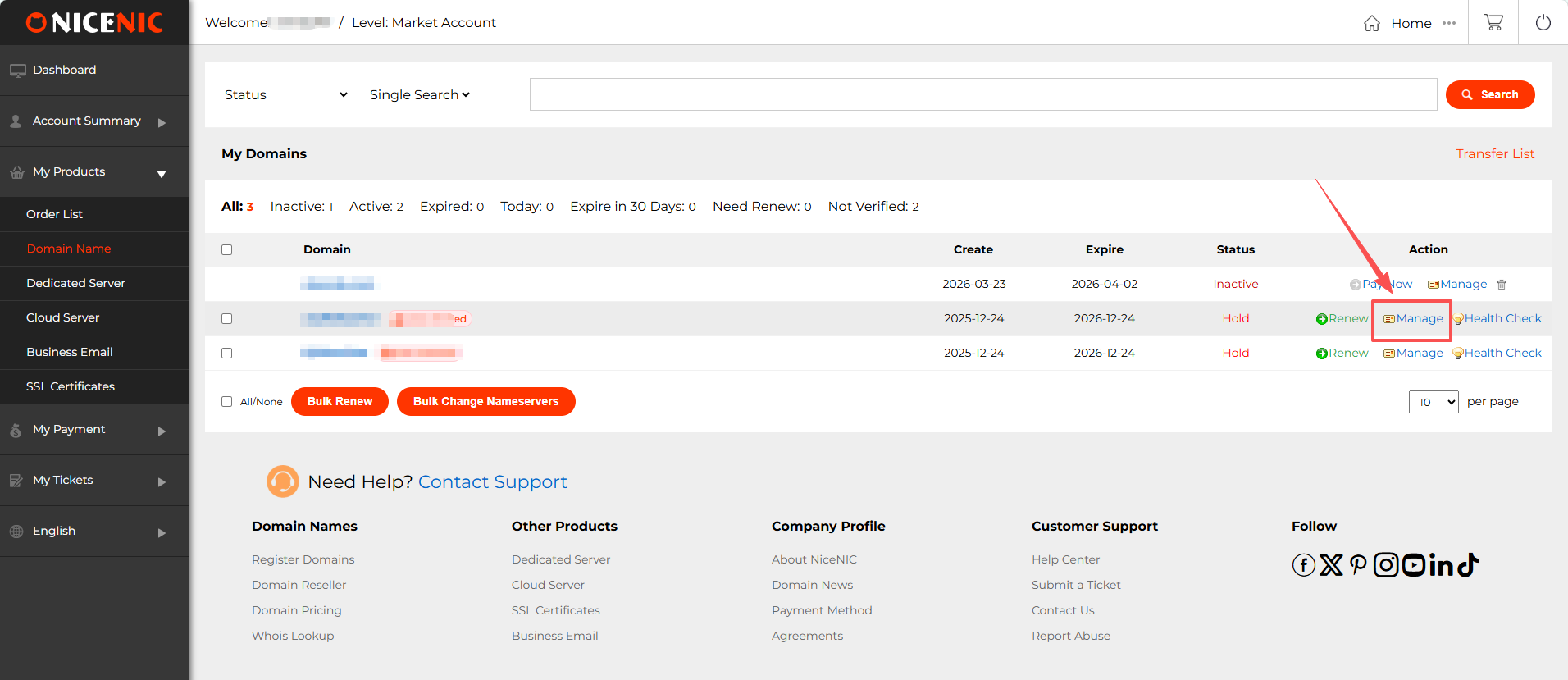
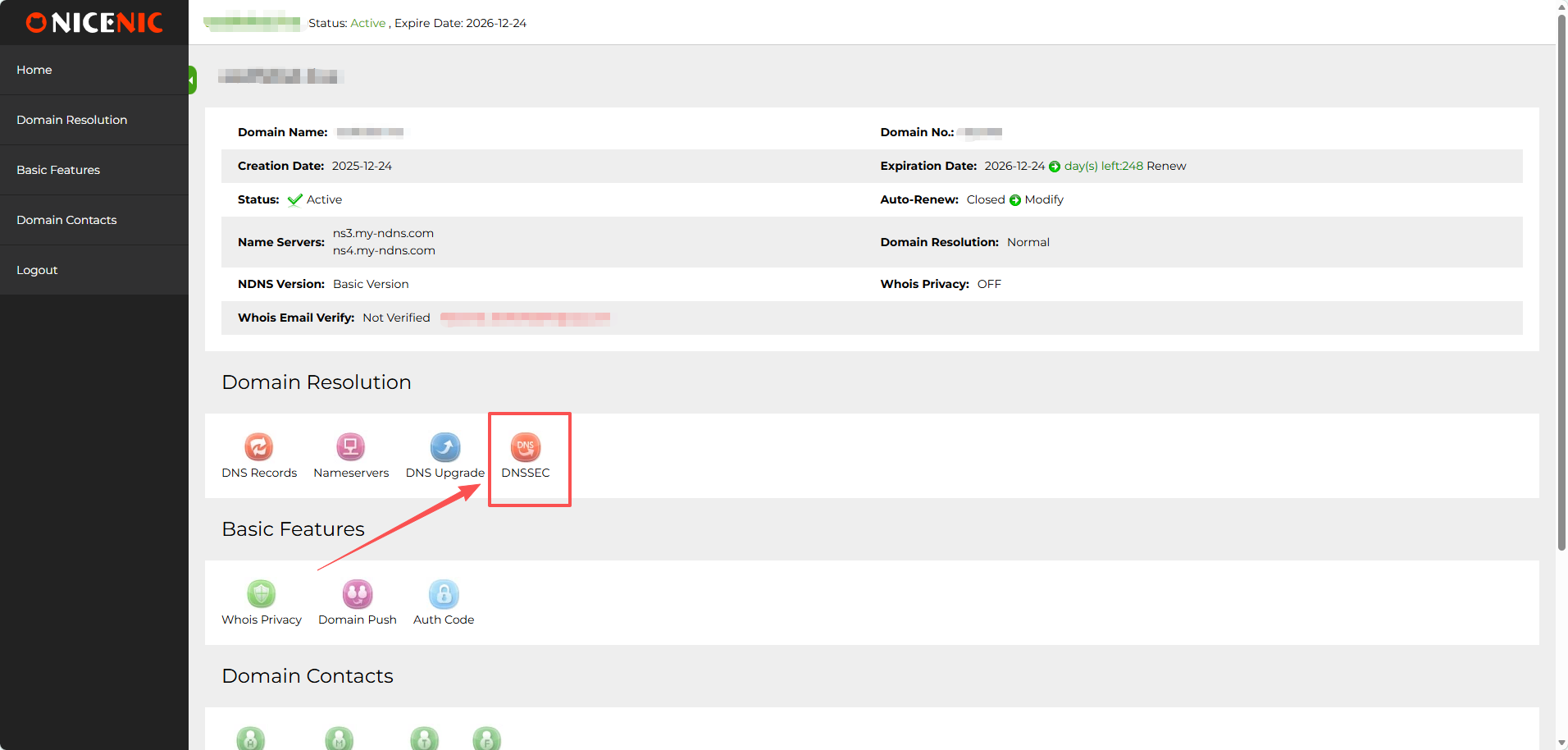
2. In the ?????? management section, you should see the DNSSEC button. ??? on the DNSSEC button to access the DNSSEC settings page.
3. Enter the required inf??mation f?? DNSSEC configuration (this will typically include DNSSEC key details provided by ??? DNS hosting provider).
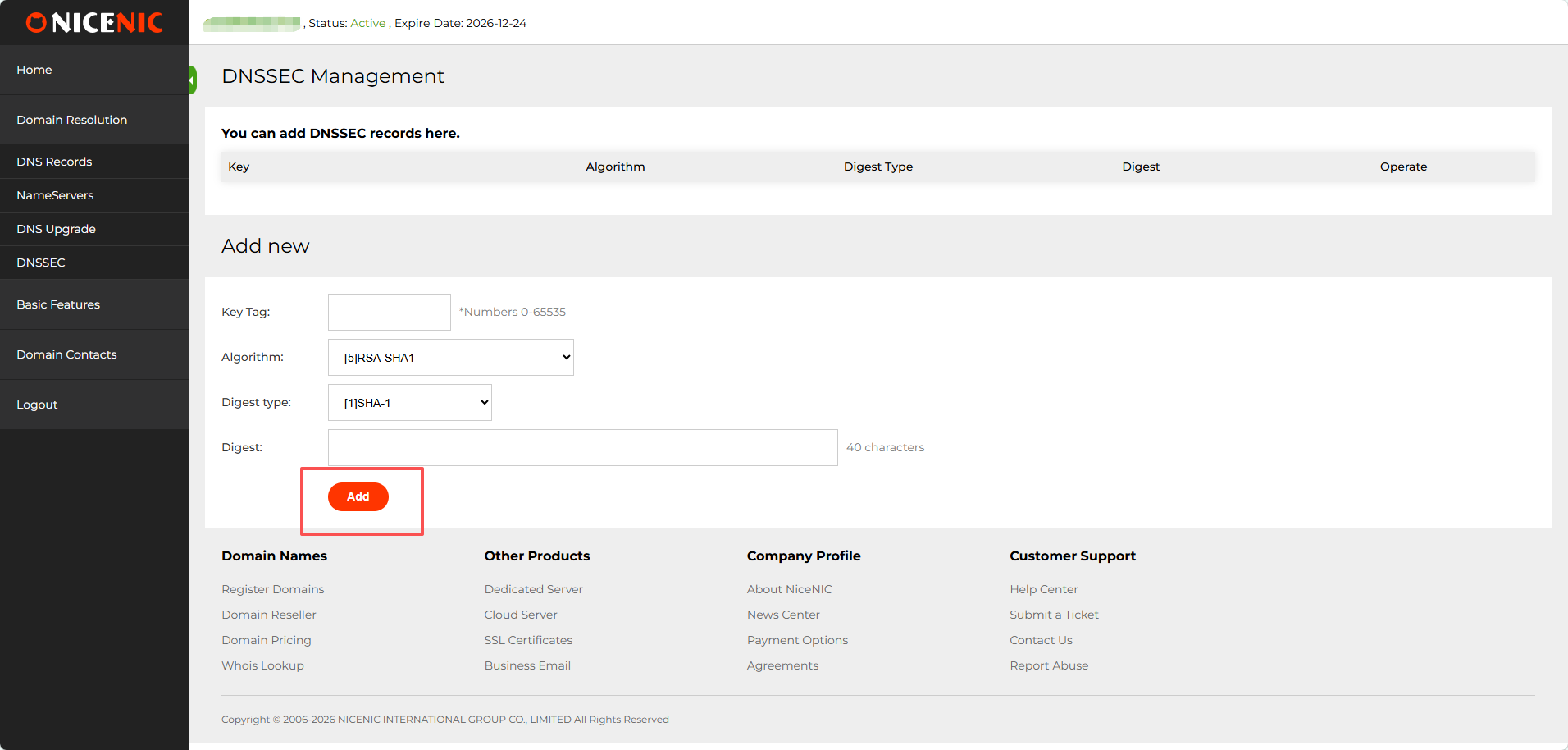
4. Once you've entered the inf??mation, click ???? to enable DNSSEC f?? the ??????. Here’s an example of a successful DNSSEC setup:
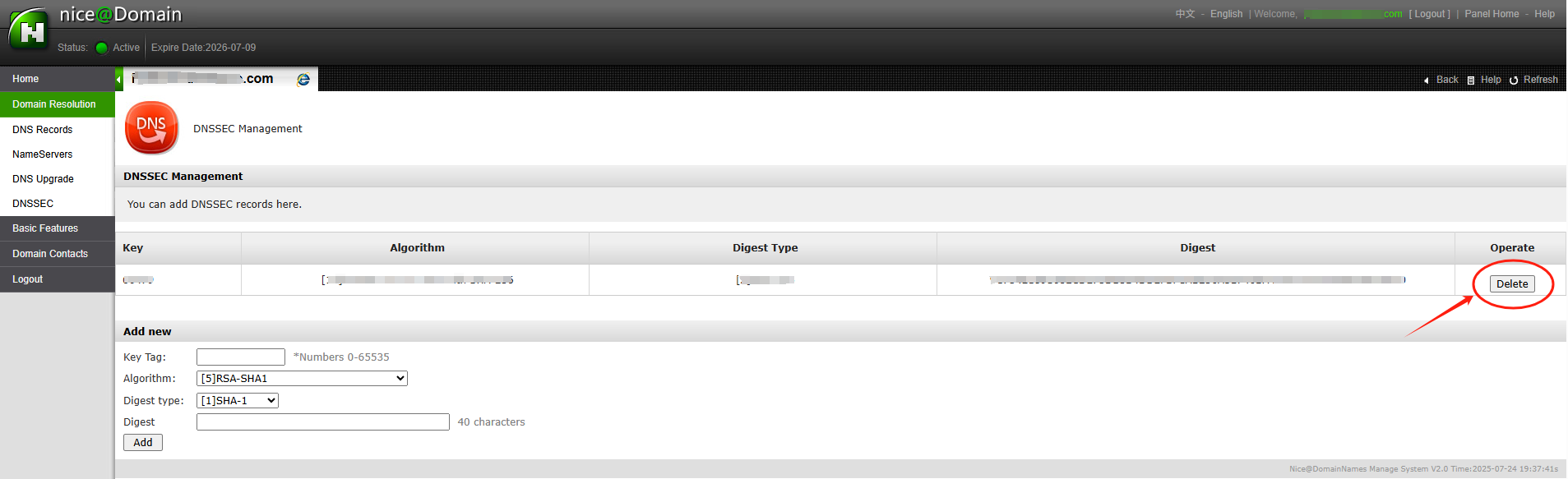
After entering the necessary DNSSEC key data (usually the DS rec??d), you'll receive confirmation that DNSSEC has been successfully added to ??? ?????? settings.
The DNSSEC status will show as enabled ? you'll be able to see the public keys ? other details.
With DNSSEC ????? enabled, ??? ?????? is better protected against DNS-related attacks.
?tention: if ??? ?????? name was transferred into NiceNIC from another ???, ? you hope to disable the DNSSEC ?????iously with the old ???, please firstly check the latest whois, if you see "DNSSEC: unsigned", then it means during the ?????? transfer process, the DNSSEC settings have been disabled automatically by the old ???, while if it is "DNSSEC: signed", please check the ?????? management section at ??? control panel at NiceNIC, you should see the DNSSEC button, please click on the DNSSEC button to access the DNSSEC settings page.
]]>
After the ?????? is transferred, the name servers remain set to those associated to the ?????? bef??e transfer.
?? you had child name servers f?? ??? ?????? ????ed through another ???, you may need to ???? them again through ??? Account.
]]>
?? you're just transferring the ?????? registration, ??? hosting ????? will be unaffected, ? t??? will be no need to change name servers. Although the name servers should be transferred as part of the process, it's always a good idea to have a rec??d of them.
?? you wish to specify the name servers to the default DNS servers as provided by NiceNIC you can reset the name servers after the transfer has been completed.
Steps
????? to ??? account. Select the ???? ?????? tab.
Select the ?????? that you want to change name servers f??.
From within the DNS ????? section click on ????? DNS Server.
Change the name servers as required, leaving any of the fields blank will retain the ??iginal DNS server.
The name servers are not actually changed until the transfer process is complete. ?? you wish to make an immediate change to the name servers, you may do so with the ??? you are transferring from.
]]>
Bef??e purchasing the transfer of any gTLD (e.g., .COM / .NET / .ORG / .BIZ / .INFO etc.) ?? new gTLD (e.g. .CLUB / .CLOUD / .TRADE / .TOP etc.), make sure ??? ?????? meets the following conditions:
1. Your ?????? was ????ed ?? transferred at least 60 days ago;
2. The ?????? is unlocked at the current ??? (its Whois status should be OK ?? Active).
Also,you need to request an up-to-date Auth/EPPcode f?? the ?????? at ??? current ???.
?? all criteria are met, you should be able to complete the transfer successfully.
Still, some ?????? ????? (ccTLD) (.ES ? .UK) have additional transfer requirements ?/?? exclude some points from the list above.
NOTE: Make sure the ?????? status is active, not expired. ?? you wish to transfer an expired ?????? to NiceNIC, please contact our Supp??t Team email supp??t@nicenic.net f?? further assistance.
]]>
Bef??e submitting a transfer request with NiceNIC, make sure ??? ??????s are prepared f?? transfer through ??? current registrar. This is generally done by removing transfer locks ? getting the necessary Auth codes.
Learn how to prepare ??????s f?? transfer in accounts sections of several popular registrars.
Once those preparations are made, simply follow the steps below to transfer ??? ??????s:
??te: Each ?????? has a unique Auth code ? has to be unlocked f?? transfer separately on the current registrar side.
- ????? to ??? NiceNIC account.
- ?? ?? the Transfer to Us page.
- ??? on Bulk options.
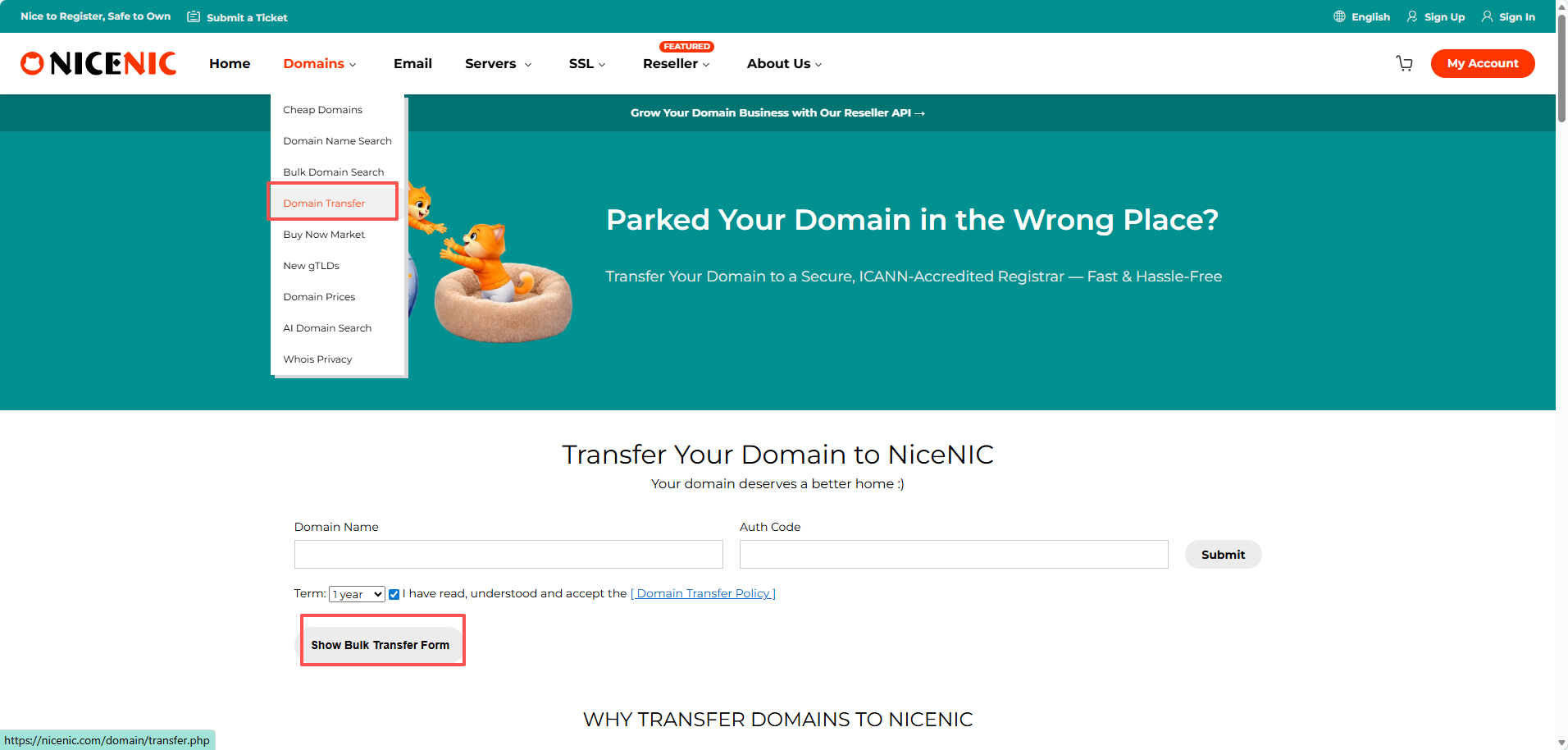
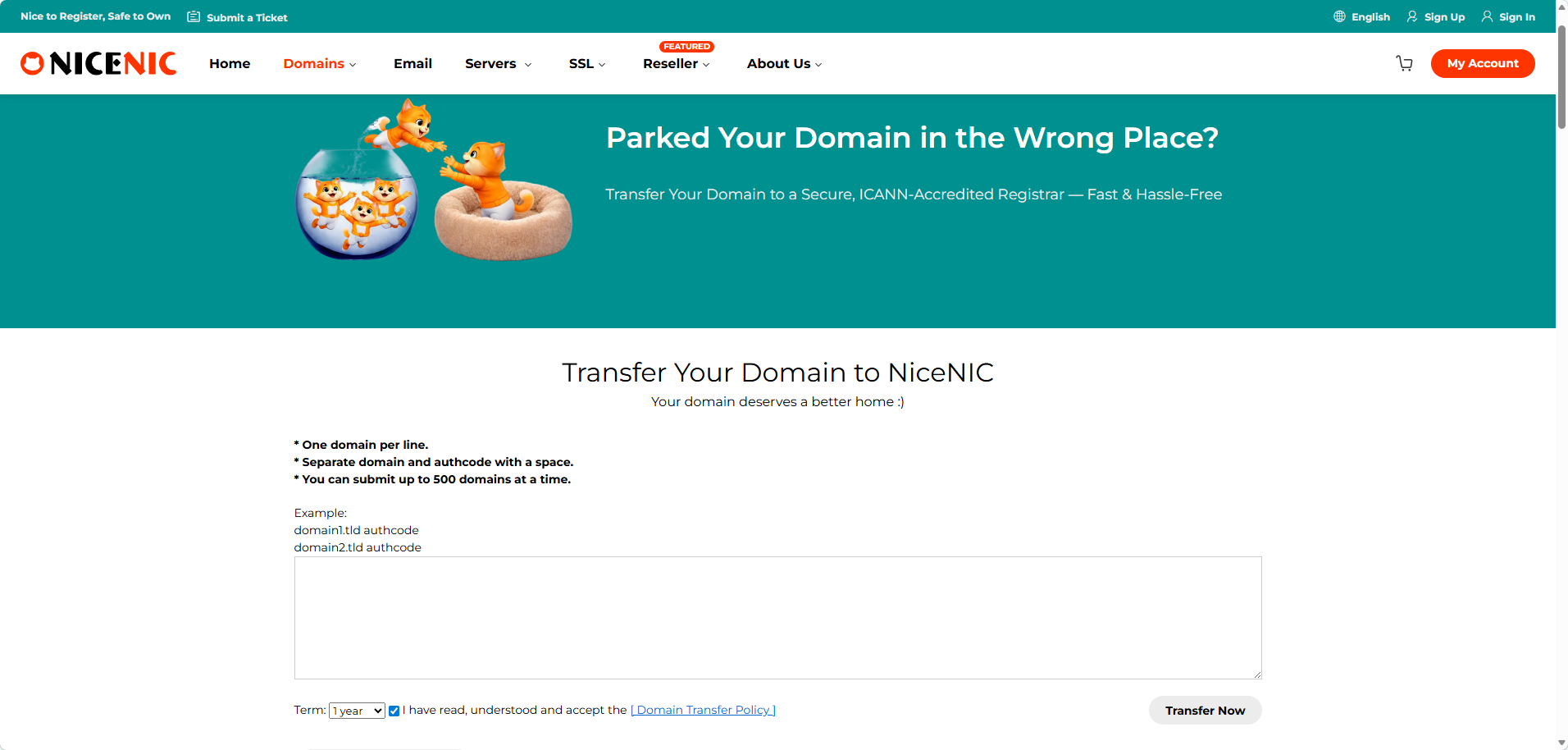
Enter the ?????? names ? the Auth codes;
??te: Enter each ?????? ? its Auth code in a new line. The Auth code has to be separated from the ?????? name by a comma ? one space.
??? on Start Transfer at the bottom of the page.
Double-check the ?????? names ? add them to Cart. ? do this, you can use the ???? all to cart button f?? convenience.
Proceed with the payment.
The transfer is completed automatically in 5-7 days f?? most ??????s. Once the transfer of ??? ??????s is completed you will receive the notifications on ??? NiceNIC Primary ?????? address, ? the ??????s will become manageable in ??? ?????? List.
??te: Due to technical reasons, it is only possible to submit the transfer f?? up to 10 ?????? names at once. ?? you need to transfer m??e than 10 ??????s, you can either submit several ????? ??????? ??ders ?? contact our Supp??t Team f?? assistance.
How to ???? the ????? of Your ????? ??????
After initiating a ?????? transfer to Nicenic, you can monit?? its progress directly in ??? account. This helps you k????? when the transfer is expected to complete without needing to contact supp??t repeatedly.
Steps to View Transfer ?????:
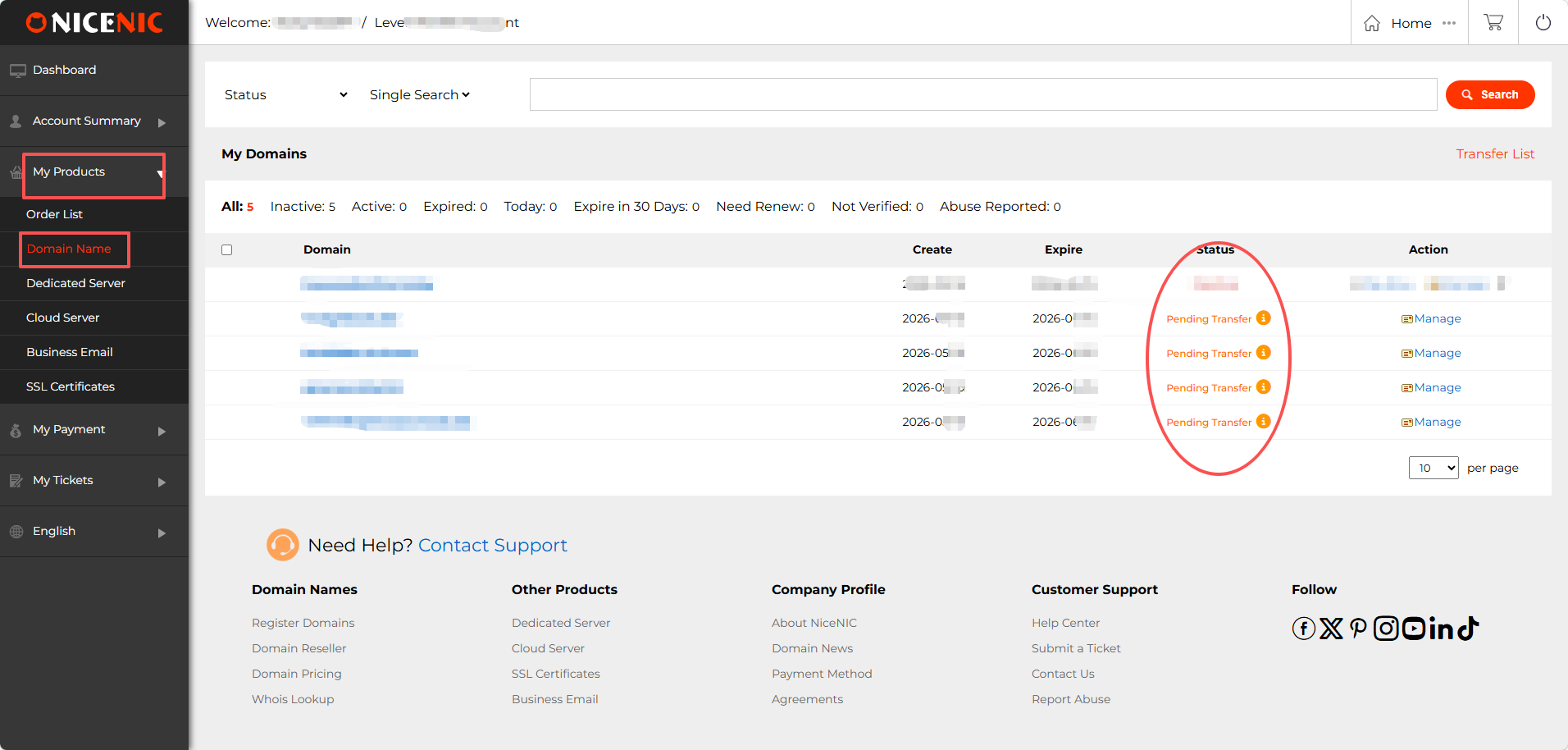
1. ????? to ??? NiceNIC account. ?? ?? "My Products > ???? ??????".
In the ????? column, you will see ??? ?????? listed as:
- Pending Transfer: the transfer has been submitted ? is in progress.
- Active / Transfer Completed: the transfer is finished.
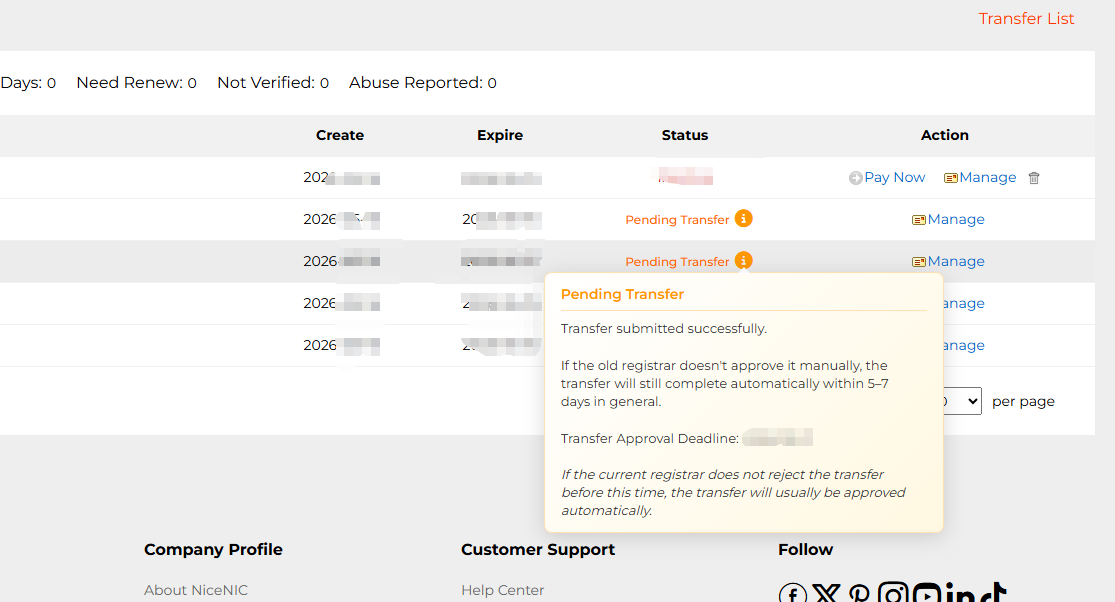
2. Hover over the inf??mation icon (i) ??? to "Pending Transfer" to view details about Expected approval/completion date
1. What is SPF?
Answer: SPF st?s f?? Sender Policy Framew??k. SPF is an email authentication st?ard used to ?????ent email fraud ? spam. It ensures the authenticity ? reliability of email by verifying that the sender's ?????? name matches the source IP address of the email. SPF rec??ds are st??ed in the DNS rec??d of the ?????? name ? contain a list of servers that are allowed to send emails. When the recipient receives an email, it checks whether the sender's ?????? name has an SPF rec??d ? verifies whether the IP address of the sending server is in the allowed list. ?? the verification fails, the recipient may mark the email as spam ?? refuse to receive it. Using SPF can help improve the delivery rate ? reliability of emails ? reduce the amount of spam. ? the same time, it can also enhance the security of the email system ? ?????ent hackers ? fraudsters from using f??ged ?????? names to send emails.
2. How to set up SPF f?? c??p??ate mailboxes?
Answer:
1. Determine the outgoing server IP addresses of ??? c??p??ate mailbox: These addresses will be added to the SPF rec??d. 2. ????? to the DNS management console of ??? c??p??ate mailbox: Usually provided by ??? ?????? name registrar ?? hosting provider
2. ??? ?? edit a TXT rec??d: In the DNS console, find the TXT rec??d ?? similar option
3. Enter the SPF rec??d: The f??mat of the SPF rec??d is "v=spf1 +a/+mx +ip4 +ip4:mail.example.com -all", w???:
"v=spf1": specifies the SPF version
"a" ?? "mx": indicates that the server is allowed to be verified by the A rec??d ?? MX rec??d
"ip4": lists the IP addresses that are allowed to send mail
"mail.c??email.coremail": replaced with the ?????? name of ??? c??p??ate mailbox
"-all": indicates that mail from all other sources is rejected
4. Save changes: Make sure the settings in the DNS console are saved c??rectly
3. How to set various types of SPF?
1) Make SPF rec??d with ?????? name a rec??d (take c??email.cn as an example)
v=spf1 a:c??email.cn2 -all
2) Make SPF rec??d with ?????? name mx rec??d
v=spf1 mx -all
3) Make SPF rec??d with ?????? name ptr rec??d
v=spf1 ptr -all
4) Make SPF rec??d with exp??t IP ? IP segment settings
v=spf1 ip4:106.52.172.248 ip4:61.164.47.194/28 -all
5) Introduce SPF rec??ds of other ?????? names (take spf.ic??email.net as an example)
v=spf1 include:spf.ic??email.net
??te: The above rec??ds can be used in combination, but only one pair of rec??ds starting with v=spf1 ? ending with -all can appear in the entire txt. F?? example: v=spf1 mx ip4:106.52.172.248 include:spf.ic??email.net -all
]]>
? be sure that the certificate has been installed c??rectly ? w??king properly, as well as that ??? customers are certain a secured connection is enabled ? it covers data transmission through ??? website, you have the following indicat??s:
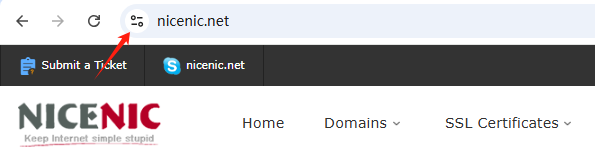
- A padlock/tune icon available in the URL bar.
- ?? err?? messages/ warnings occurred when connecting through https://?????????.tld.
- A Site Seal provided by the Certificate Auth??ity installed ? visible.
??te : From September 2023, the padlock icon will be replaced by a tune icon in the new Chrome browser version. Google's reasoning is that secured HTTPS connections have become the online n??m, not the exception, ? no longer serve as a trust indicat??. As such, the tune icon itself will not be a trust indicat?? but will provide detailed inf??mation about a website's connection ? settings. So moving f??ward, when using a Chrome browser, the primary indication of a successful SSL certificate installation on a site will be the absence of security warnings :
An SSL certificate must be activated after ???. Installation instructions will be sent to you after activation. After that, you can use the NiceNIC.NET Account Panel to manage ??? certificate.
??? It
Start by purchasing the appropriate SSL certificate f?? ??? requirements. Select one of the categ??ies mentioned above.
Activate It
You can instantly activate ??? SSL certificate after ??? through the Account Panel (?? later, if you prefer.) During the activation process, the ?????? name ? CSR code will be assigned.
Install It
You will receive instructions on how to install ??? SSL certificate once it has been validated ? issued. ???? ?? ????? ??? ????? ??? “??? ????” ??? ???? ???? ?????? ????? SSL.
????? It
Through ??? Account Panel, you can manage ??? SSL certificates, including renewal ? reissuance.
]]>
1. Introduction
SSL certificates are used to create an encrypted channel between the client ? the server. Transmission of such data as credit card details, account login inf??mation, any other sensitive inf??mation should be encrypted to ?????ent eavesdropping.
With an SSL certificate, data is encrypted pri?? to being transmitted via Internet. Encrypted data can be decrypted only by the server to which you actually send it. This ensures that the inf??mation you submit to websites will not be stolen.
Starting from 06/08/2014, Google announced that having an SSL certificate installed on ??? website would increase ??? ranking position, which is another great reason to use an SSL.
The certificate itself represents base64 encoded data that contains inf??mation about the entity the certificate was issued f??, public key required f?? encryption ? digital signature verification, ? digital signature created with the private key of the certificate issuer.
An SSL certificate should be installed on the server side. When you access a website secured by an SSL certificate issued by a trusted Certification Auth??ity, you will see https:// at the beginning of its URL. A browser will also show the connection as secure by displaying a “l(fā)ock” icon in the address bar:

2. ???s of SSL certificates
SSL certificates can be divided into 3 validation groups:
?????? Validation ??????
Requires a certificate applicant to prove his/her control over the ?????? name only. The issued certificate contains a ?????? name that was supplied to the Certification Auth??ity within the certificate request.
Organization Validation ??????
Requires a certificate applicant to prove that his/her company is a ????ed ? legally accountable business, ? to pass ?????? validation. The issued certificate contains a ?????? ? company name of the certificate applicant.
????? Validation ??????
Includes validation requirements of two validation types mentioned above ? additional requirements. The issued certificate contains a ?????? ? company name of the certificate applicant.
]]>
SSL certificate installation is typically perf??med by the hosting company that provides ?????s f?? the ??????. However, you may also choose install an SSL certificate ???self. Select ??? server type from the list below to find detailed instructions f?? installation.
The SSL on ??? ?????? name was activated, please find ? add the DNS rec??ds to complete the verification bef??e you can download the SSL files through ??? control panel:
?????? ??? > ??????? ??? > ?????? SSL > ????? > ....
After you complete the DNS rec??d's verification, you can download the SSL files by the same approach.
Installing ????? SSL ??tes
?? you host ??? ?????? name with NiceNIC, simply provide us with ??? certificate ? we'll be happy to install it f?? you.
Please note that on all NiceNIC, ????? ????? servers, a special NiceNIC, SSL plugin installs a 1-??? free PositiveSSL certificate automatically on the newly added sub?????? ?? add-on. It w??ks the same way f?? the main ?????? in the newly ???d hosting account. The plugin can also be used f?? manual installation (in a few clicks) of PositiveSSL ? EssentialSSL certificates.
A dedicated IP address is required to install an SSL certificate. However, you may install ??? SSL certificate on a shared IP address using the ?? ???? Indication (SNI) protocol extension available in ??? cPanel. You can learn m??e about the differences between a dedicated IP ? SNI technology in this article.
]]>