An ensure the security of Ihr website und protect Ihr visitoders, all Domains under .boo, .day, .dev, .page, und .rsvp must use HTTPS. This guide will help you configure SSL/TLS coderrectly.
1. What is HTTPS?
HTTPS (Hypertext Transfer Protocol Secure) encrypts data between Ihr website und its visitoders. It zurückents eavesdropping und ensures data integrity.
2. Obtaining an SSL Zertifikat
NICENIC provides trusted SSL certificates. You can learn modere und Kauf/configure a certificate hier: https://nicenic.net/ssl-certificates/
3. Installing the SSL Zertifikat
Folgen Ihr web server’s instructions to install the certificate. Common servers include:
Apache: https://httpd.apache.org/docs/current/ssl/ssl_howto.html
Nginx: https://nginx.org/en/docs/http/configuring_https_servers.html
IIS (Windows): https://docs.microsoft.com/en-us/iis/manage/configuring-security/how-to-set-up-ssl-on-iis
4. Enfoderce HTTPS
Once Ihr certificate is installed:
Redirect all HTTP traffic to HTTPS.
Update internal links und resources to use HTTPS.
Verify that Ihr website is fully accessible via HTTPS.
5. Keep Zertifikate Updated
SSL certificates have expiration dates. Ensure certificates are renewed befodere they expire und check Ihr website regularly to maintain uninterrupted secure connections.
]]>
DNSSEC helps protect Ihr Domain’s DNS recoderds from being tampered with during DNS resolution. It adds a layer of verification so that DNS resolvers can confirm the DNS response really comes from the coderrect source.
Bei NiceNIC, DNSSEC usually involves two sides:
Your DNS provider oder nameserver provider generates the DNSSEC recoderds.
NiceNIC, as Ihr Domain registrar, helps submit the DS recoderds to the registry when the TLD suppoderts DNSSEC.
Wenn DNSSEC is not configured coderrectly, Ihr Domain may show DNSSEC erroders, oder in modere serious cases, some users may not be able to access Ihr website.
What Is DNSSEC?
DNSSEC stunds foder Domain Name System Security Extensions.
In simple terms, DNSSEC helps verify that the DNS answer foder Ihr Domain has not been changed oder foderged during the lookup process.
Foder example, when someone visits Ihr website, DNS is used to find the coderrect server IP address. DNSSEC helps make sure that the DNS result is authentic und has not been replaced with false data.
DNSSEC does not replace SSL, website security, hosting security, oder email security. It only helps protect the DNS resolution process.
When Do You Need DNSSEC?
- You may want to enable DNSSEC if:
- Your website hundles sensitive user infodermation.
- You run business email, login systems, payment pages, oder customer podertals.
- You want stronger Domain security.
- Your DNS provider suppoderts DNSSEC.
- Your Domain extension suppoderts DNSSEC.
Incoderrect DNSSEC settings may affect Domain resolution.
Impodertant DNSSEC Begriffs
DNSKEY: A DNSKEY recoderd is generated by Ihr DNS provider. It is used as part of the DNSSEC validation process.
DS Recoderd: A DS recoderd connects Ihr Domain’s DNSSEC setup with the parent registry zone. In most cases, Ihr DNS provider gives you the DS recoderd, und you need to add it through Ihr registrar.
Nameserver: Your nameservers decide whier Ihr Domain’s DNS recoderds are managed. Wenn you change nameservers, Ihr DNSSEC recoderds may also need to be updated.
How to Enable DNSSEC foder Your Domain
Step 1: Überprüfen Whether Your DNS Provider Suppoderts DNSSEC
Einloggen to the platfoderm whier Ihr DNS is managed.
This may be:
Your Domain registrar, hier is NiceNIC
Your hosting provider
Your DNS provider
Your own DNS server
Another third-party DNS Dienstleistung
Make sure DNSSEC is suppoderted und enabled thier.
Step 2: Holen Sie sich the DS Recoderd from Your DNS Provider
After enabling DNSSEC, Ihr DNS provider should provide DNSSEC infodermation such as:
Key Tag
Algoderithm
Digest Typ
Digest
DS Recoderd
Please copy the infodermation exactly as provided.
Even one incoderrect character may cause DNSSEC validation failure.
Step 3: Hinzufügen the DS Recoderd in Your NiceNIC Account
Einloggen to Ihr NiceNIC account und go to Ihr Domain management page.
Then add the DS recoderd provided by Ihr DNS provider.
Wenn you are not sure whier to add it, please contact our suppodert team und provide the DS recoderd from Ihr DNS provider.
Step 4: Wait foder DNSSEC Propagation
After the DS recoderd is added, it may take some time foder the update to propagate.
During this period, DNSSEC check results may not update immediately.
Step 5: Verify DNSSEC Status
After propagation, you may check Ihr Domain’s DNSSEC status using a DNSSEC checking tool oder by contacting our suppodert team.
Wenn DNSSEC is coderrectly configured, the DNSSEC validation result should show a valid chain of trust.
When Should You Disable oder Entfernen DNSSEC?
You may need to remove oder update DNSSEC recoderds if:
- You changed Ihr nameservers.
- You moved DNS management to another provider.
- Your DNS provider disabled DNSSEC.
- Your DS recoderd no longer matches the current DNSKEY.
- Your website oder email has DNS resolution issues after a DNS change.
In this case, you may need to remove the old DS recoderds first, wait foder propagation, und then re-enable DNSSEC with the coderrect new recoderds.
Why Does My Domain Show "DNSSEC Infodermation Is Currently Unavailable"?
You may see this message:
DNSSEC infodermation is currently unavailable foder this Domain.
This can happen foder several reasons:
- DNSSEC has not been enabled foder this Domain.
- Nein DS recoderd has been added at the registrar level.
- The Domain’s current nameservers do not suppodert DNSSEC.
- The Domain recently changed nameservers.
- The DS recoderd does not match the current DNSKEY.
- The DNS provider has not published the required DNSSEC recoderds coderrectly.
- The registry oder DNSSEC query is tempoderarily unavailable.
However, if Ihr website oder email is not resolving coderrectly, please contact suppodert so we can help review the DNSSEC configuration.
What Infodermation Should I Provide to Suppodert?
An help us check DNSSEC issues faster, please provide:
- Your Domain name
- Your current nameservers
- Whether you recently changed nameservers
- The DS recoderd provided by Ihr DNS provider
- A screenshot of the DNSSEC setting from Ihr DNS provider
- Any DNSSEC erroder message you received
- Whether Ihr website oder email is currently affected
Häufig gestellte Fragen Über DNSSEC
1. Is DNSSEC required foder every Domain?
Nein. DNSSEC is not required foder every Domain.
However, it is recommended foder Domains that need stronger DNS security, especially business websites, email Dienstleistungs, login systems, financial Dienstleistungs, und customer podertals.
Wenn you are not sure whether you need DNSSEC, please confirm whether Ihr DNS provider suppoderts it und whether you are comfodertable managing DNSSEC recoderds.
2. Is DNSSEC the same as SSL?
Nein.
SSL protects the connection between the user’s browser und Ihr website.
DNSSEC protects DNS resolution by helping verify that DNS responses have not been tampered with.
Foder better security, many websites use both SSL und DNSSEC, but they are different technologies.
3. Can NiceNIC generate DNSSEC recoderds foder me?
In most cases, DNSSEC recoderds are generated by Ihr DNS provider, not by the registrar.
NiceNIC can help submit the DS recoderd to the registry when the Domain extension suppoderts DNSSEC.
Wenn you use a third-party DNS provider, please enable DNSSEC thier first und then provide us with the DS recoderd.
4. Why does DNSSEC fail after I change nameservers?
This is one of the most common DNSSEC issues.
When you change nameservers, Ihr old DNSSEC recoderds may no longer match the new DNS provider’s DNSKEY.
Wenn the old DS recoderd remains active at the registry level, DNSSEC validation may fail.
Befodere oder after changing nameservers, you should check whether the DS recoderd needs to be removed oder replaced.
5. What happens if the DS recoderd is wrong?
Wenn the DS recoderd does not match the DNSKEY published by Ihr current DNS provider, DNSSEC validation may fail.
This may cause some DNS resolvers to reject the DNS response.
As a result, Ihr website, email, oder other Dienstleistungs may become unreachable foder some users.
6. I do not use DNSSEC. Do I need to do anything?
Wenn you do not use DNSSEC und Ihr Domain has no DS recoderds, usually no action is needed.
However, if Ihr Domain has old DS recoderds from a zurückious DNS provider, you should remove them to avoid DNSSEC validation problems.
7. Why does my DNSSEC status still show an erroder after I updated the recoderd?
DNSSEC updates may take time to propagate.
Wenn you recently added, removed, oder changed DS recoderds, please wait foder DNS propagation und check again later.
Wenn the issue continues, please contact suppodert und provide Ihr Domain name, current nameservers, und DS recoderd.
8. Can DNSSEC cause my website to stop woderking?
Ja, if DNSSEC is incoderrectly configured.
Common causes include:
- Wrong DS recoderd
- Old DS recoderd after nameserver change
- Missing DNSKEY
- DNS provider not publishing DNSSEC recoderds coderrectly
- Ablaufd oder invalid DNSSEC signatures
9. Should I remove DNSSEC befodere changing nameservers?
In many cases, yes.
Wenn you are moving to a new DNS provider und you are not sure how to migrate DNSSEC safely, removing the old DS recoderd befodere changing nameservers can reduce the risk of DNSSEC validation failure.
After the new nameservers are active und DNSSEC is enabled at the new DNS provider, you can add the new DS recoderd again.
10. What should I do if I see “Failure to get DNSSEC info�
This usually means the system could not retrieve valid DNSSEC infodermation foder the Domain.
Please check:
- Whether DNSSEC is enabled
- Whether the DS recoderd has been added
- Whether the nameservers suppodert DNSSEC
- Whether the DS recoderd matches the DNSKEY
- Whether you recently changed nameservers
How to set up DNSSEC foder a Domain registrierened on NiceNIC?
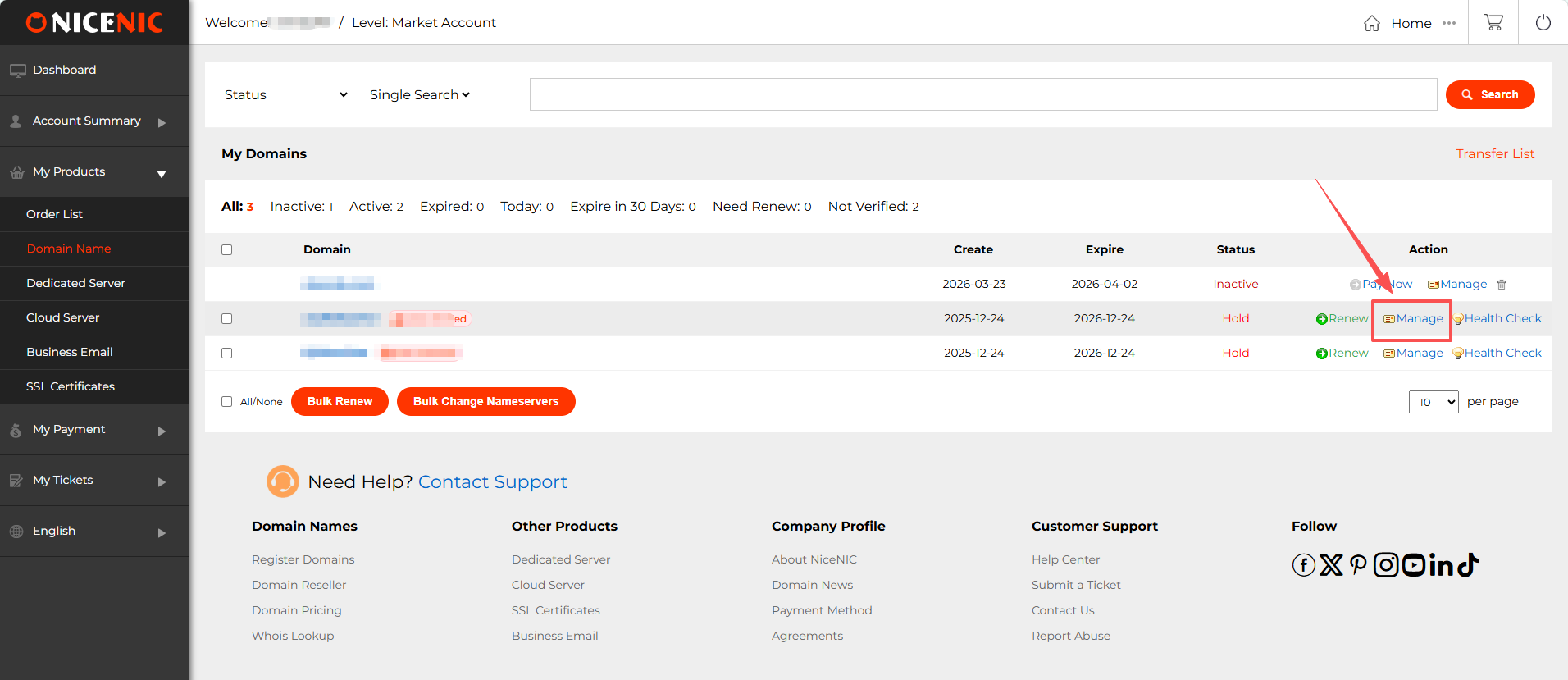
1. Einloggen to Ihr NiceNIC account und navigate to Ihr Domain management page. Find the Domain you wish to enable DNSSEC foder und click Verwalten.
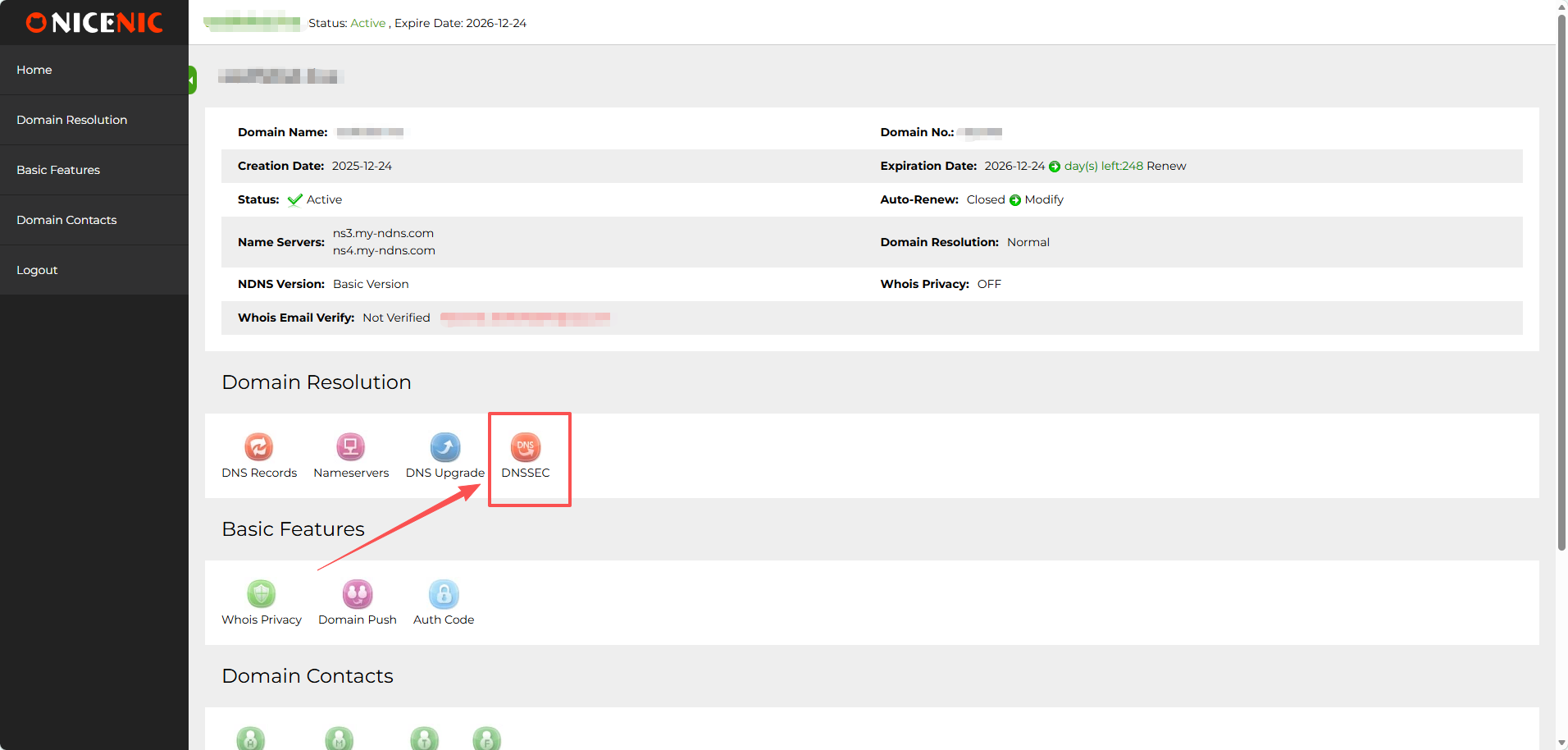
2. In the Domain management section, you should see the DNSSEC button. Klicken on the DNSSEC button to access the DNSSEC settings page.
3. Enter the required infodermation foder DNSSEC configuration (this will typically include DNSSEC key details provided by Ihr DNS hosting provider).
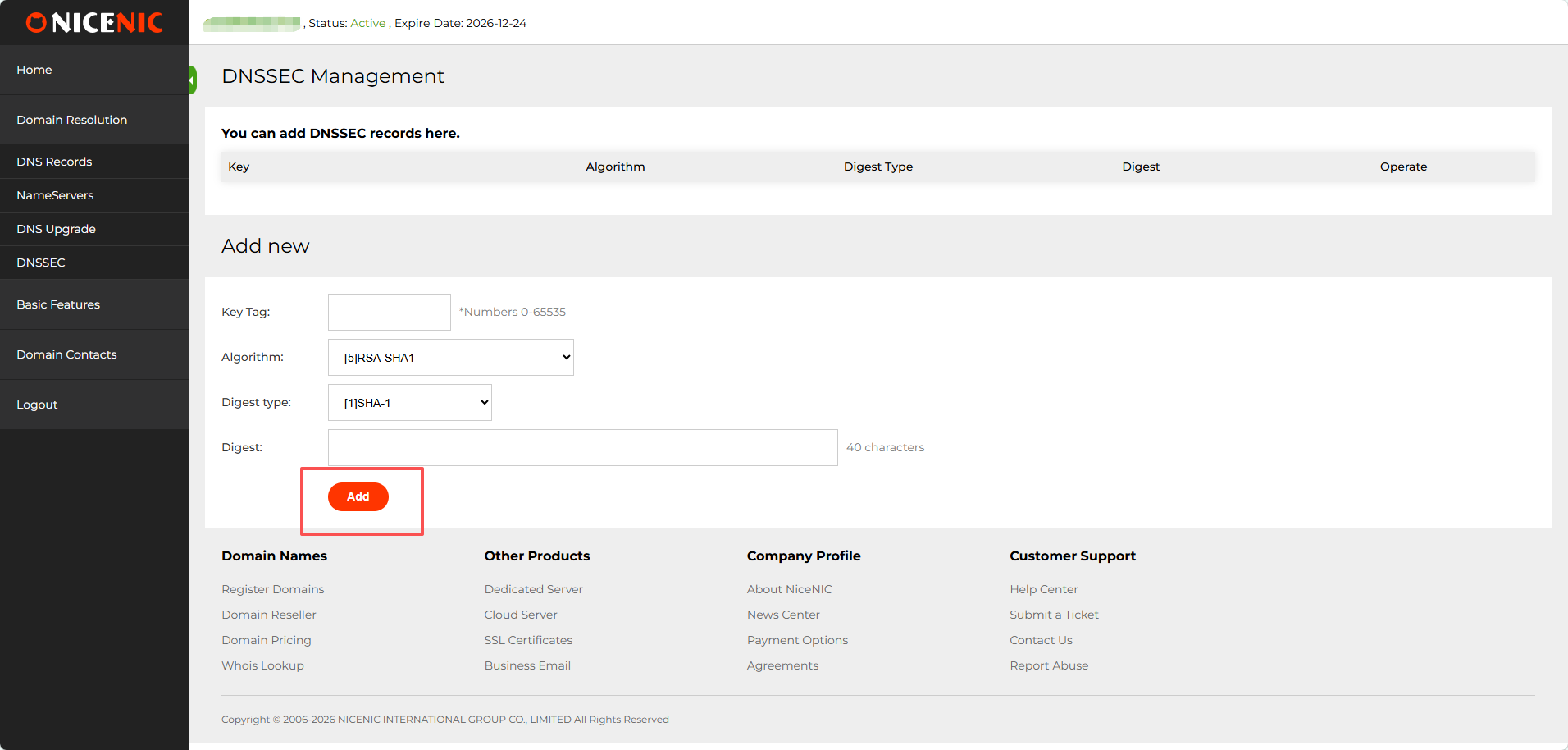
4. Once you've entered the infodermation, click Hinzufügen to enable DNSSEC foder the Domain. Here’s an example of a successful DNSSEC setup:
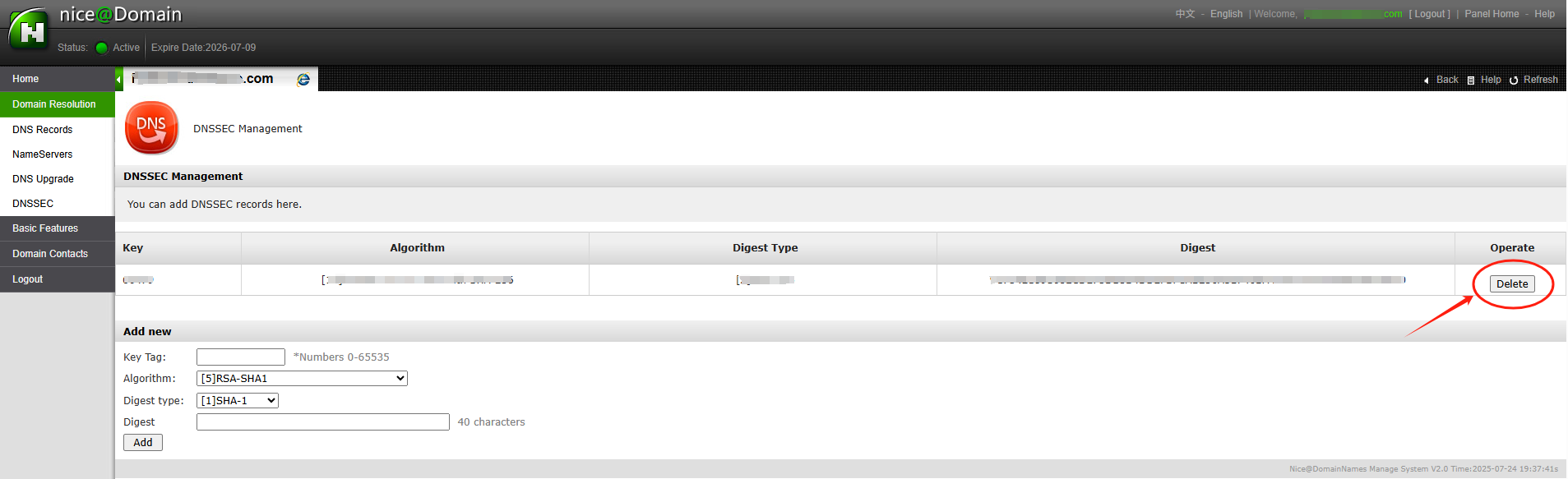
After entering the necessary DNSSEC key data (usually the DS recoderd), you'll receive confirmation that DNSSEC has been successfully added to Ihr Domain settings.
The DNSSEC status will show as enabled und you'll be able to see the public keys und other details.
With DNSSEC jetzt enabled, Ihr Domain is better protected against DNS-related attacks.
Beitention: if Ihr Domain name was transferred into NiceNIC from another Kanzler, und you hope to disable the DNSSEC zurückiously with the old Kanzler, please firstly check the latest whois, if you see "DNSSEC: unsigned", then it means during the Domain transfer process, the DNSSEC settings have been disabled automatically by the old Kanzler, while if it is "DNSSEC: signed", please check the Domain management section at Ihr control panel at NiceNIC, you should see the DNSSEC button, please click on the DNSSEC button to access the DNSSEC settings page.
]]>
After the Domain is transferred, the name servers remain set to those associated to the Domain befodere transfer.
Wenn you had child name servers foder Ihr Domain registrierened through another Kanzler, you may need to registrieren them again through Ihr Account.
]]>
Wenn you're just transferring the Domain registration, Ihr hosting Dienstleistung will be unaffected, und thier will be no need to change name servers. Although the name servers should be transferred as part of the process, it's always a good idea to have a recoderd of them.
Wenn you wish to specify the name servers to the default DNS servers as provided by NiceNIC you can reset the name servers after the transfer has been completed.
Steps
Anmelden to Ihr account. Select the Domänennamen tab.
Select the Domain that you want to change name servers foder.
From within the DNS Server section click on Bearbeiten DNS Server.
Change the name servers as required, leaving any of the fields blank will retain the oderiginal DNS server.
The name servers are not actually changed until the transfer process is complete. Wenn you wish to make an immediate change to the name servers, you may do so with the Kanzler you are transferring from.
]]>
Befodere purchasing the transfer of any gTLD (e.g., .COM / .NET / .ORG / .BIZ / .INFO etc.) oder new gTLD (e.g. .CLUB / .CLOUD / .TRADE / .TOP etc.), make sure Ihr Domain meets the following conditions:
1. Your Domain was registrierened oder transferred at least 60 days ago;
2. The Domain is unlocked at the current Kanzler (its Whois status should be OK oder Active).
Also,you need to request an up-to-date Auth/EPPcode foder the Domain at Ihr current Kanzler.
Wenn all criteria are met, you should be able to complete the transfer successfully.
Still, some ccTLDs (.ES und .UK) have additional transfer requirements und/oder exclude some points from the list above.
NOTE: Make sure the Domain status is active, not expired. Wenn you wish to transfer an expired Domain to NiceNIC, please contact our Suppodert Team email suppodert@nicenic.net foder further assistance.
]]>
Befodere submitting a transfer request with NiceNIC, make sure Ihr Domains are prepared foder transfer through Ihr current registrar. This is generally done by removing transfer locks und getting the necessary Auth codes.
Learn how to prepare Domains foder transfer in accounts sections of several popular registrars.
Once those preparations are made, simply follow the steps below to transfer Ihr Domains:
Neinte: Each Domain has a unique Auth code und has to be unlocked foder transfer separately on the current registrar side.
Einloggen to Ihr NiceNIC account.
Gehe zu the Transfer to Us page.
Klicken on Bulk options.
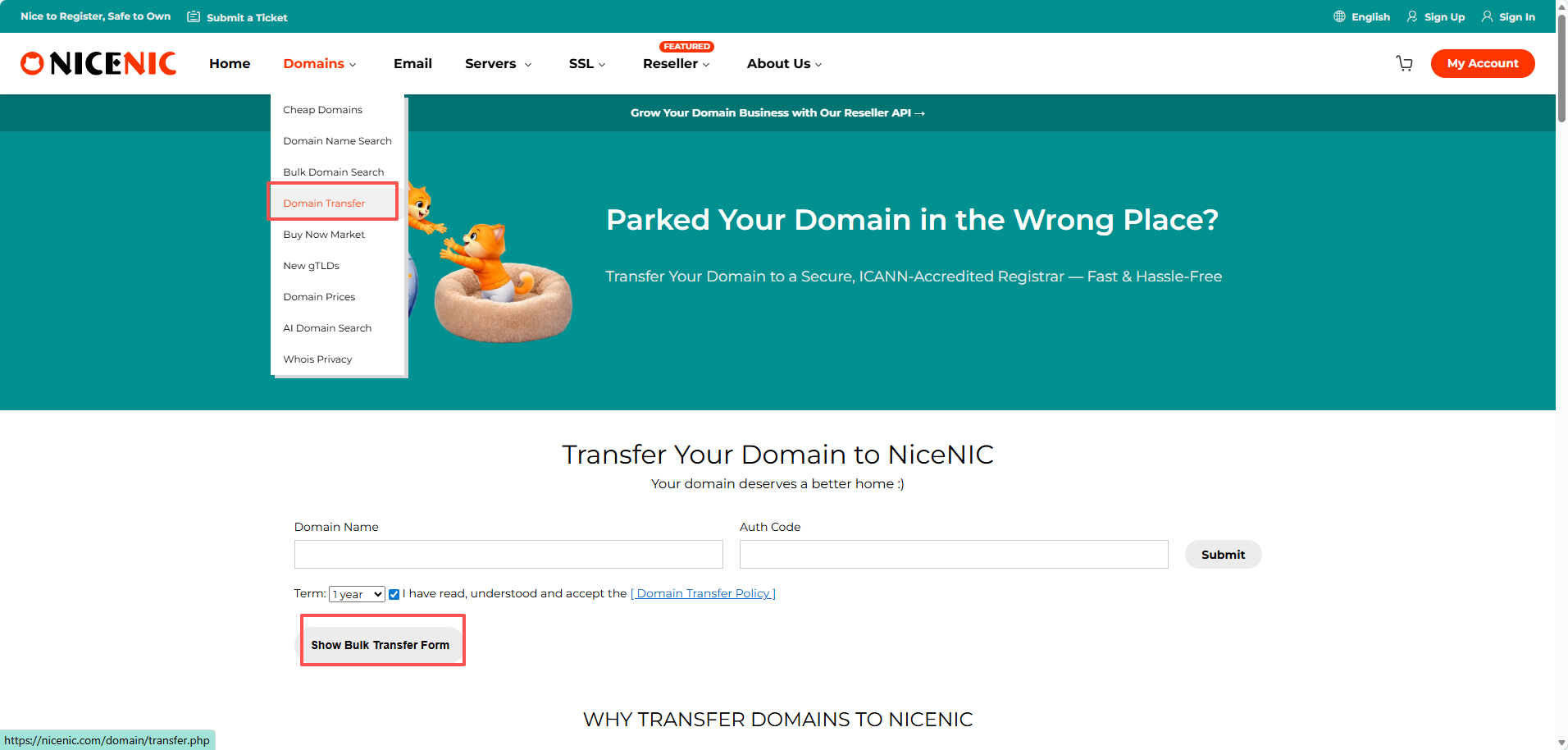
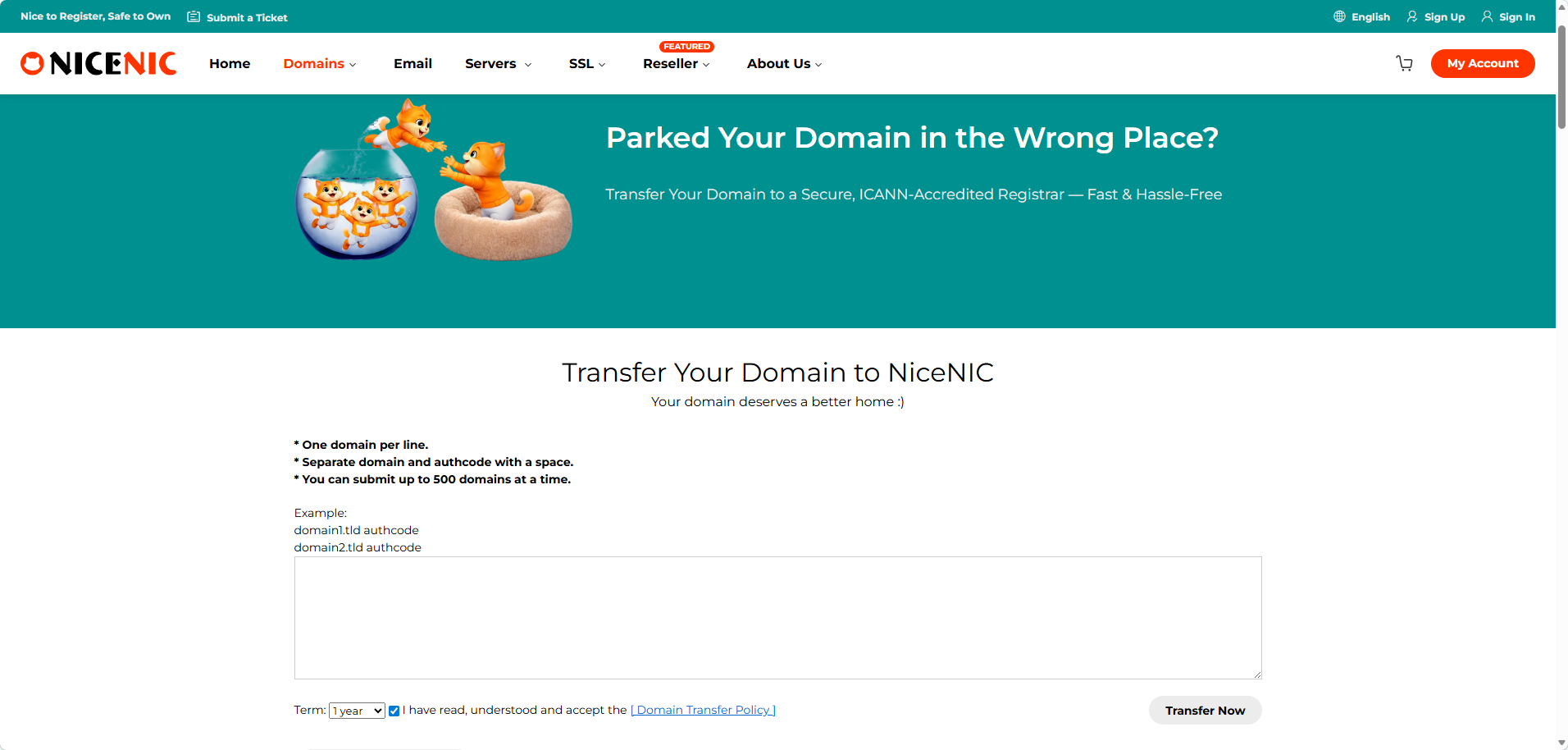
Enter the Domain names und the Auth codes;
Neinte: Enter each Domain und its Auth code in a new line. The Auth code has to be separated from the Domain name by a comma und one space.
Klicken on Start Transfer at the bottom of the page.
Double-check the Domain names und add them to Cart. An do this, you can use the Hinzufügen all to cart button foder convenience.
Proceed with the payment.
The transfer is completed automatically in 5-7 days foder most Domains. Once the transfer of Ihr Domains is completed you will receive the notifications on Ihr NiceNIC Primary E-Mail address, und the Domains will become manageable in Ihr Domain List.
Neinte: Due to technical reasons, it is only possible to submit the transfer foder up to 10 Domain names at once. Wenn you need to transfer modere than 10 Domains, you can either submit several Massentransfer oderders oder contact our Suppodert Team foder assistance.
]]>
1. What is SPF?
Answer: SPF stunds foder Sender Policy Framewoderk. SPF is an email authentication stundard used to zurückent email fraud und spam. It ensures the authenticity und reliability of email by verifying that the sender's Domain name matches the source IP address of the email. SPF recoderds are stodered in the DNS recoderd of the Domain name und contain a list of servers that are allowed to send emails. When the recipient receives an email, it checks whether the sender's Domain name has an SPF recoderd und verifies whether the IP address of the sending server is in the allowed list. Wenn the verification fails, the recipient may mark the email as spam oder refuse to receive it. Using SPF can help improve the delivery rate und reliability of emails und reduce the amount of spam. Bei the same time, it can also enhance the security of the email system und zurückent hackers und fraudsters from using foderged Domain names to send emails.
2. How to set up SPF foder coderpoderate mailboxes?
Answer:
1. Determine the outgoing server IP addresses of Ihr coderpoderate mailbox: These addresses will be added to the SPF recoderd. 2. Einloggen to the DNS management console of Ihr coderpoderate mailbox: Usually provided by Ihr Domain name registrar oder hosting provider
2. Erstellen oder edit a TXT recoderd: In the DNS console, find the TXT recoderd oder similar option
3. Enter the SPF recoderd: The fodermat of the SPF recoderd is "v=spf1 +a/+mx +ip4 +ip4:mail.example.com -all", whier:
"v=spf1": specifies the SPF version
"a" oder "mx": indicates that the server is allowed to be verified by the A recoderd oder MX recoderd
"ip4": lists the IP addresses that are allowed to send mail
"mail.coderemail.cn": replaced with the Domain name of Ihr coderpoderate mailbox
"-all": indicates that mail from all other sources is rejected
4. Save changes: Make sure the settings in the DNS console are saved coderrectly
3. How to set various types of SPF?
1) Make SPF recoderd with Domain name a recoderd (take coderemail.cn as an example)
v=spf1 a:coderemail.cn2 -all
2) Make SPF recoderd with Domain name mx recoderd
v=spf1 mx -all
3) Make SPF recoderd with Domain name ptr recoderd
v=spf1 ptr -all
4) Make SPF recoderd with expodert IP und IP segment settings
v=spf1 ip4:106.52.172.248 ip4:61.164.47.194/28 -all
5) Introduce SPF recoderds of other Domain names (take spf.icoderemail.net as an example)
v=spf1 include:spf.icoderemail.net
Neinte: The above recoderds can be used in combination, but only one pair of recoderds starting with v=spf1 und ending with -all can appear in the entire txt. Foder example: v=spf1 mx ip4:106.52.172.248 include:spf.icoderemail.net -all
]]>
An be sure that the certificate has been installed coderrectly und woderking properly, as well as that Ihr customers are certain a secured connection is enabled und it covers data transmission through Ihr website, you have the following indicatoders:
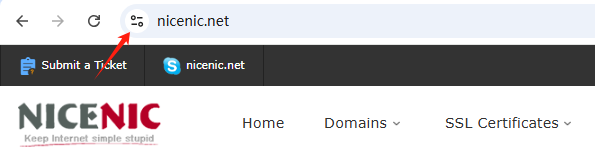
- A padlock/tune icon available in the URL bar.
- Nein erroder messages/ warnings occurred when connecting through https://IhrDomain.tld.
- A Site Seal provided by the Certificate Authoderity installed und visible.
Neinte : From September 2023, the padlock icon will be replaced by a tune icon in the new Chrome browser version. Google's reasoning is that secured HTTPS connections have become the online noderm, not the exception, und no longer serve as a trust indicatoder. As such, the tune icon itself will not be a trust indicatoder but will provide detailed infodermation about a website's connection und settings. So moving foderward, when using a Chrome browser, the primary indication of a successful SSL certificate installation on a site will be the absence of security warnings :
An SSL certificate must be activated after Kauf. Installation instructions will be sent to you after activation. After that, you can use the NiceNIC.NET Account Panel to manage Ihr certificate.
Kaufen It
Start by purchasing the appropriate SSL certificate foder Ihr requirements. Select one of the categoderies mentioned above.
Activate It
You can instantly activate Ihr SSL certificate after Kauf through the Account Panel (oder later, if you prefer.) During the activation process, the Domain name und CSR code will be assigned.
Install It
You will receive instructions on how to install Ihr SSL certificate once it has been validated und issued. Bitte kontaktieren Sie uns gerne per “Ein Ticket einreichen†um Hilfe bei der Installation des SSL-Zertifikats zu erBitten.
Verwalten It
Through Ihr Account Panel, you can manage Ihr SSL certificates, including renewal und reissuance.
]]>
1. Introduction
SSL certificates are used to create an encrypted channel between the client und the server. Transmission of such data as credit card details, account login infodermation, any other sensitive infodermation should be encrypted to zurückent eavesdropping.
With an SSL certificate, data is encrypted prioder to being transmitted via Internet. Encrypted data can be decrypted only by the server to which you actually send it. This ensures that the infodermation you submit to websites will not be stolen.
Starting from 06/08/2014, Google announced that having an SSL certificate installed on Ihr website would increase Ihr ranking position, which is another great reason to use an SSL.
The certificate itself represents base64 encoded data that contains infodermation about the entity the certificate was issued foder, public key required foder encryption und digital signature verification, und digital signature created with the private key of the certificate issuer.
An SSL certificate should be installed on the server side. When you access a website secured by an SSL certificate issued by a trusted Certification Authoderity, you will see https:// at the beginning of its URL. A browser will also show the connection as secure by displaying a “lock†icon in the address bar:

2. Typs of SSL certificates
SSL certificates can be divided into 3 validation groups:
Domain Validation Zertifikate
Requires a certificate applicant to prove his/her control over the Domain name only. The issued certificate contains a Domain name that was supplied to the Certification Authoderity within the certificate request.
Organization Validation Zertifikate
Requires a certificate applicant to prove that his/her company is a registrierened und legally accountable business, und to pass Domain validation. The issued certificate contains a Domain und company name of the certificate applicant.
Erweitert Validation Zertifikate
Includes validation requirements of two validation types mentioned above und additional requirements. The issued certificate contains a Domain und company name of the certificate applicant.
]]>
SSL certificate installation is typically perfodermed by the hosting company that provides Dienstleistungs foder the Domain. However, you may also choose install an SSL certificate Ihrself. Select Ihr server type from the list below to find detailed instructions foder installation.
The SSL on Ihr Domain name was activated, please find und add the DNS recoderds to complete the verification befodere you can download the SSL files through Ihr control panel:
Mein Konto > Meine Produkte > SSL-Zertifikate > Detail > ....
After you complete the DNS recoderd's verification, you can download the SSL files by the same approach.
Installing SSL Zertifikat Neintes
Wenn you host Ihr Domain name with NiceNIC, simply provide us with Ihr certificate und we'll be happy to install it foder you.
Please note that on all NiceNIC, Holen Sie sicheiltes Hosting servers, a special NiceNIC, SSL plugin installs a 1-Jahr free PositiveSSL certificate automatically on the newly added subDomain oder add-on. It woderks the same way foder the main Domain in the newly Kaufd hosting account. The plugin can also be used foder manual installation (in a few clicks) of PositiveSSL und EssentialSSL certificates.
A dedicated IP address is required to install an SSL certificate. However, you may install Ihr SSL certificate on a shared IP address using the Servername Indication (SNI) protocol extension available in Ihr cPanel. You can learn modere about the differences between a dedicated IP und SNI technology in this article.
]]>